Getting Started
Welcome to your new Veyur theme! This guide provides a detailed walkthrough of every section and setting.
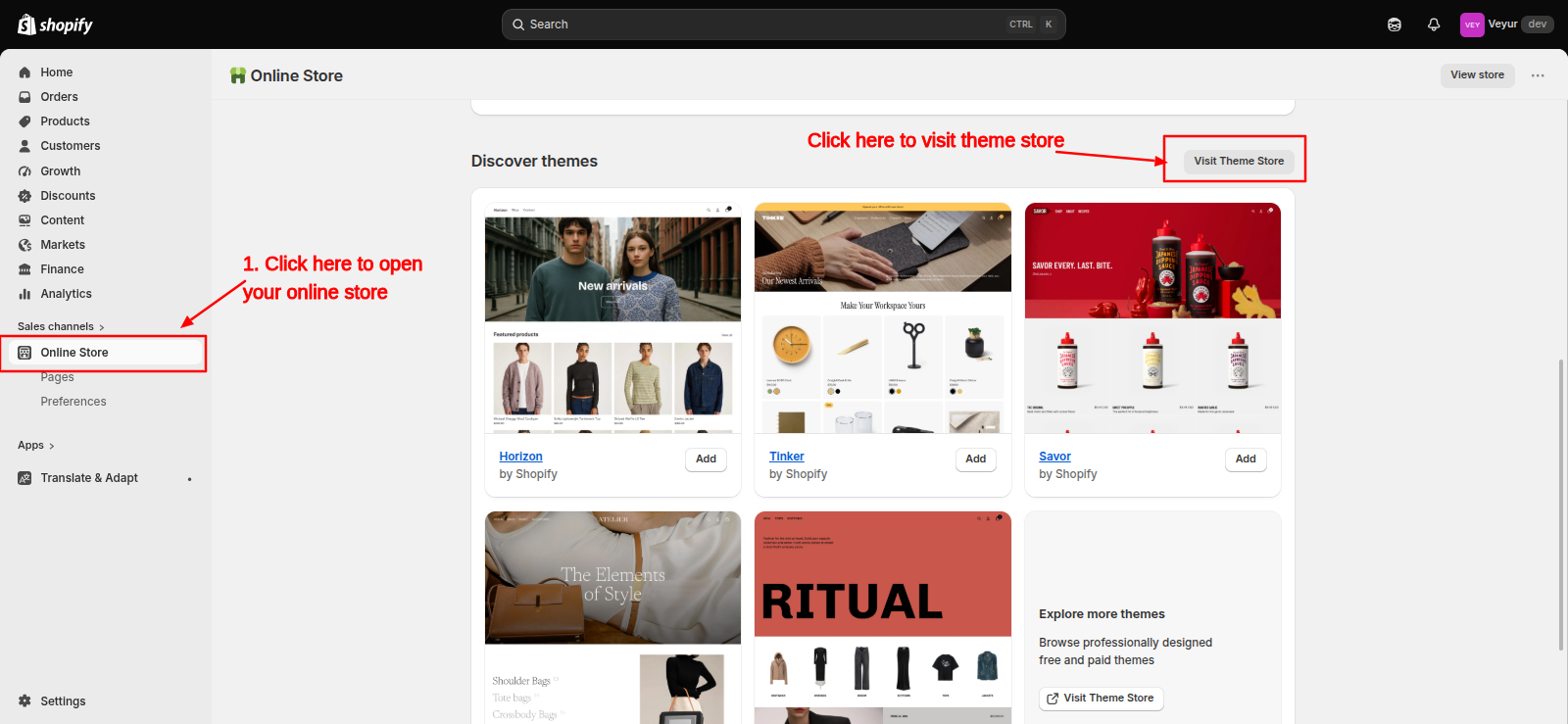
Installing the Theme
Through SHopify App Store
Search for "Veyur" in the Shopify App Store and click "Add Theme".
Manual Upload
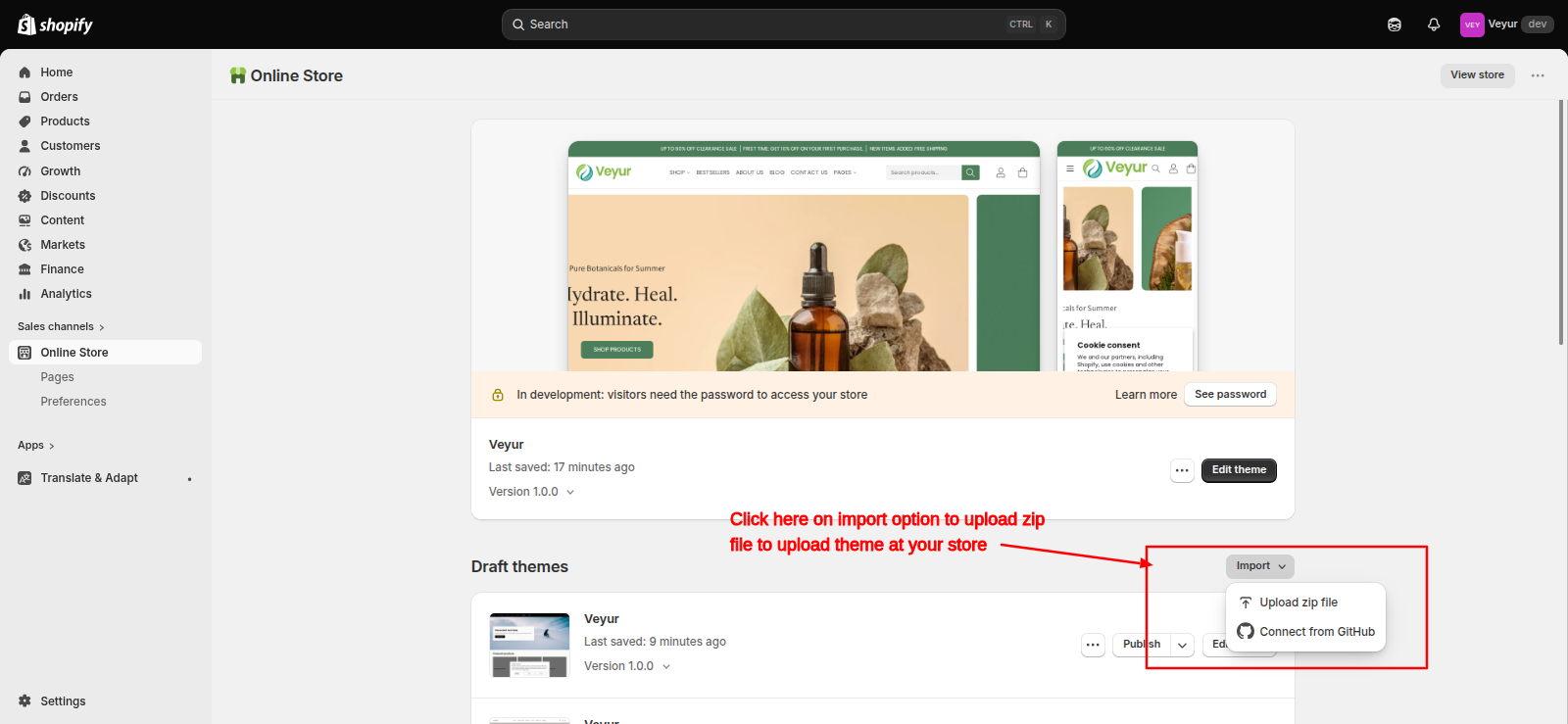
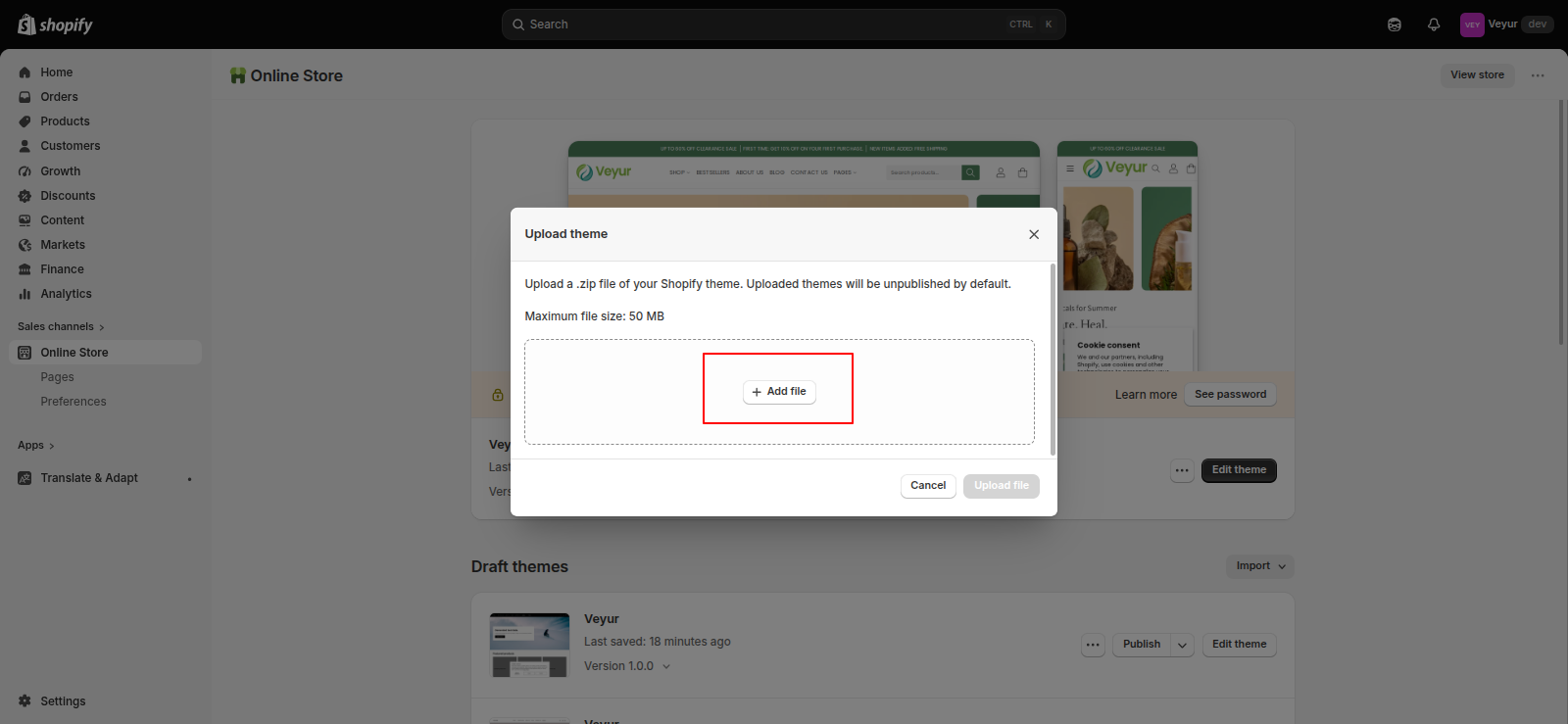
To upload your theme file (the .zip you downloaded):
- Go to Online Store > Themes in Shopify.
- Click Add theme > Upload zip file.
- Once uploaded, click Customize to start editing.
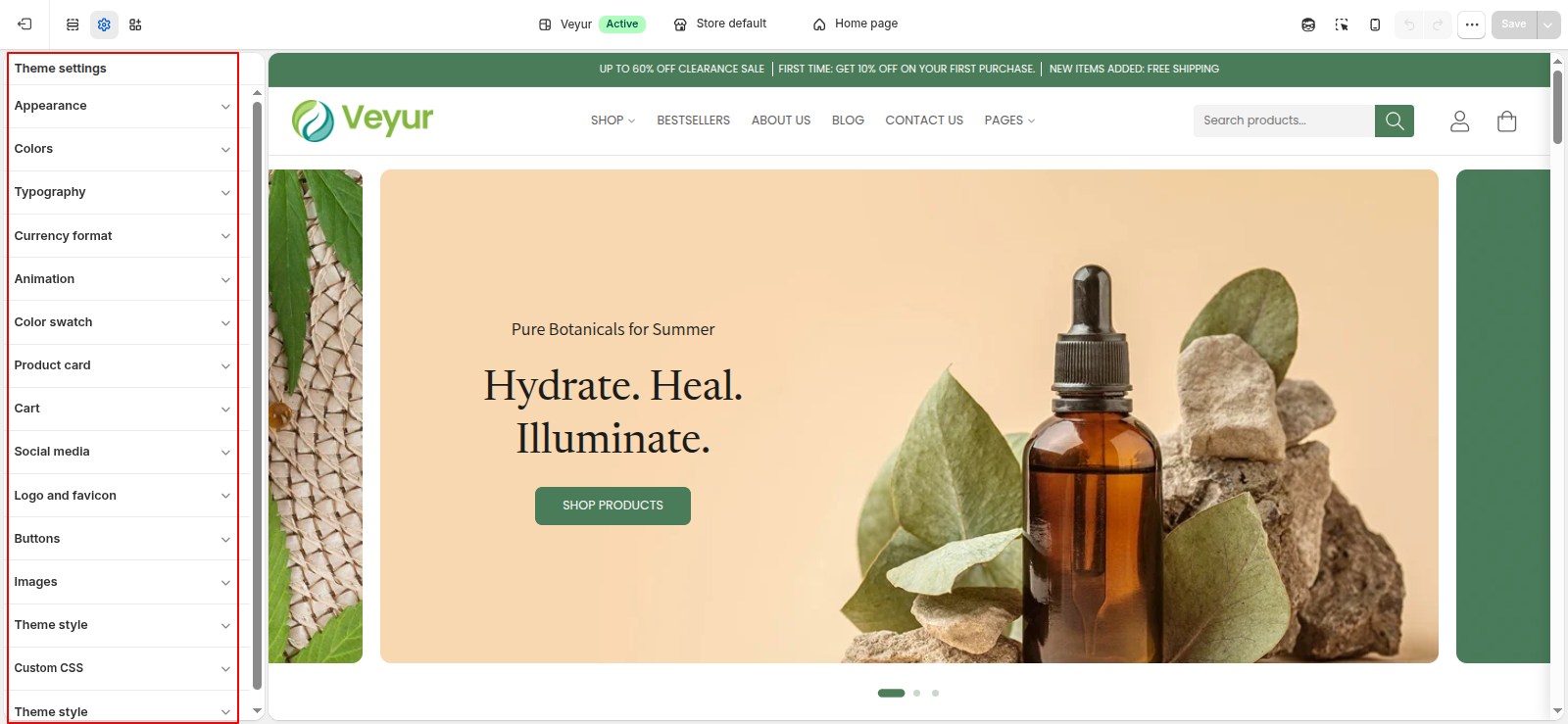
Theme Settings
You can use theme settings to make changes to your online store’s typography, colors, social media links, cart, Authentication pages, Account pages, buttons, Inputs, Compare button, Gift card page, and checkout settings. When you make changes to your theme settings, the changes apply to your entire online store.
Color Scheme
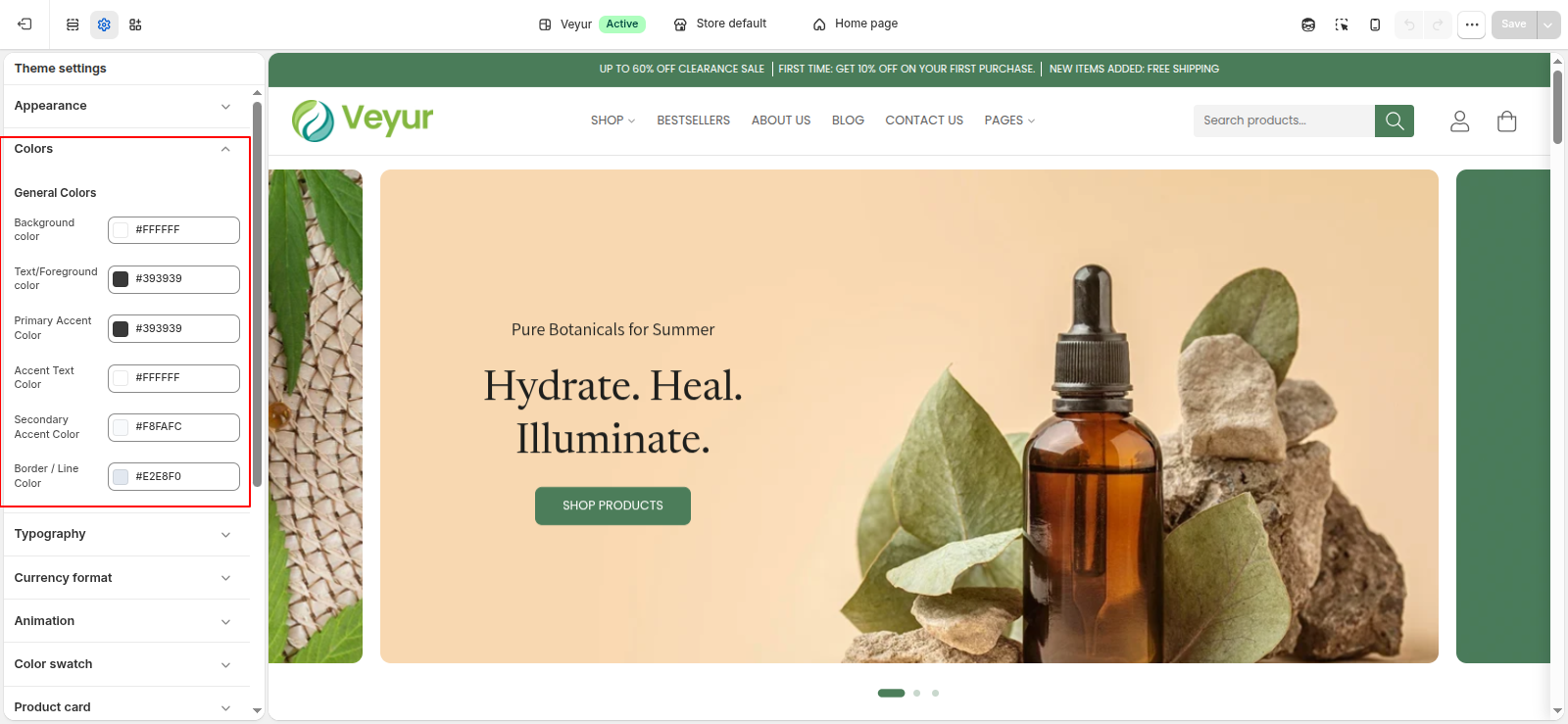
From here, you can select the colors you want to use throughout the theme. You can create multiple unique color schemes and apply them to different sections throughout your online store.
Customize your color scheme:
- From your shopify admin, go to Online Store > Themes
- Click Customize next to the theme that you want to customize.
- Click the settings icon, and then click Color schemes.
- In the Schemes section, click an existing scheme or click Add scheme to add a new color scheme.
- Click the color swatch for the content type color that you want to change.
- To set your color, enter a hex color code or choose the color from the color picker. To set the color to transparent, delete the hex code from the text field.
- Click Save.
Authentication & Account Pages
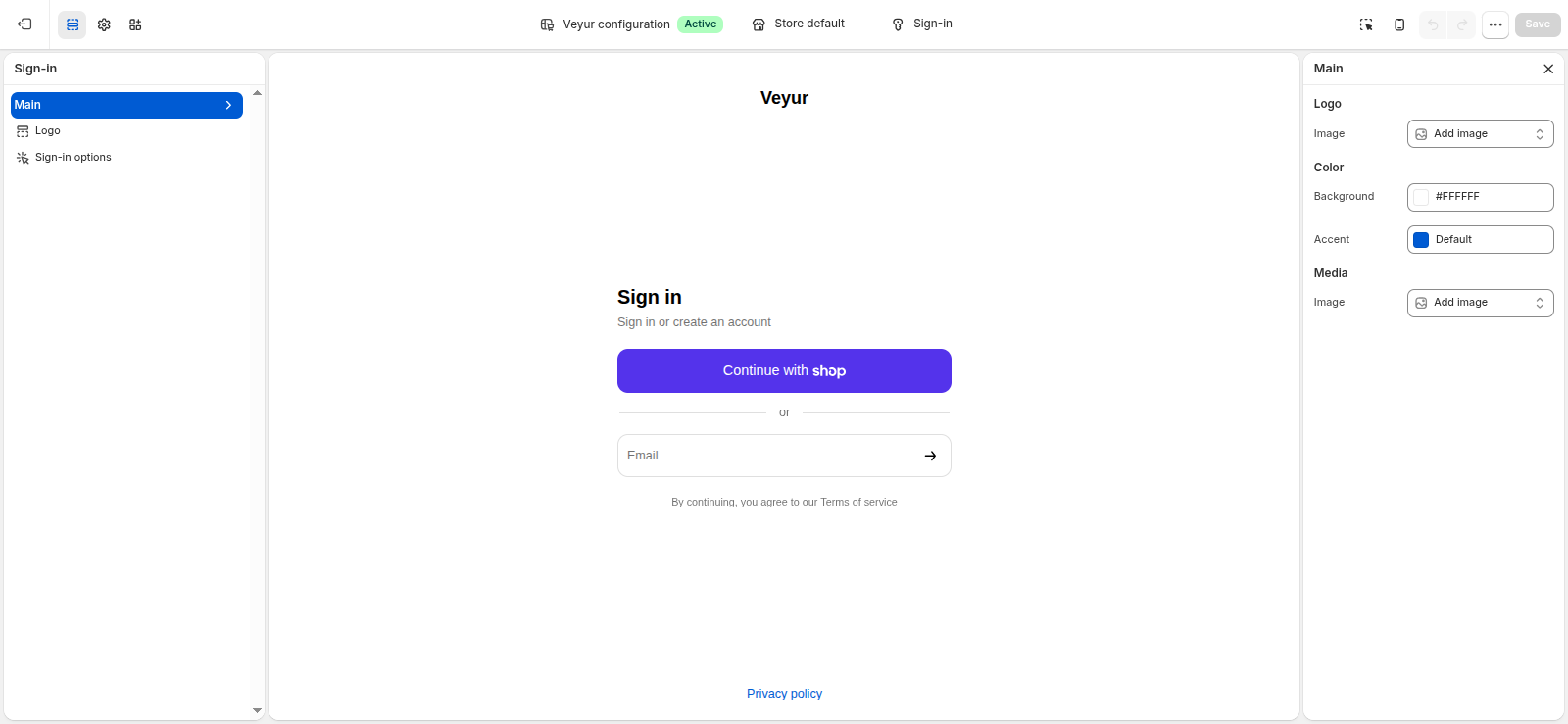
You can set logo banner image for all Account pages. Note – Only visible for desktop.
Customize your Authentication pages:
- From your shopify admin, go to Online Store > Themes
- Click Customize next to the theme that you want to customize.
- Click the settings icon, and then click Authentication pages.
- Click on the change button to change the color scheme. By default color scheme 4 is applied for Authentication pages.
- By moving the range slider to change the Top/Bottom padding.
- Click Save.
Customize your Account pages:
- From your shopify admin, go to Online Store > Themes
- Click Customize next to the theme that you want to customize.
- Click the settings icon, and then click Account pages.
- Click on the change button to change the color scheme. By default color scheme 1 is applied for Account pages and color scheme 4 is applied to sidebar sections.
- By moving the range slider to change the Top/Bottom padding.
- Click Save.
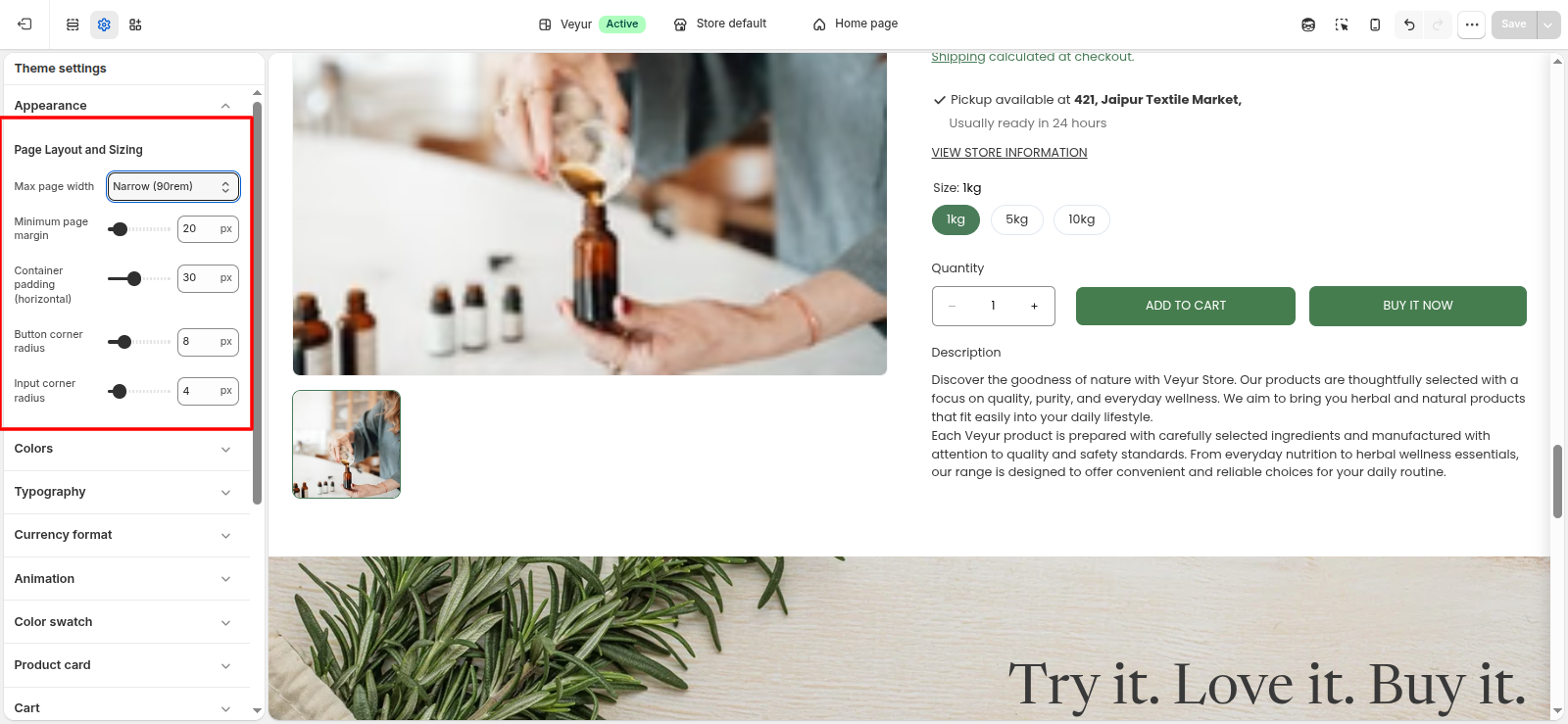
Customize Layout
- From your shopify admin, go to Online Store > Themes
- Click Customize next to the theme that you want to customize.
- Click the settings icon, and then click Layout.
- By moving the range slider to choose between a page width of 1200px to 1600px. The default setting is 1410px.
- Optional: If you have a Grid layout, then use the Horizontal space and Vertical space range slider to add space between grid content. Adding horizontal space will add a maximum of 40px of space to your rows, whereas adding vertical space will add a maximum of 40px of space to your columns.
- By moving the range slider to change the Top/bottom corner radius. The default setting of Top/Bottom border radius is 20px.
- Click Save.
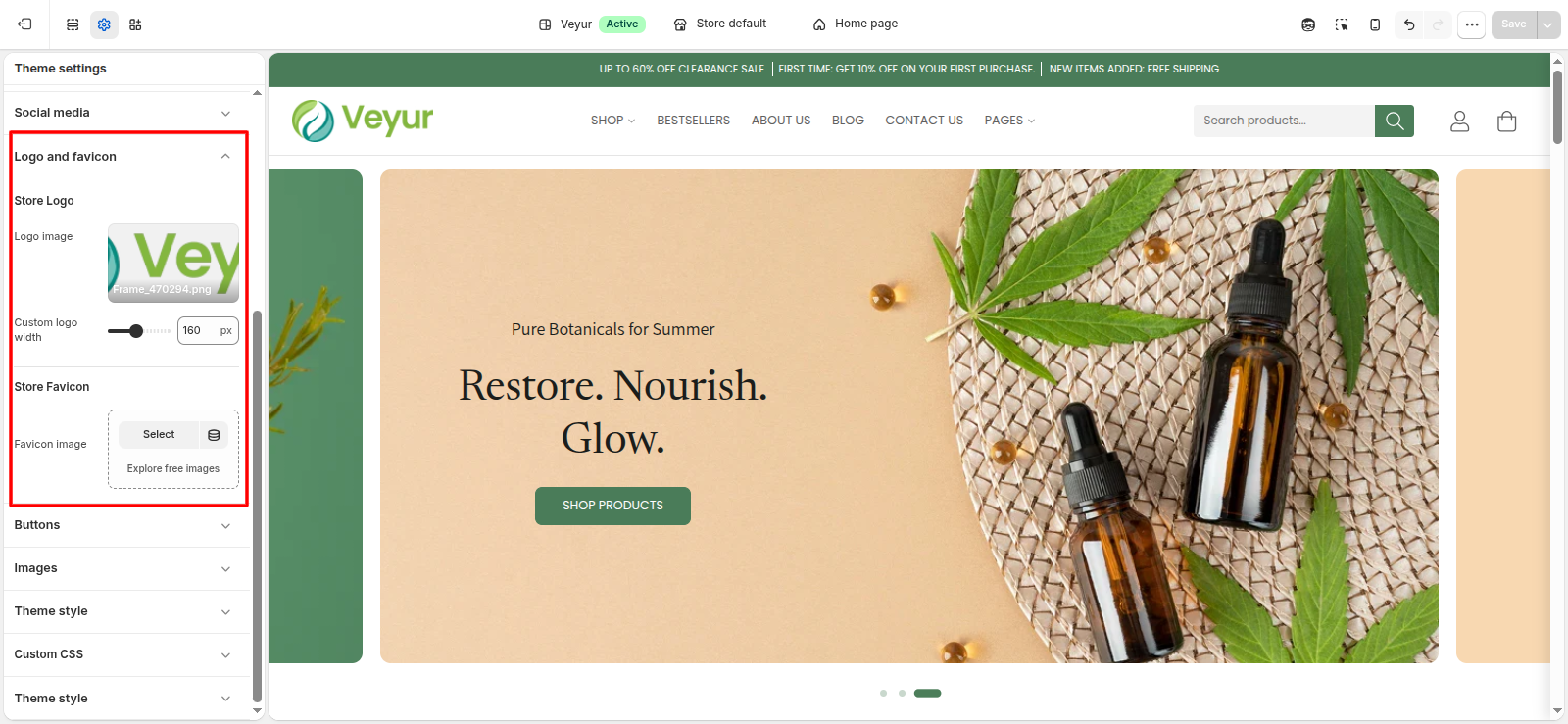
Customize General Settings
- From your shopify admin, go to Online Store > Themes
- Click Customize next to the theme that you want to customize.
- Click the settings icon, and then click General.
- In the Favicon image area, click Select image, and then do one of the following:
- To use an image that you have already uploaded to your Shopify admin, click an image to select it and then click Select.
- To use an image from your local computer, click Upload. Choose an image from your computer and click Open to start the upload. It will be automatically selected when the upload is finished. Click Select.
- To select a free image, click free images and search for a click an image to select it.
- The recommended size for a Favicon is 32 x 32px.
- Select this checkbox to show/hide the currency code. Cart and checkout prices always show currency codes. Example: $1.00 USD.
- Select this checkbox to Enable/disable the back to top button.
- Select this checkbox to Enable/disable the color swatches in Product card variants.
- Click Save.
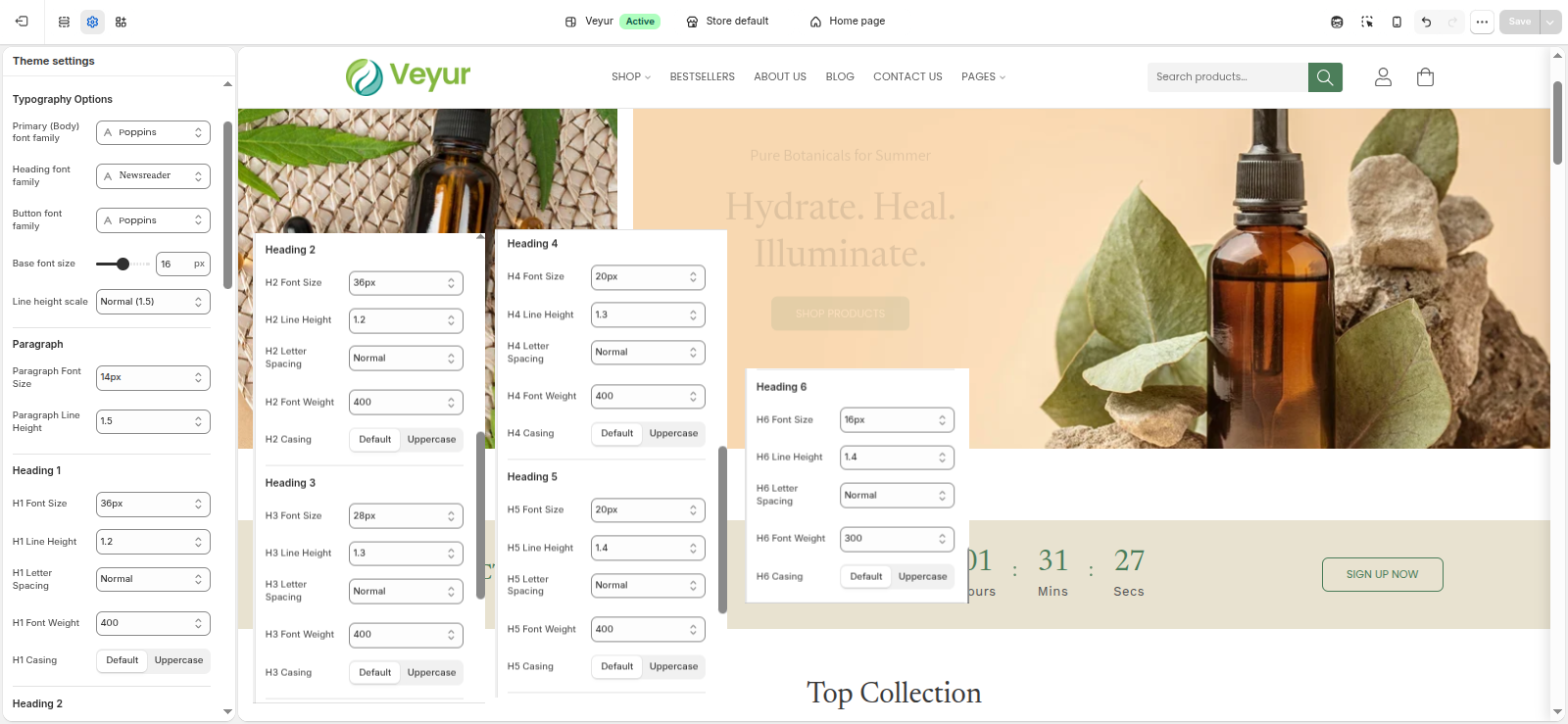
Customize Typography
- From your shopify admin, go to Online Store > Themes
- Click Customize next to the theme that you want to customize.
- Click the settings icon, and then click Typography.
- For each type of text, click Change to use the font picker.
- Explore available fonts with the search fields or by clicking Load more.
- Click the name of the font you want to use, and then click Select.
- To change the default font size for body, use the Font size scale to select the default font size. The minimum font size is 100% and the maximum font size is 150%. Each increment of the scale increases the font size by 5%. The default setting is 100%.
- Click Save.
Buttons
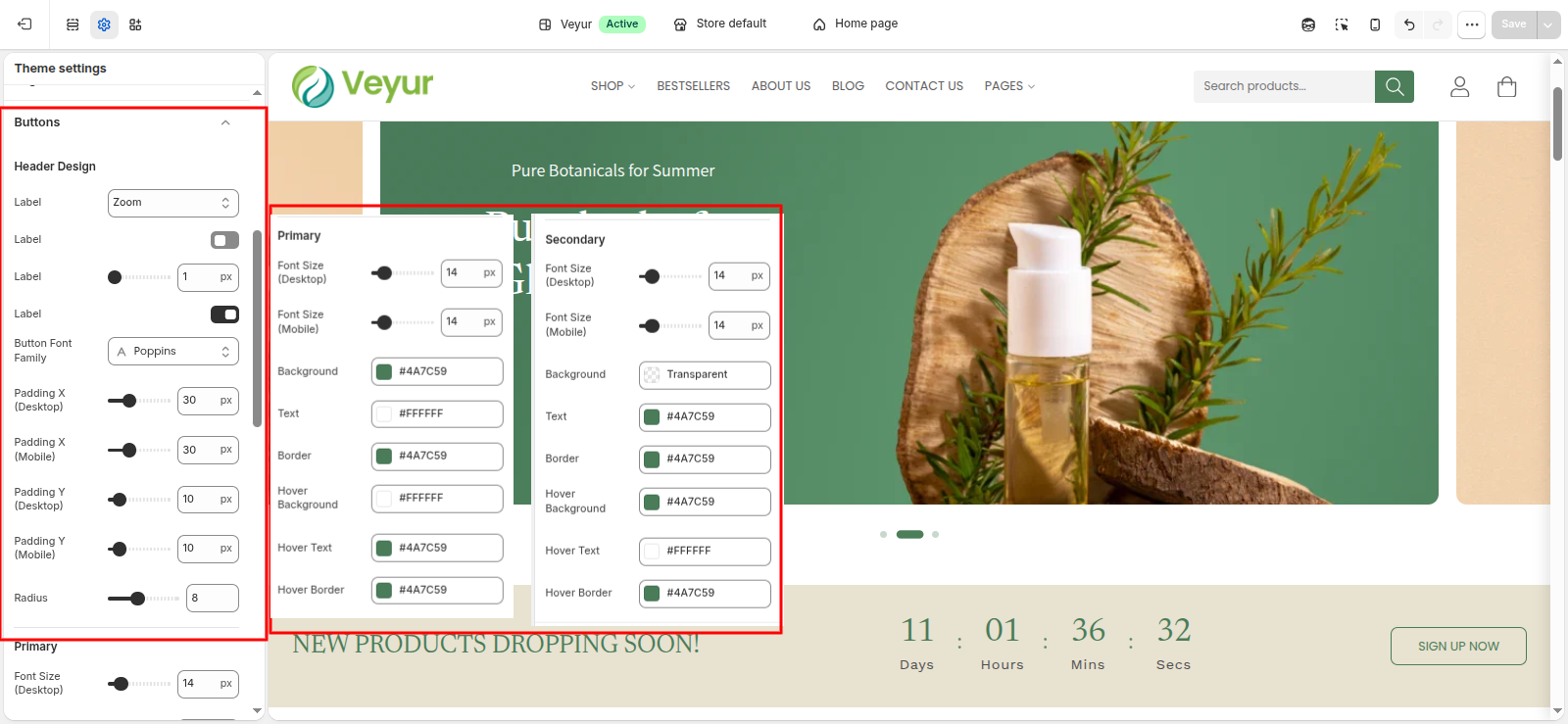
You can adjust the borders and thickness of some interactive content types, such as drawers, buttons, variants or quantity inputs.
Customize Buttons:
- From your shopify admin, go to Online Store > Themes
- Click Customize next to the theme that you want to customize.
- Click Theme settings > Buttons.
- By moving the range slider to change the appearance of your button Border.
- By moving the range slider to change the Corner radius of your button. The default setting is 9px.
- Click Save.
Inputs
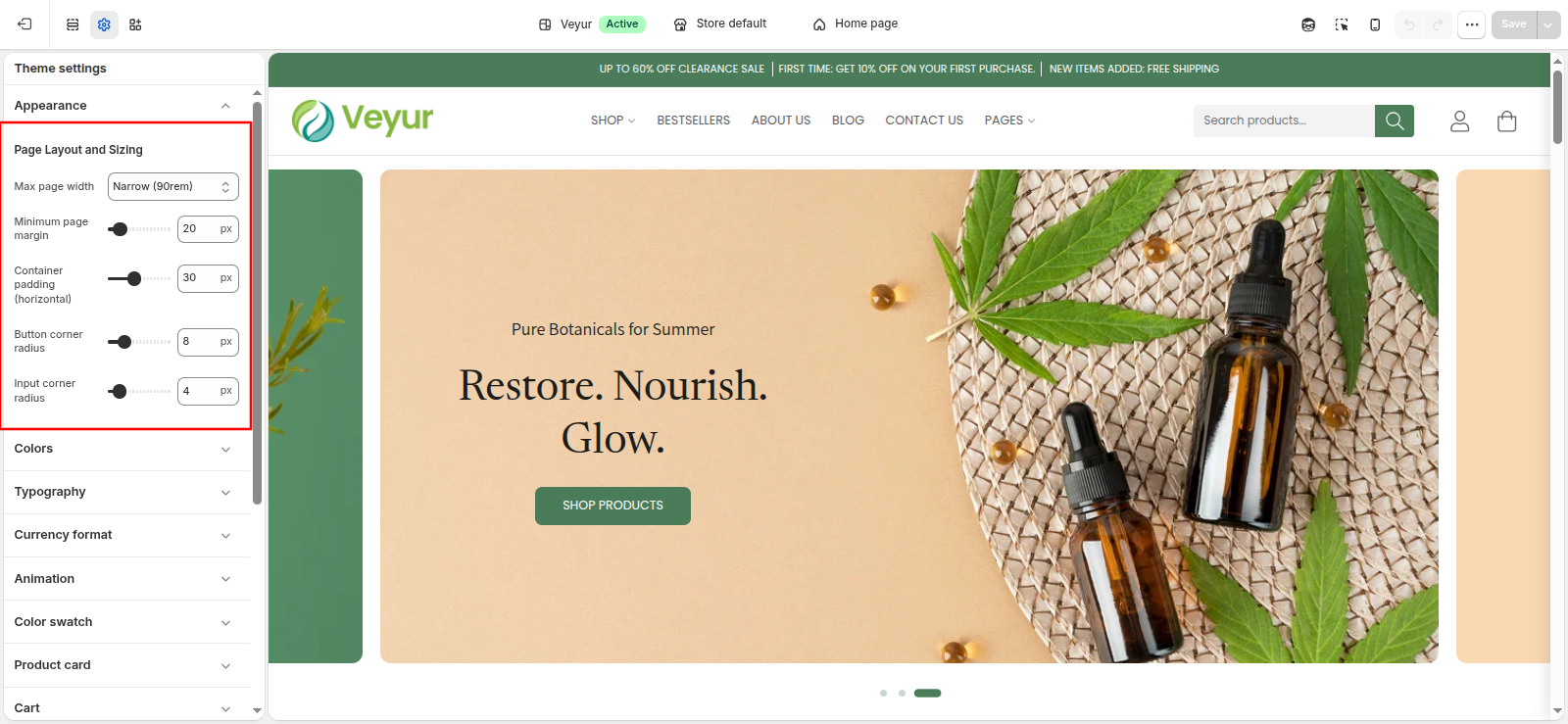
Inputs are interactive areas that require customer input, for example a quantity selector, an email signup form, or cart notes.
Customize Inputs:
- From your shopify admin, go to Online Store > Themes
- Click Customize next to the theme that you want to customize.
- Click Theme settings > Inputs.
- By moving the range slider to change the appearance of your input Border.
- By moving the range slider to change the Corner radius of your input. The default setting is 9px.
- Click Save.
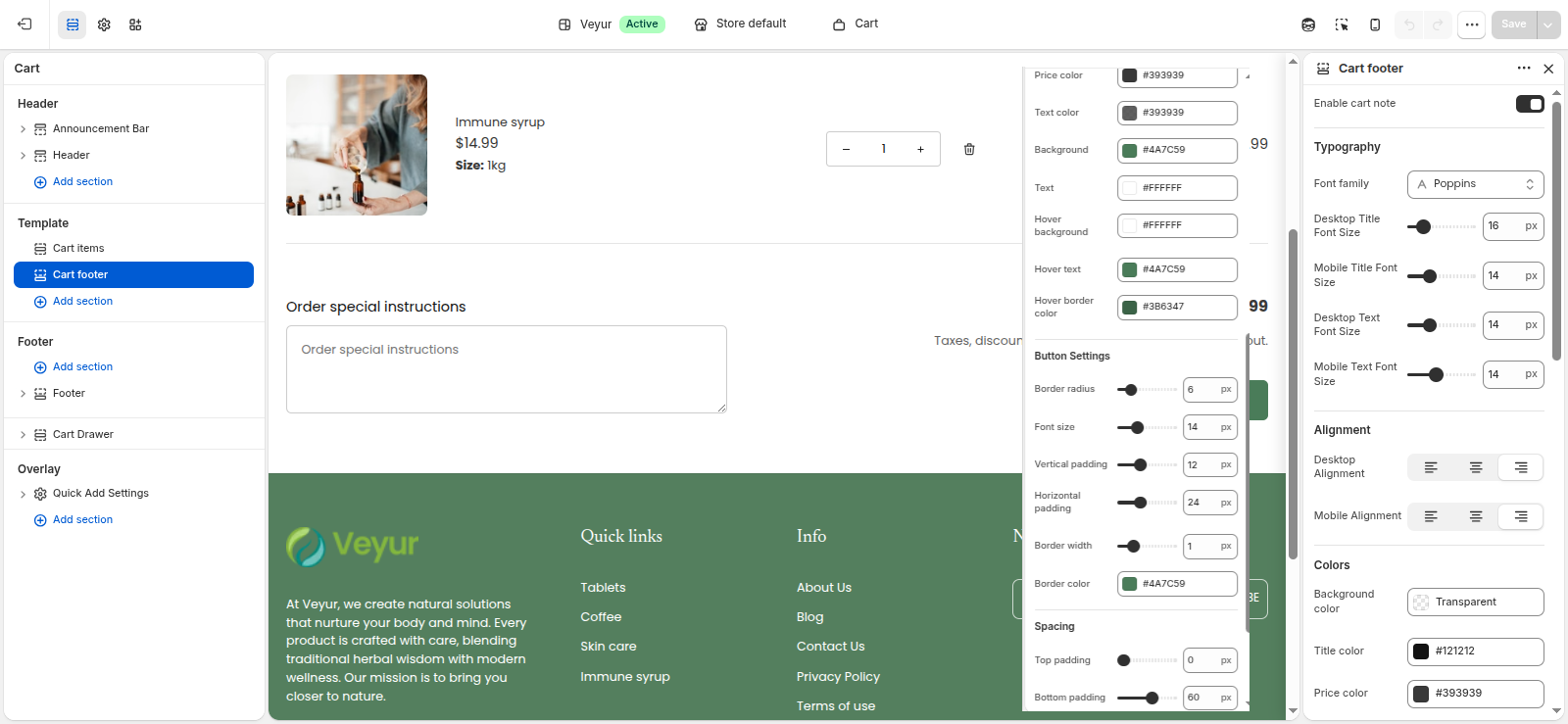
Cart
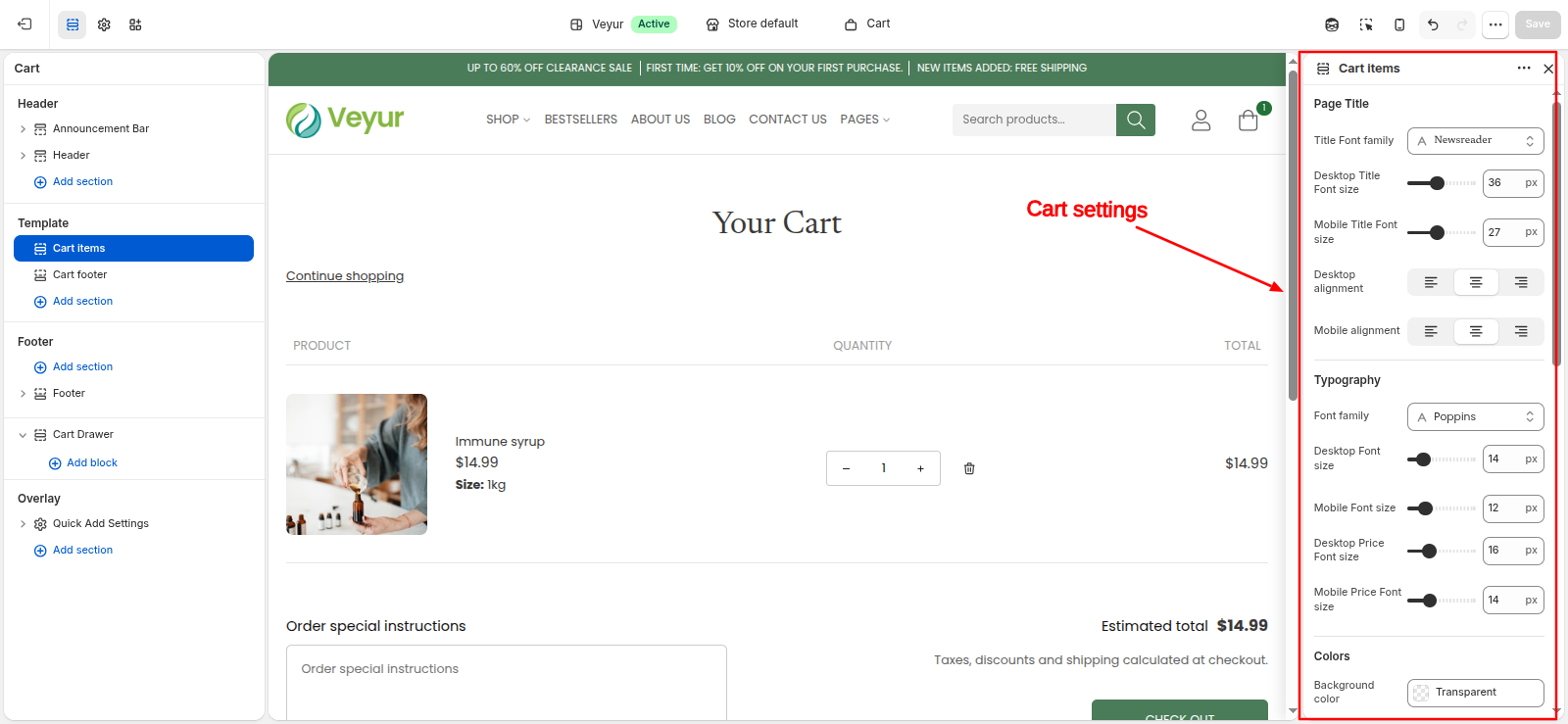
You can change the style of the cart on your online store. When the customer’s cart is empty, you can display a featured collection on the cart drawer.
Customize Cart:
- From your shopify admin, go to Online Store > Themes
- Click Customize next to the theme that you want to customize.
- Click Theme settings > Cart.
| Setting |
Description |
| Enable cart notes |
Select this checkbox to show/hide the cart note text field in the cart. |
| Color scheme |
A set of colors that you can apply to this section. |
| Enable vendor |
Displays the vendors of the products. |
| Enable free shipping message bar |
Select this checkbox to enable/disable the shipping bar on the cart.
Note – This feature only works with a shipping method. If you’re using multiple shipping methods, it might show false values to the customers. Refer to Free shipping guide for more information on setting up the free shipping feature in Kidu. |
| Message |
Type any relevant message to notify the users has reached the minimum shipping price.
Note – Use ||amount|| to display the amount within the message. |
| Minimum shipping price |
Type any price for providing free shipping to the customers. After reaching this price, the user will be shown a success message.
Note – Users must write a number, no letters or special characters. |
| Welcome message |
This is show the success message after the user has reached the minimum shipping price. |
| Related product slideshow settings |
Customize this section by using the settings on the right side of the theme editor, as described in the following table. |
| Title |
Enter any text to appear as the rotating text in the cart drawer. |
| Related collection |
Selecting this will show the related products setup from Search and discovery app. |
| Max products to show |
Adjust this range bar to select the number of products. |
| Auto-play slides |
Select this checkbox to enable/disable the “Auto-play slides” option in the slider. It keeps changing slides automatically on the storefront. |
| Show next/previous arrows |
Select this checkbox to enable/disable the “Show next/previous arrows” option in the slider.
Note - Arrows will be visible only on desktop. |
| Change slides every |
This settings will only work when the “Auto-play slides” option is enabled. And, it only provides a range of 2 to 9 seconds.
Note - This will only work if auto-play is enabled. |
Compare
Customize Compare:
- From your shopify admin, go to Online Store > Themes
- Click Customize next to the theme that you want to customize.
- Click Theme settings > Compare.
- Click the Color scheme.
- In the Schemes section, click an existing scheme or click Add scheme to add a new color scheme.
- Click the color swatch for the content type color that you want to change.
- To set your color, enter a hex color code or choose the color from the color picker. To set the color to transparent, delete the hex code from the text field.
- Click Save.
Gift
Customize Gift:
- From your shopify admin, go to Online Store > Themes
- Click Customize next to the theme that you want to customize.
- Click Theme settings > Gift.
- Click the Color scheme.
- In the Schemes section, click an existing scheme or click Add scheme to add a new color scheme.
- Click the color swatch for the content type color that you want to change.
- To set your color, enter a hex color code or choose the color from the color picker. To set the color to transparent, delete the hex code from the text field.
- Click Save.
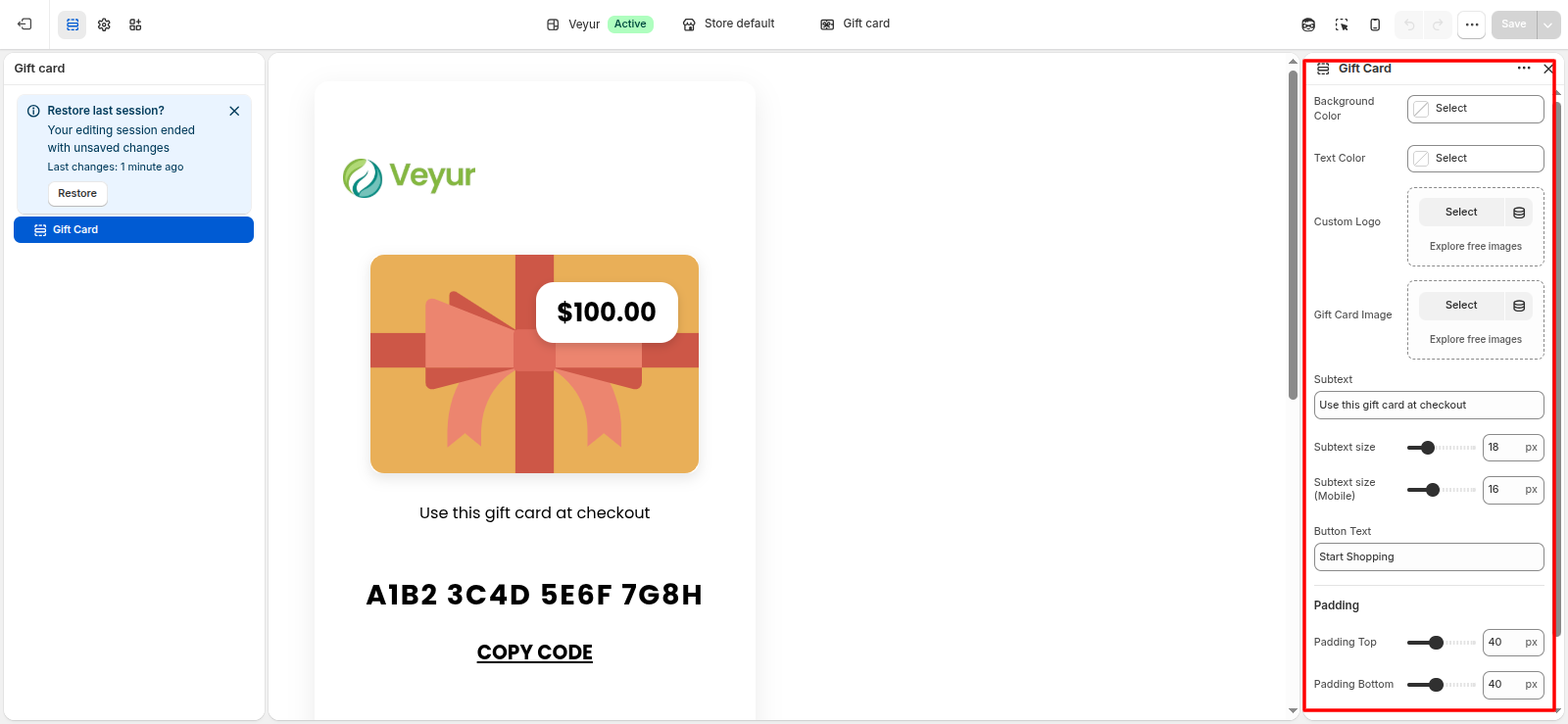
Social media
Customize Social media:
- From your shopify admin, go to Online Store > Themes
- Click Customize next to the theme that you want to customize.
- Click Theme settings > Social media.
- To add links to your social media accounts, enter the links to your accounts in the fields provided under Accounts. Enter full links, such as https://instagram.com/shopify, https://facebook.com/shopify.
- Click Save.
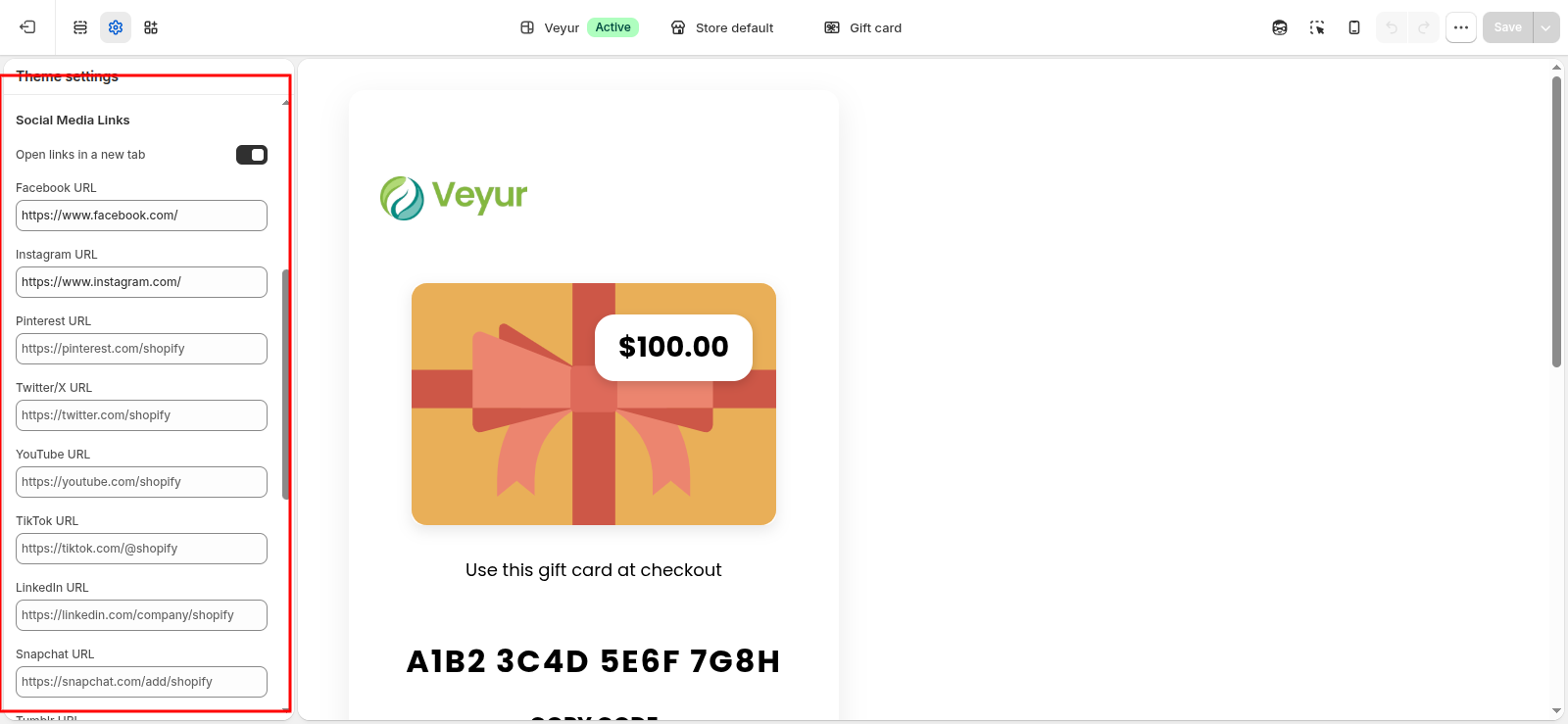
404 Page
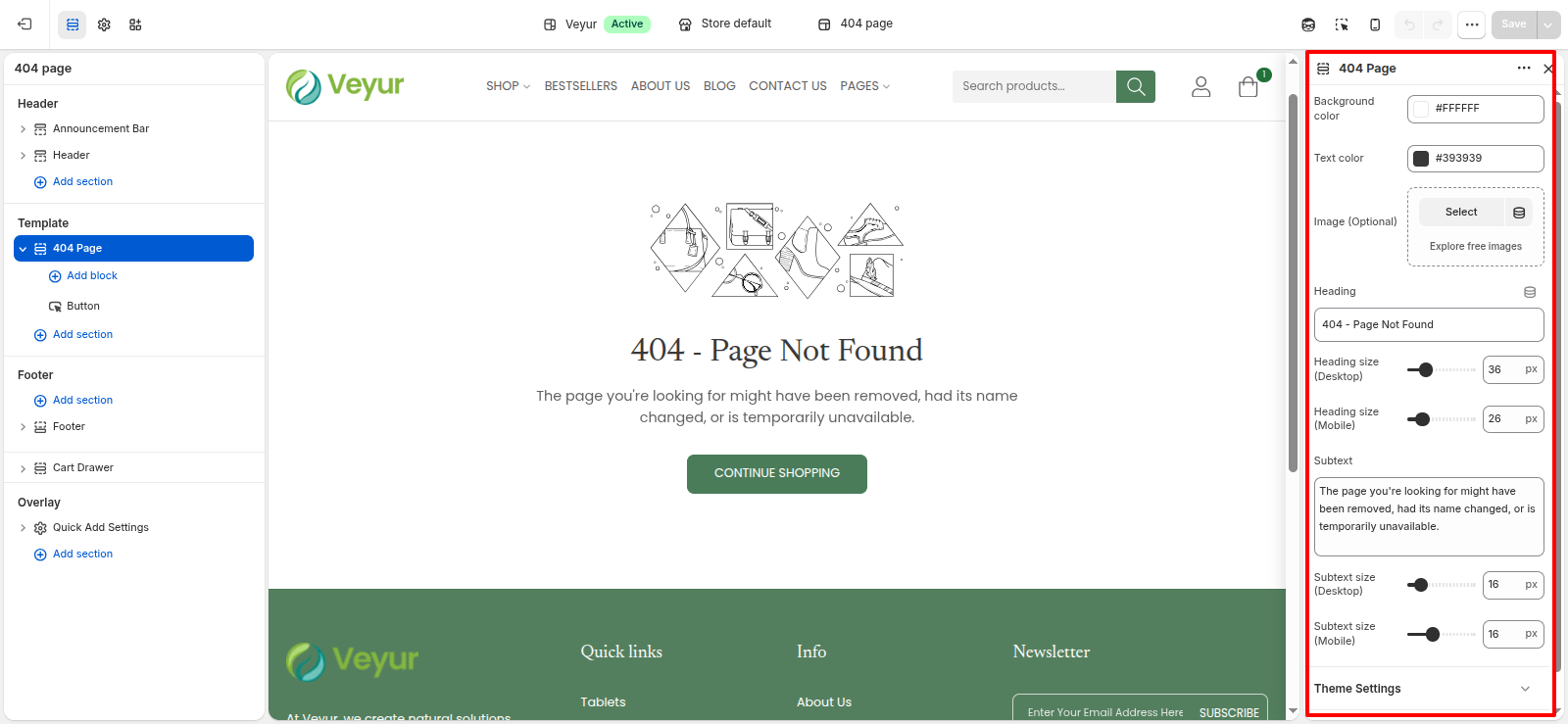
404 Page Settings
This section provides global settings to control the overall appearance and layout:
- Background color: Choose a color for the background color.
- Text color: Choose a color for the text color.
- Image (Optional): Upload an image for the image (optional).
- Heading: Enter the text for the heading.
- Heading size (Desktop): Adjust the heading size (desktop) value.
- Heading size (Mobile): Adjust the heading size (mobile) value.
- Subtext: Add detailed text or content for the subtext.
- Subtext size (Desktop): Adjust the subtext size (desktop) value.
- Subtext size (Mobile): Adjust the subtext size (mobile) value.
Block Blocks
Configure the individual block blocks within this section:
Slideshow
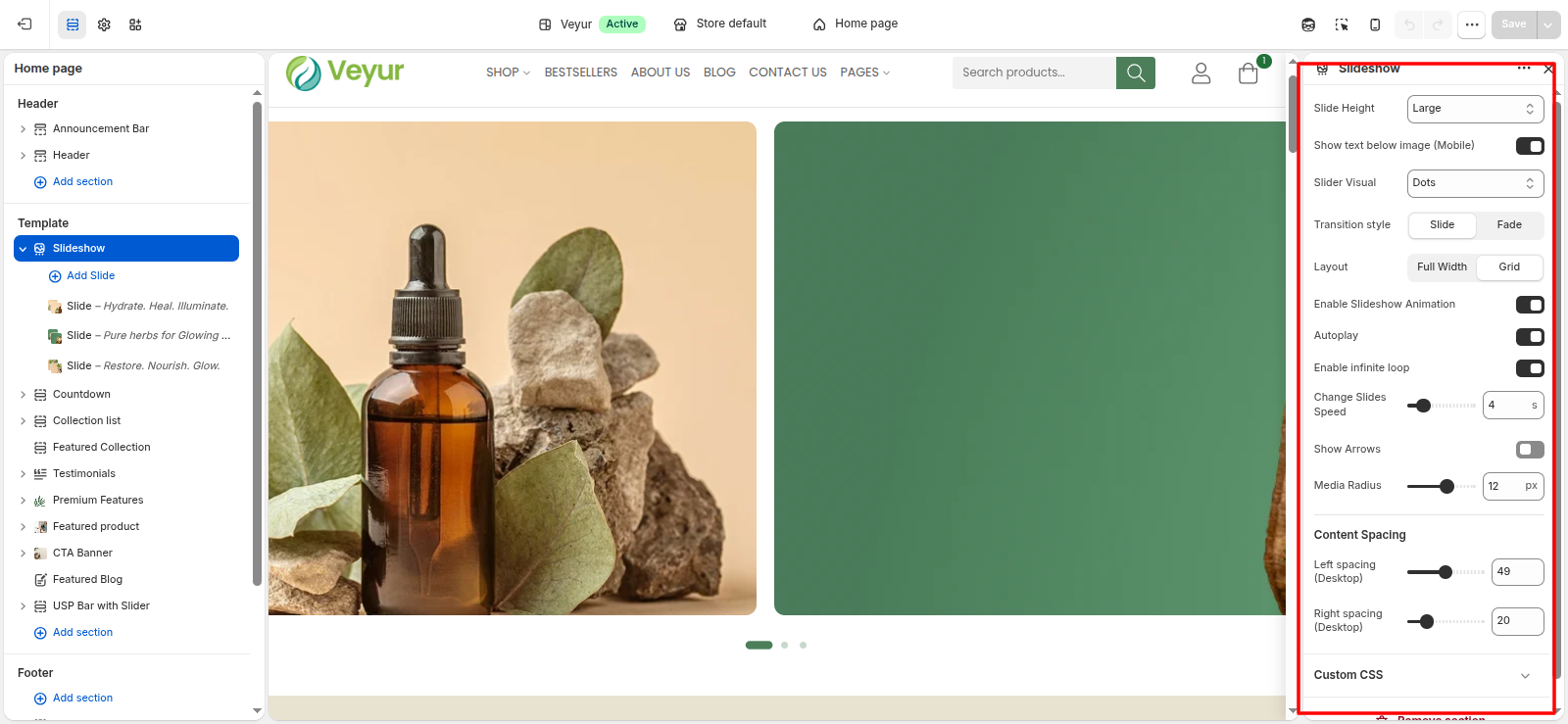
Slideshow Settings
This section provides global settings to control the overall appearance and layout:
- Slide Height: Select the desired slide height from the available options.
- Adapt To First Image - Select this option to use the adapt to first image style/layout.
- Small - Select this option to use the small style/layout.
- Medium - Select this option to use the medium style/layout.
- Large - Select this option to use the large style/layout.
- Custom height - Select this option to use the custom height style/layout.
- Custom desktop height: Adjust the custom desktop height value.
- Custom mobile height: Adjust the custom mobile height value.
- Show text below image (Mobile): Enable or disable the show text below image (mobile) feature.
- Slider Visual: Select the desired slider visual from the available options.
- None - Select this option to use the none style/layout.
- Dots - Select this option to use the dots style/layout.
- Counter - Select this option to use the counter style/layout.
- Numbers - Select this option to use the numbers style/layout.
- Transition style: Select the desired transition style from the available options.
- Slide - Select this option to use the slide style/layout.
- Fade - Select this option to use the fade style/layout.
- Layout: Select the desired layout from the available options.
- Full Width - Select this option to use the full width style/layout.
- Grid - Select this option to use the grid style/layout.
- Enable Slideshow Animation: Enable or disable the enable slideshow animation feature.
- Autoplay: Enable or disable the autoplay feature.
- Enable infinite loop: Enable or disable the enable infinite loop feature.
- Change Slides Speed: Adjust the change slides speed value.
- Show Arrows: Enable or disable the show arrows feature.
- Media Radius: Adjust the media radius value.
- Content Spacing
- Left spacing (Desktop): Adjust the left spacing (desktop) value.
- Right spacing (Desktop): Adjust the right spacing (desktop) value.
Slide Blocks
Configure the individual slide blocks within this section:
- Image Desktop: Upload an image for the image desktop.
- Image Mobile: Upload an image for the image mobile.
- Main Title
- Heading: Enter the text for the heading.
- Font: Configure the font setting.
- Font Size (Desktop): Adjust the font size (desktop) value.
- Font Size (Mobile): Adjust the font size (mobile) value.
- Padding Top: Adjust the padding top value.
- Padding bottom: Adjust the padding bottom value.
- Sub heading
- Subtitle: Enter the text for the subtitle.
- Font: Configure the font setting.
- Subheading Font Size (Desktop): Adjust the subheading font size (desktop) value.
- Font Size (Mobile): Adjust the font size (mobile) value.
- Padding Top: Adjust the padding top value.
- Padding bottom: Adjust the padding bottom value.
- Text Box
- Width: Adjust the width value.
- Show Text Box: Enable or disable the show text box feature.
- Box Bg Color: Choose a color for the box bg color.
- Text Color: Choose a color for the text color.
- Button
- Font: Configure the font setting.
- Text: Enter the text for the text.
- Link: Select or paste a link for the link.
- Type: Select the desired type from the available options.
- Primary - Select this option to use the primary style/layout.
- Secondary - Select this option to use the secondary style/layout.
- Link - Select this option to use the link style/layout.
- Custom - Select this option to use the custom style/layout.
- Font Size (Desktop): Adjust the font size (desktop) value.
- Font Size (Mobile): Adjust the font size (mobile) value.
- Background: Choose a color for the background.
- Text Color: Choose a color for the text color.
- Border: Choose a color for the border.
- Colors
- Background: Choose a color for the background.
- Hover Text: Choose a color for the hover text.
- Border: Choose a color for the border.
- Content
- Box Align: Desktop only
- Top Left - Select this option to use the top left style/layout.
- Top Center - Select this option to use the top center style/layout.
- Top Right - Select this option to use the top right style/layout.
- Middle Left - Select this option to use the middle left style/layout.
- Middle Center - Select this option to use the middle center style/layout.
- Middle Right - Select this option to use the middle right style/layout.
- Bottom Left - Select this option to use the bottom left style/layout.
- Bottom Center - Select this option to use the bottom center style/layout.
- Bottom Right - Select this option to use the bottom right style/layout.
- Text Alignment: Select the desired text alignment from the available options.
- Left - Select this option to use the left style/layout.
- Center - Select this option to use the center style/layout.
- Right - Select this option to use the right style/layout.
Accordion
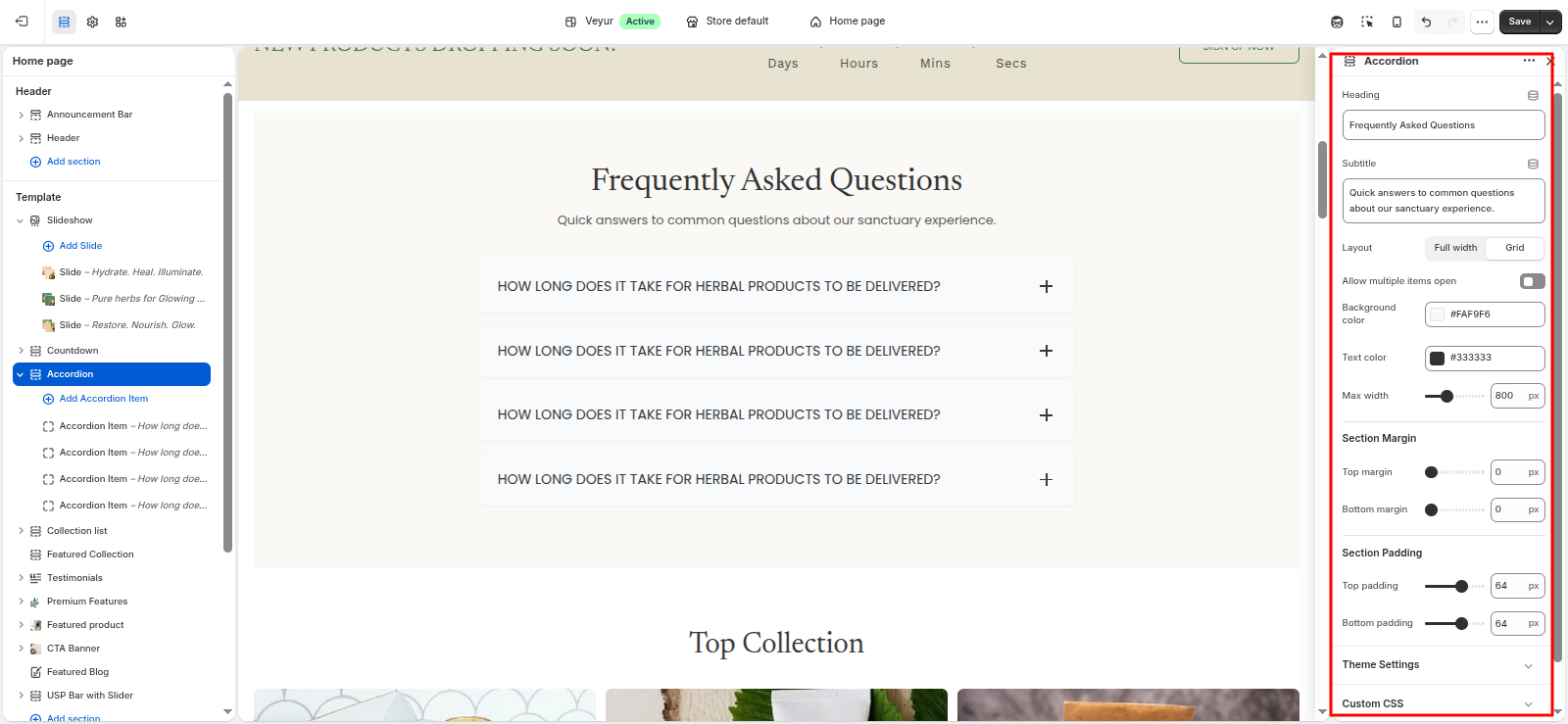
Accordion Settings
This section provides global settings to control the overall appearance and layout:
- Heading: Enter the text for the heading.
- Subtitle: Enter the text for the subtitle.
- Layout: Select the desired layout from the available options.
- Full width - Select this option to use the full width style/layout.
- Grid - Select this option to use the grid style/layout.
- Allow multiple items open: Enable or disable the allow multiple items open feature.
- Background color: Choose a color for the background color.
- Text color: Choose a color for the text color.
- Max width: Adjust the max width value.
- Section Margin
- Top margin: Adjust the top margin value.
- Bottom margin: Adjust the bottom margin value.
- Section Padding
- Top padding: Adjust the top padding value.
- Bottom padding: Adjust the bottom padding value.
Accordion Item Blocks
Configure the individual accordion item blocks within this section:
- Question: Enter the text for the question.
- Answer: Add detailed text or content for the answer.
Announcement Bar
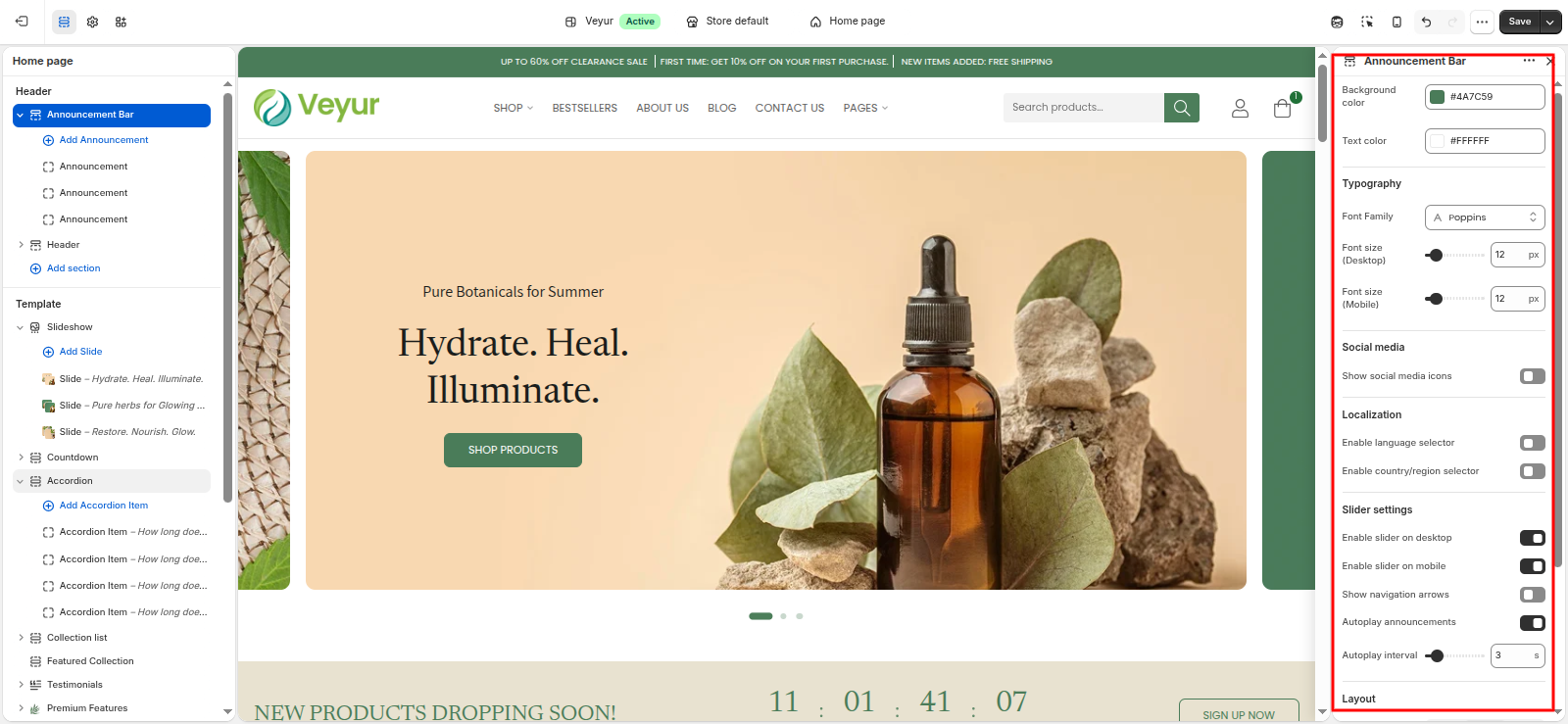
Announcement Bar Settings
This section provides global settings to control the overall appearance and layout:
- Background color: Choose a color for the background color.
- Text color: Choose a color for the text color.
- Typography
- Font Family: Configure the font family setting.
- Font size (Desktop): Adjust the font size (desktop) value.
- Font size (Mobile): Adjust the font size (mobile) value.
- Social media
- Show social media icons: Enable or disable the show social media icons feature.
- Localization
- Enable language selector: Enable or disable the enable language selector feature.
- Enable country/region selector: Enable or disable the enable country/region selector feature.
- Slider settings
- Enable slider on desktop: Enable or disable the enable slider on desktop feature.
- Enable slider on mobile: Enable or disable the enable slider on mobile feature.
- Show navigation arrows: Enable or disable the show navigation arrows feature.
- Autoplay announcements: Enable or disable the autoplay announcements feature.
- Autoplay interval: Adjust the autoplay interval value.
- Layout
- Text alignment: Select the desired text alignment from the available options.
- Left - Select this option to use the left style/layout.
- Center - Select this option to use the center style/layout.
- Right - Select this option to use the right style/layout.
- Padding
- Top padding: Adjust the top padding value.
- Bottom padding: Adjust the bottom padding value.
Announcement Blocks
Configure the individual announcement blocks within this section:
- Text (Desktop): Configure the text (desktop) setting.
- Text (Mobile): Configure the text (mobile) setting.
- Link: Select or paste a link for the link.
Article
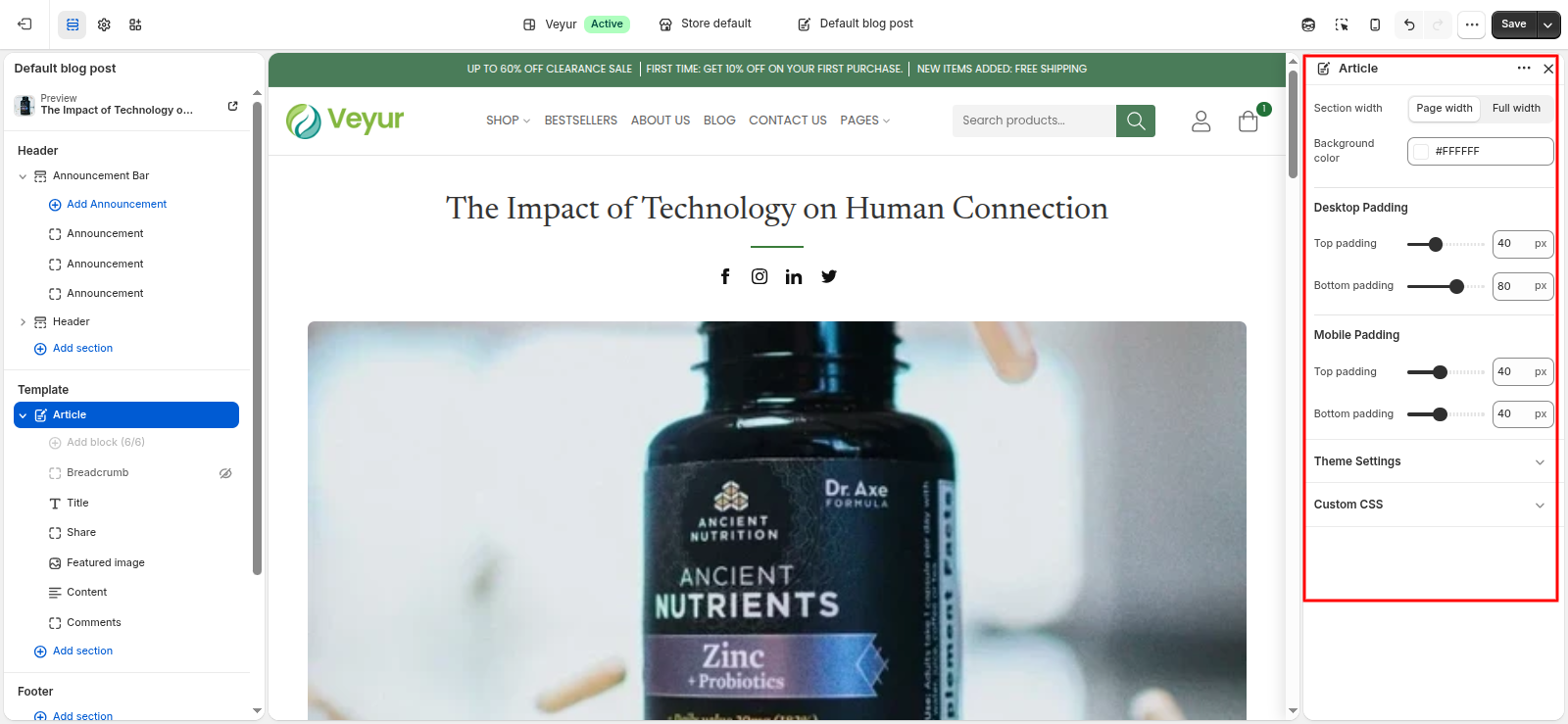
Article Settings
This section provides global settings to control the overall appearance and layout:
- Section width: Select the desired section width from the available options.
- Page width - Select this option to use the page width style/layout.
- Full width - Select this option to use the full width style/layout.
- Background color: Choose a color for the background color.
- Desktop Padding
- Top padding: Adjust the top padding value.
- Bottom padding: Adjust the bottom padding value.
- Mobile Padding
- Top padding: Adjust the top padding value.
- Bottom padding: Adjust the bottom padding value.
Breadcrumb Blocks
Configure the individual breadcrumb blocks within this section:
- Font family: Configure the font family setting.
- Font size (Desktop): Adjust the font size (desktop) value.
- Font size (Mobile): Adjust the font size (mobile) value.
- Font weight: Adjust the font weight value.
- Text color: Choose a color for the text color.
- Link color: Choose a color for the link color.
- Link hover color: Choose a color for the link hover color.
Title Blocks
Configure the individual title blocks within this section:
- Font: Configure the font setting.
- Font size (Desktop): Adjust the font size (desktop) value.
- Font size (Mobile): Adjust the font size (mobile) value.
- Font weight: Adjust the font weight value.
- Text color: Choose a color for the text color.
- Divider color: Choose a color for the divider color.
Share Blocks
Configure the individual share blocks within this section:
Featured image Blocks
Configure the individual featured image blocks within this section:
- Image aspect ratio: Select the desired image aspect ratio from the available options.
- Original - Select this option to use the original style/layout.
- Portrait (2:3) - Select this option to use the portrait (2:3) style/layout.
- Square (1:1) - Select this option to use the square (1:1) style/layout.
- Landscape (4:3) - Select this option to use the landscape (4:3) style/layout.
- Wide (16:9) - Select this option to use the wide (16:9) style/layout.
- Border radius: Adjust the border radius value.
- Margin bottom (Desktop): Adjust the margin bottom (desktop) value.
- Margin bottom (Mobile): Adjust the margin bottom (mobile) value.
Content Blocks
Configure the individual content blocks within this section:
- Paragraph size (Desktop): Adjust the paragraph size (desktop) value.
- Paragraph size (Mobile): Adjust the paragraph size (mobile) value.
- Heading size (Desktop): Adjust the heading size (desktop) value.
- Heading size (Mobile): Adjust the heading size (mobile) value.
- Paragraph color: Choose a color for the paragraph color.
- Heading color: Choose a color for the heading color.
- Paragraph font family: Configure the paragraph font family setting.
- Heading font family: Configure the heading font family setting.
- Link color: Choose a color for the link color.
Comments Blocks
Configure the individual comments blocks within this section:
- Comments per page: Adjust the comments per page value.
- Heading Font: Configure the heading font setting.
- Heading font size (Desktop): Adjust the heading font size (desktop) value.
- Heading font size (Mobile): Adjust the heading font size (mobile) value.
- Heading color: Choose a color for the heading color.
- Input background: Choose a color for the input background.
- Button background: Choose a color for the button background.
- Button text color: Choose a color for the button text color.
- Button hover background: Choose a color for the button hover background.
- Button hover text color: Choose a color for the button hover text color.
- Button hover border color: Choose a color for the button hover border color.
- Button border color (Normal): Choose a color for the button border color (normal).
- Button border width: Adjust the button border width value.
- Button border radius: Adjust the button border radius value.
Blog
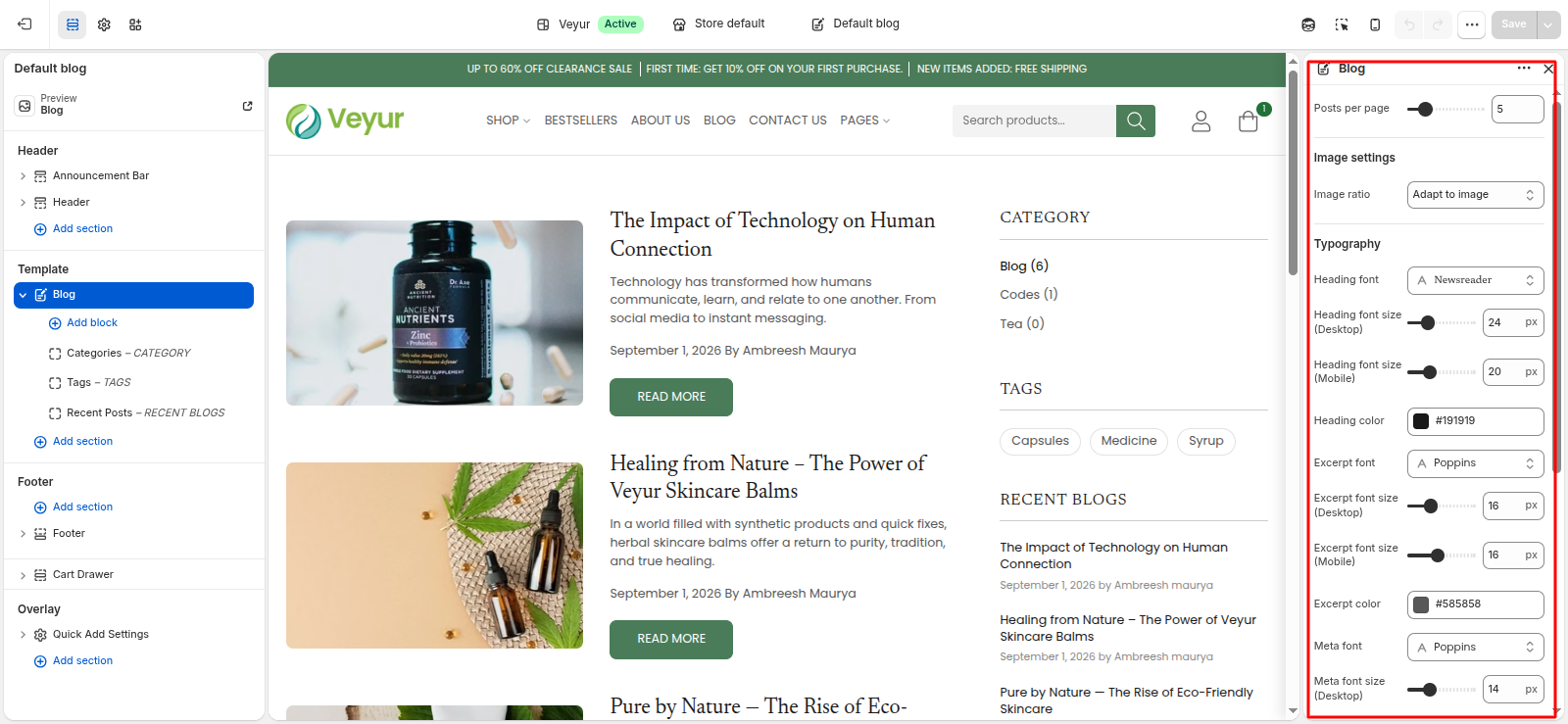
Blog Settings
This section provides global settings to control the overall appearance and layout:
- Posts per page: Adjust the posts per page value.
- Image settings
- Image ratio: Select the desired image ratio from the available options.
- Adapt to image - Select this option to use the adapt to image style/layout.
- Portrait - Select this option to use the portrait style/layout.
- Square - Select this option to use the square style/layout.
- Landscape - Select this option to use the landscape style/layout.
- Typography
- Heading font: Configure the heading font setting.
- Heading font size (Desktop): Adjust the heading font size (desktop) value.
- Heading font size (Mobile): Adjust the heading font size (mobile) value.
- Heading color: Choose a color for the heading color.
- Excerpt font: Configure the excerpt font setting.
- Excerpt font size (Desktop): Adjust the excerpt font size (desktop) value.
- Excerpt font size (Mobile): Adjust the excerpt font size (mobile) value.
- Excerpt color: Choose a color for the excerpt color.
- Meta font: Configure the meta font setting.
- Meta font size (Desktop): Adjust the meta font size (desktop) value.
- Meta font size (Mobile): Adjust the meta font size (mobile) value.
- Meta color: Choose a color for the meta color.
- Button settings
- Type: Select the desired type from the available options.
- Primary - Select this option to use the primary style/layout.
- Secondary - Select this option to use the secondary style/layout.
- Link - Select this option to use the link style/layout.
- Custom - Select this option to use the custom style/layout.
- Button Font: Configure the button font setting.
- Button Font Size (Desktop): Adjust the button font size (desktop) value.
- Button Font Size (Mobile): Adjust the button font size (mobile) value.
- Background: Choose a color for the background.
- Text Color: Choose a color for the text color.
- Border: Choose a color for the border.
- Hover Background: Choose a color for the hover background.
- Hover Text Color: Choose a color for the hover text color.
- Hover Border Color: Choose a color for the hover border color.
- Section Padding
- Padding top: Adjust the padding top value.
- Padding bottom: Adjust the padding bottom value.
Categories Blocks
Configure the individual categories blocks within this section:
- Heading: Enter the text for the heading.
- Menu: Select a menu to display categories.
- Typography
- Heading font: Configure the heading font setting.
- Heading font size (Desktop): Adjust the heading font size (desktop) value.
- Heading font size (Mobile): Adjust the heading font size (mobile) value.
- Heading color: Choose a color for the heading color.
- Links Style
- Link font size (Desktop): Adjust the link font size (desktop) value.
- Link font size (Mobile): Adjust the link font size (mobile) value.
- Link color: Choose a color for the link color.
- Link hover color: Choose a color for the link hover color.
- Spacing
- Margin Top: Adjust the margin top value.
- Margin Bottom: Adjust the margin bottom value.
Tags Blocks
Configure the individual tags blocks within this section:
- Heading: Enter the text for the heading.
- Typography
- Heading font: Configure the heading font setting.
- Heading font size (Desktop): Adjust the heading font size (desktop) value.
- Heading font size (Mobile): Adjust the heading font size (mobile) value.
- Heading color: Choose a color for the heading color.
- Tags Style
- Tag font size (Desktop): Adjust the tag font size (desktop) value.
- Tag font size (Mobile): Adjust the tag font size (mobile) value.
- Text color: Choose a color for the text color.
- Background color: Choose a color for the background color.
- Border color: Choose a color for the border color.
- Hover text color: Choose a color for the hover text color.
- Hover background color: Choose a color for the hover background color.
- Hover border color: Choose a color for the hover border color.
- Spacing
- Margin Top: Adjust the margin top value.
- Margin Bottom: Adjust the margin bottom value.
Recent Posts Blocks
Configure the individual recent posts blocks within this section:
- Heading: Enter the text for the heading.
- Number of recent posts to show: Adjust the number of recent posts to show value.
- Typography
- Heading font: Configure the heading font setting.
- Heading font size (Desktop): Adjust the heading font size (desktop) value.
- Heading font size (Mobile): Adjust the heading font size (mobile) value.
- Heading color: Choose a color for the heading color.
- Post Title Style
- Title font size (Desktop): Adjust the title font size (desktop) value.
- Title font size (Mobile): Adjust the title font size (mobile) value.
- Title color: Choose a color for the title color.
- Title hover color: Choose a color for the title hover color.
- Post Date Style
- Date font size (Desktop): Adjust the date font size (desktop) value.
- Date font size (Mobile): Adjust the date font size (mobile) value.
- Date color: Choose a color for the date color.
- Spacing
- Margin Top: Adjust the margin top value.
- Margin Bottom: Adjust the margin bottom value.
Separator Blocks
Configure the individual separator blocks within this section:
- Line Thickness: Adjust the line thickness value.
- Line Color: Choose a color for the line color.
- Line Width: Adjust the line width value.
- Margin Top: Adjust the margin top value.
- Margin Bottom: Adjust the margin bottom value.
Cart Drawer
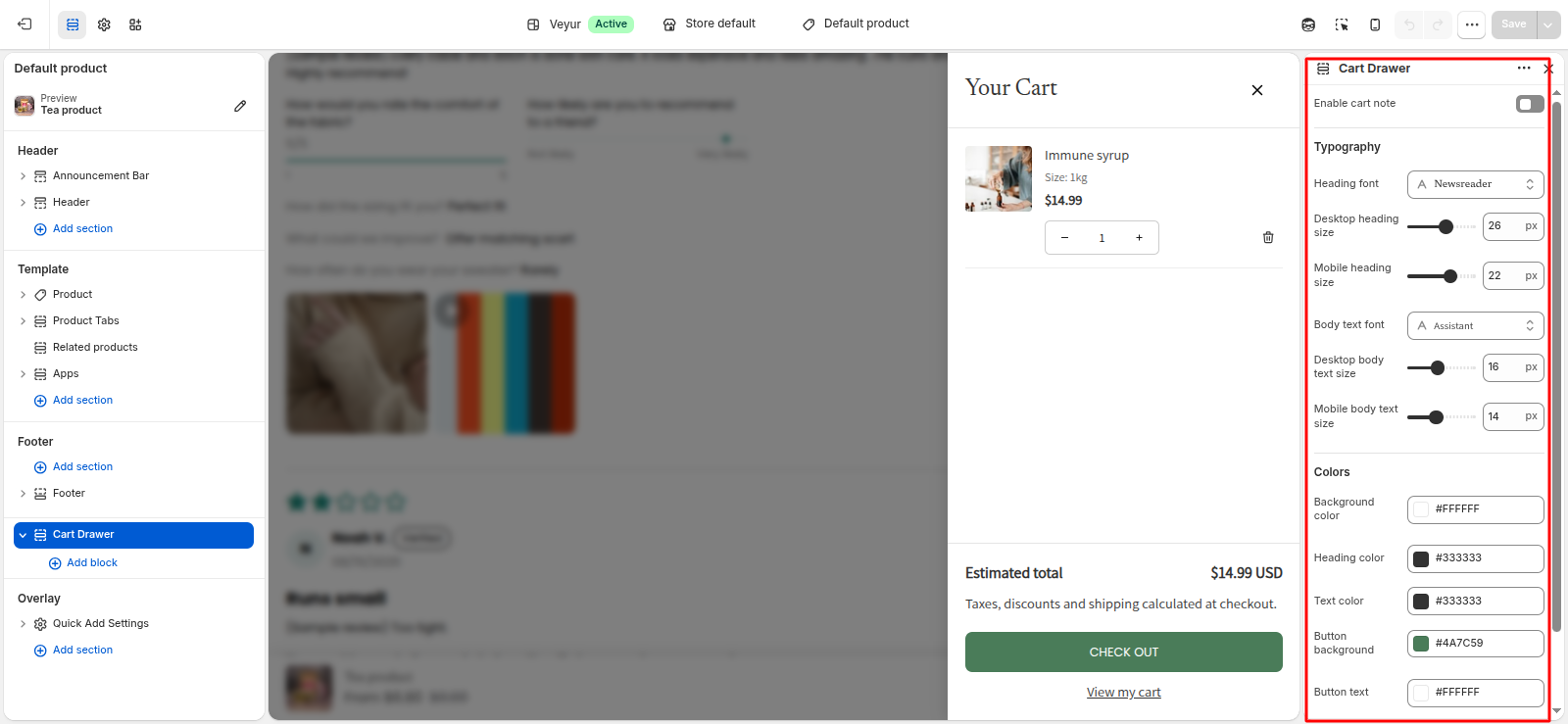
Cart Drawer Settings
This section provides global settings to control the overall appearance and layout:
- Enable cart note: Enable or disable the enable cart note feature.
- Typography
- Heading font: Configure the heading font setting.
- Desktop heading size: Adjust the desktop heading size value.
- Mobile heading size: Adjust the mobile heading size value.
- Body text font: Configure the body text font setting.
- Desktop body text size: Adjust the desktop body text size value.
- Mobile body text size: Adjust the mobile body text size value.
- Colors
- Background color: Choose a color for the background color.
- Heading color: Choose a color for the heading color.
- Text color: Choose a color for the text color.
- Button background: Choose a color for the button background.
- Button text: Choose a color for the button text.
Block Blocks
Configure the individual block blocks within this section:
Collection Description
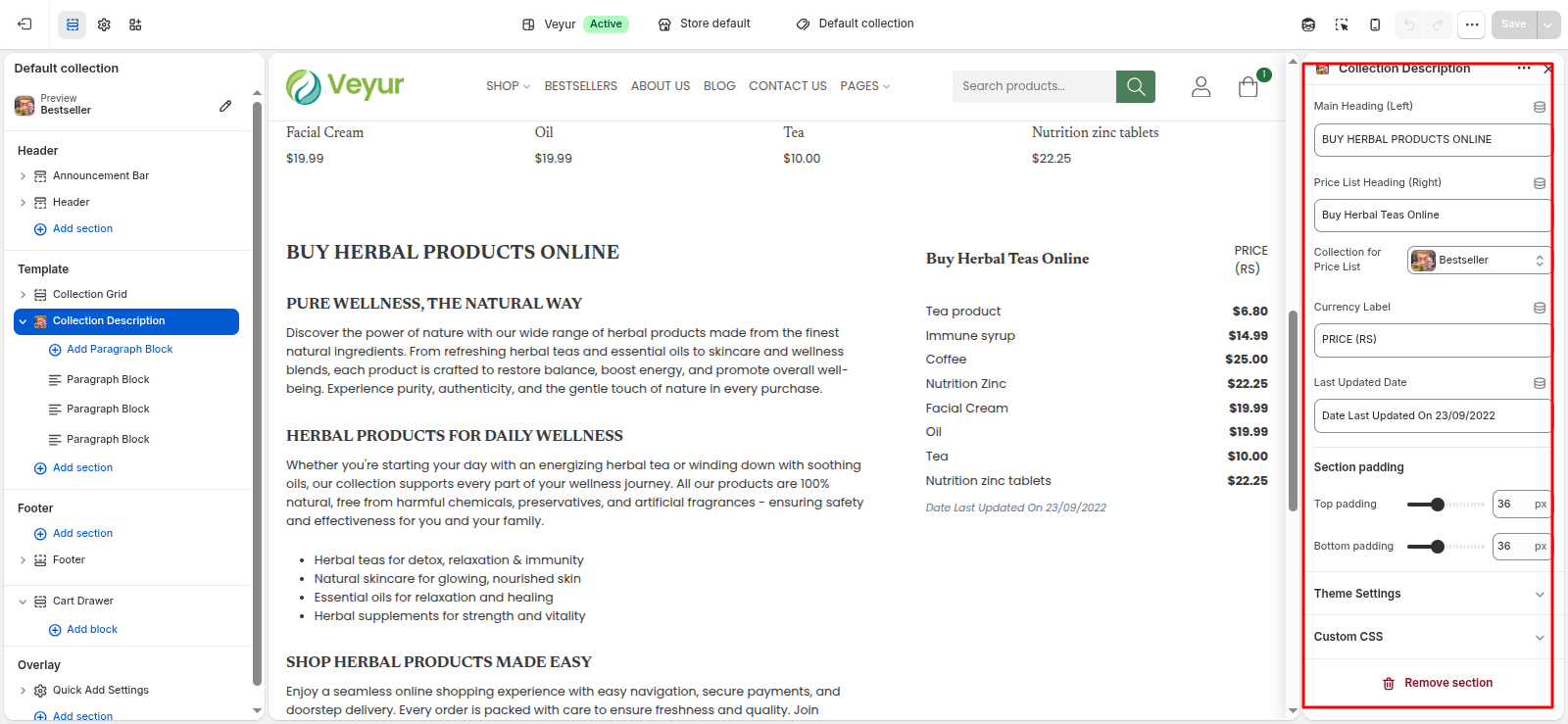
Collection Description Settings
This section provides global settings to control the overall appearance and layout:
- Main Heading (Left): Enter the text for the main heading (left).
- Price List Heading (Right): Enter the text for the price list heading (right).
- Collection for Price List: Choose a collection to display.
- Currency Label: Enter the text for the currency label.
- Last Updated Date: Enter the text for the last updated date.
- Section padding
- Top padding: Adjust the top padding value.
- Bottom padding: Adjust the bottom padding value.
Paragraph Block Blocks
Configure the individual paragraph block blocks within this section:
- Subheading: Enter the text for the subheading.
- Content: Add detailed text or content for the content.
Collection list
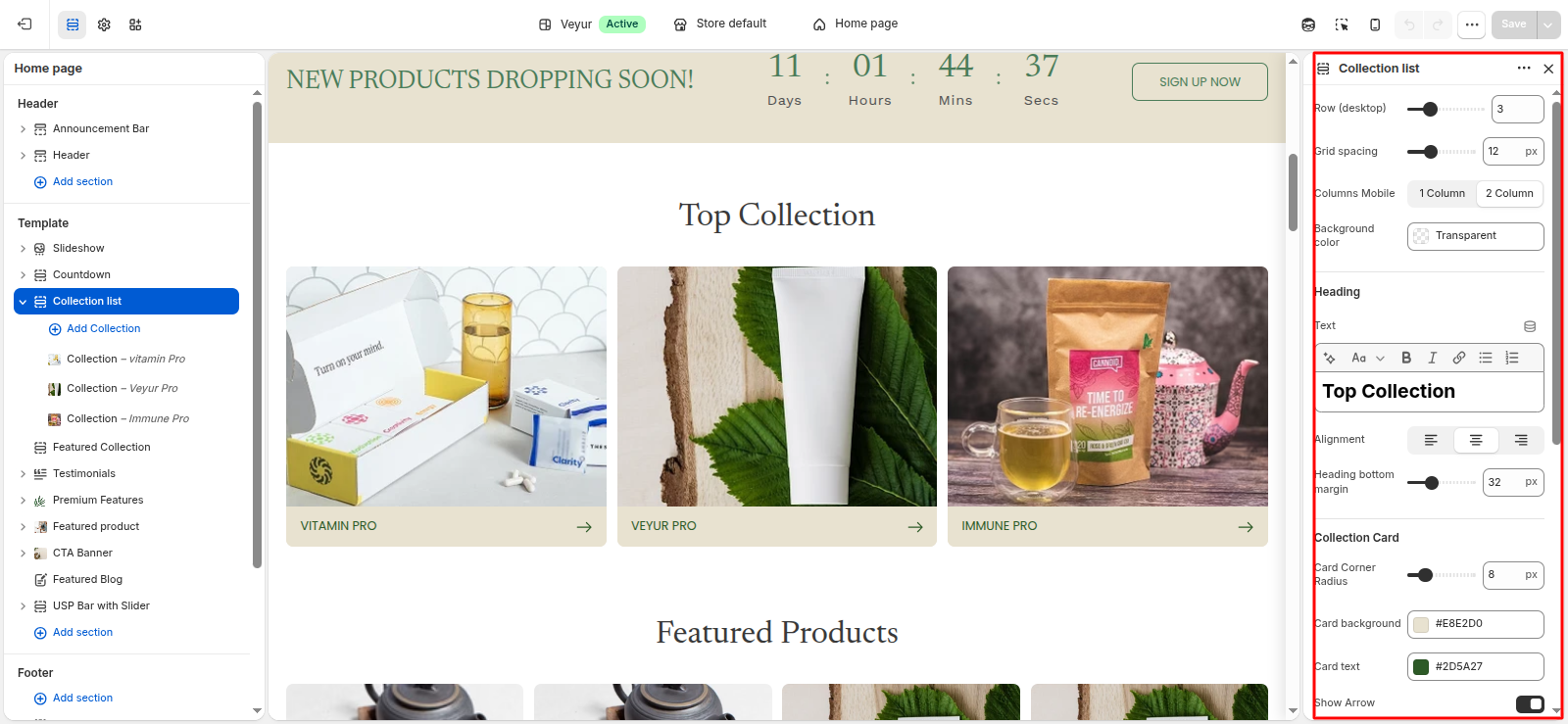
Collection list Settings
This section provides global settings to control the overall appearance and layout:
- Row (desktop): Adjust the row (desktop) value.
- Grid spacing: Adjust the grid spacing value.
- Columns Mobile: Select the desired columns mobile from the available options.
- 1 Column - Select this option to use the 1 column style/layout.
- 2 Column - Select this option to use the 2 column style/layout.
- Background color: Choose a color for the background color.
- Heading
- Text: Add detailed text or content for the text.
- Alignment: Configure the alignment setting.
- Heading bottom margin: Adjust the heading bottom margin value.
- Collection Card
- Card Corner Radius: Adjust the card corner radius value.
- Card background: Choose a color for the card background.
- Card text: Choose a color for the card text.
- Show Arrow: Enable or disable the show arrow feature.
- Text style (Transform): Select the desired text style (transform) from the available options.
- Uppercase - Select this option to use the uppercase style/layout.
- Lowercase - Select this option to use the lowercase style/layout.
- Capitalize - Select this option to use the capitalize style/layout.
- Normal - Select this option to use the normal style/layout.
- Image
- Aspect Ratio: Select the desired aspect ratio from the available options.
- Adapt - Select this option to use the adapt style/layout.
- Square - Select this option to use the square style/layout.
- Portarait - Select this option to use the portarait style/layout.
- Landscape - Select this option to use the landscape style/layout.
- Wide - Select this option to use the wide style/layout.
- View All
- Button: Enable or disable the button feature.
- Text: Enter the text for the text.
- Type: Select the desired type from the available options.
- Primary - Select this option to use the primary style/layout.
- Secondary - Select this option to use the secondary style/layout.
- Link - Select this option to use the link style/layout.
- Alignment: Select the desired alignment from the available options.
- Left - Select this option to use the left style/layout.
- Center - Select this option to use the center style/layout.
- Right - Select this option to use the right style/layout.
- Spacing
- Top padding: Adjust the top padding value.
- Bottom padding: Adjust the bottom padding value.
Collection Blocks
Configure the individual collection blocks within this section:
- Collection: Choose a collection to display.
- Image: Overrides the collection's featured image.
- Heading / Custom title: Enter the text for the heading / custom title.
Collection
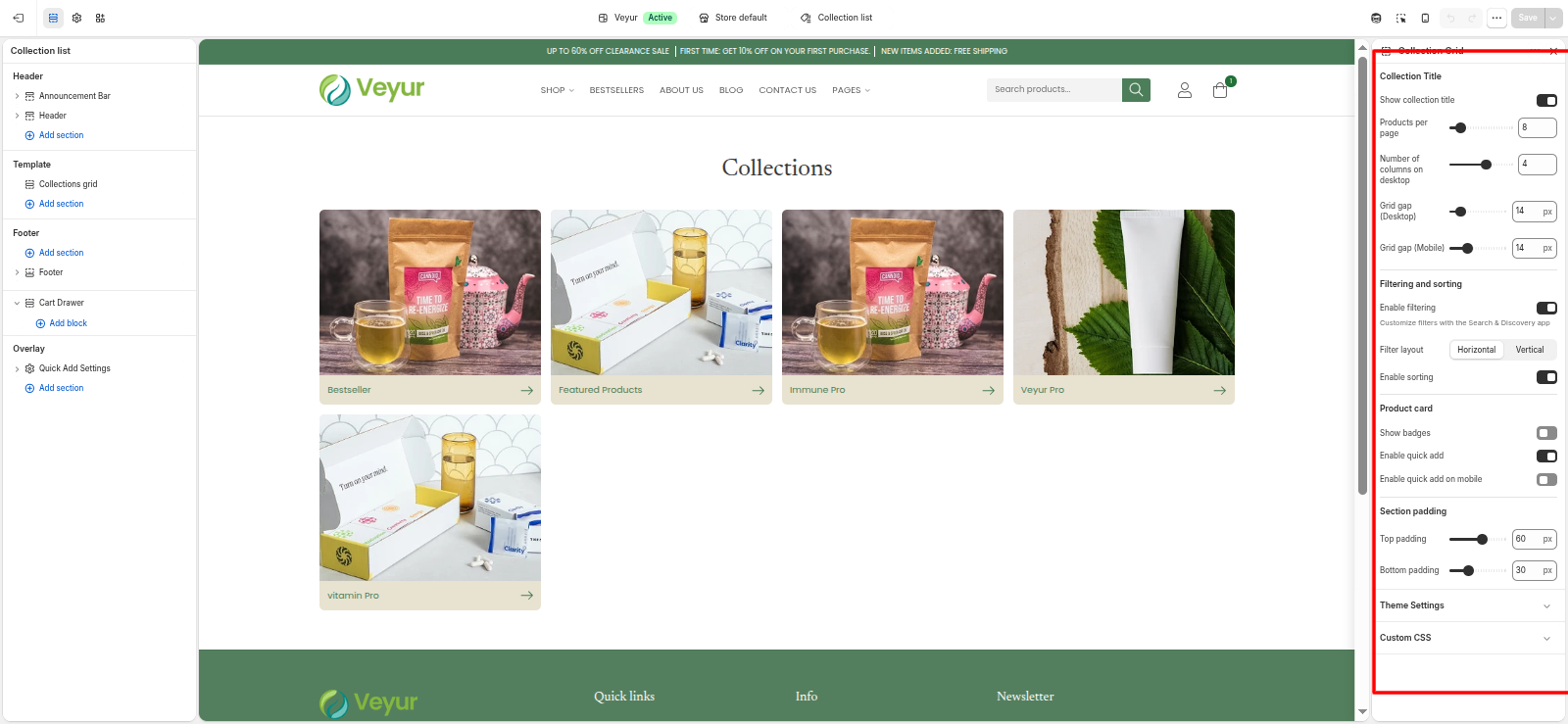
This section is used in the collection template to render the default product listing layout for a collection.
Note: This specific section handles the core product output and does not have customizable design settings in the theme editor. To customize the collection appearance, please refer to the Collection Banner and Collection Grid sections.
Collections grid
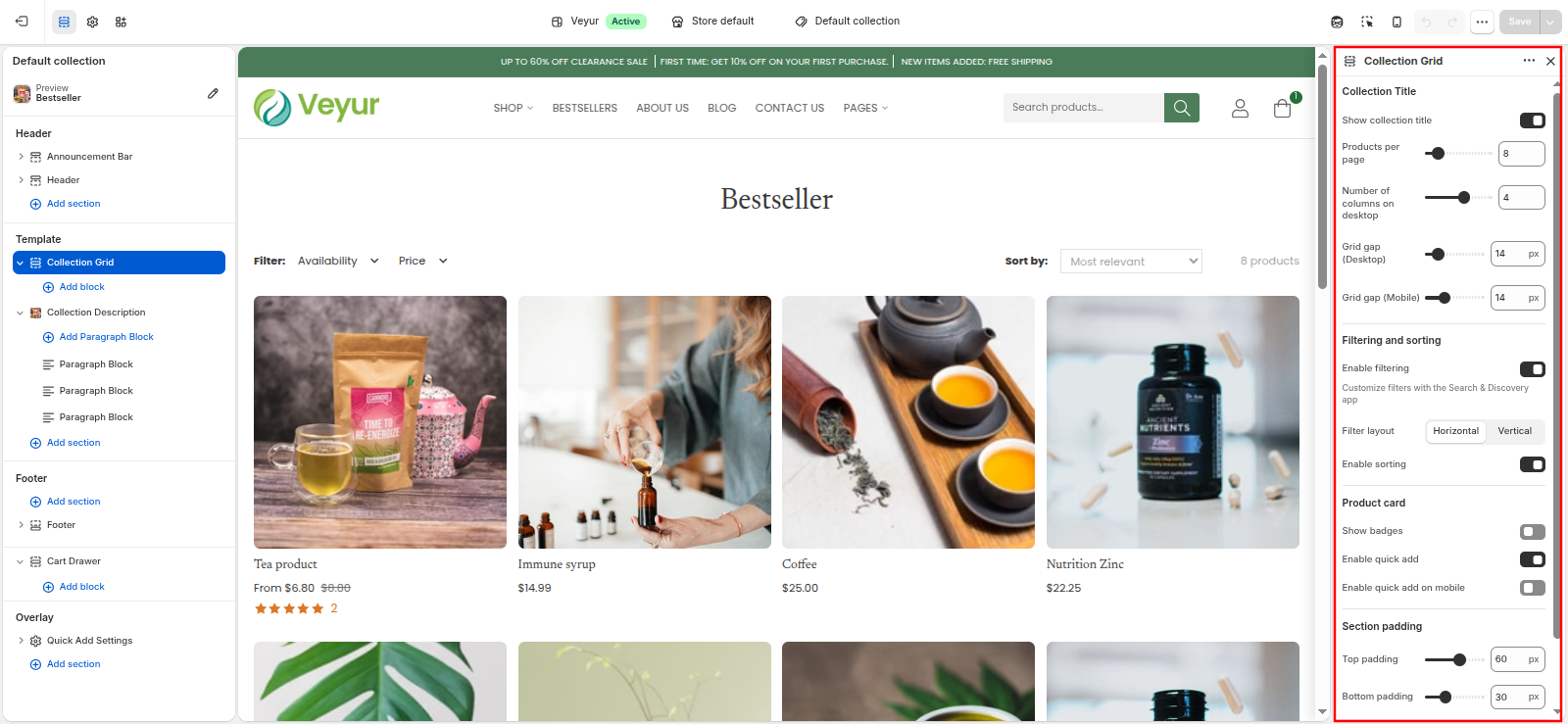
Collections grid Settings
This section provides global settings to control the overall appearance and layout:
- Section Colors
- background color: Choose a color for the background color.
- Section title color: Choose a color for the section title color.
- Grid Layout
- Number of columns on desktop: Adjust the number of columns on desktop value.
- Number of columns on mobile: Select the desired number of columns on mobile from the available options.
- 1 column - Select this option to use the 1 column style/layout.
- 2 columns - Select this option to use the 2 columns style/layout.
- Grid spacing: Adjust the grid spacing value.
- Image aspect ratio: Select the desired image aspect ratio from the available options.
- Adapt to image - Select this option to use the adapt to image style/layout.
- Square (1:1) - Select this option to use the square (1:1) style/layout.
- Portrait (2:3) - Select this option to use the portrait (2:3) style/layout.
- Landscape (4:3) - Select this option to use the landscape (4:3) style/layout.
- Zoom image on hover: Enable or disable the zoom image on hover feature.
- Card Styling
- Card inner padding: Adjust the card inner padding value.
- Border radius: Adjust the border radius value.
- Border width: Adjust the border width value.
- Border color: Choose a color for the border color.
- Background color: Choose a color for the background color.
- Hover background color: Choose a color for the hover background color.
- Typography
- Heading alignment (Desktop): Select the desired heading alignment (desktop) from the available options.
- Left - Select this option to use the left style/layout.
- Center - Select this option to use the center style/layout.
- Right - Select this option to use the right style/layout.
- Heading alignment (Mobile): Select the desired heading alignment (mobile) from the available options.
- Left - Select this option to use the left style/layout.
- Center - Select this option to use the center style/layout.
- Right - Select this option to use the right style/layout.
- Card text alignment (Desktop): Select the desired card text alignment (desktop) from the available options.
- Left - Select this option to use the left style/layout.
- Center - Select this option to use the center style/layout.
- Right - Select this option to use the right style/layout.
- Card text alignment (Mobile): Select the desired card text alignment (mobile) from the available options.
- Left - Select this option to use the left style/layout.
- Center - Select this option to use the center style/layout.
- Right - Select this option to use the right style/layout.
- Title font: Configure the title font setting.
- Title font weight: Adjust the title font weight value.
- Title size (Desktop): Adjust the title size (desktop) value.
- Title size (Mobile): Adjust the title size (mobile) value.
- Title color: Choose a color for the title color.
- Show description: Enable or disable the show description feature.
- Description word limit: Adjust the description word limit value.
- Description size (Desktop): Adjust the description size (desktop) value.
- Description size (Mobile): Adjust the description size (mobile) value.
- Description color: Choose a color for the description color.
- Show arrow next to title: Enable or disable the show arrow next to title feature.
- Hover text color: Choose a color for the hover text color.
- Section Padding
- Space below title: Adjust the space below title value.
- Top padding: Adjust the top padding value.
- Bottom padding: Adjust the bottom padding value.
Countdown
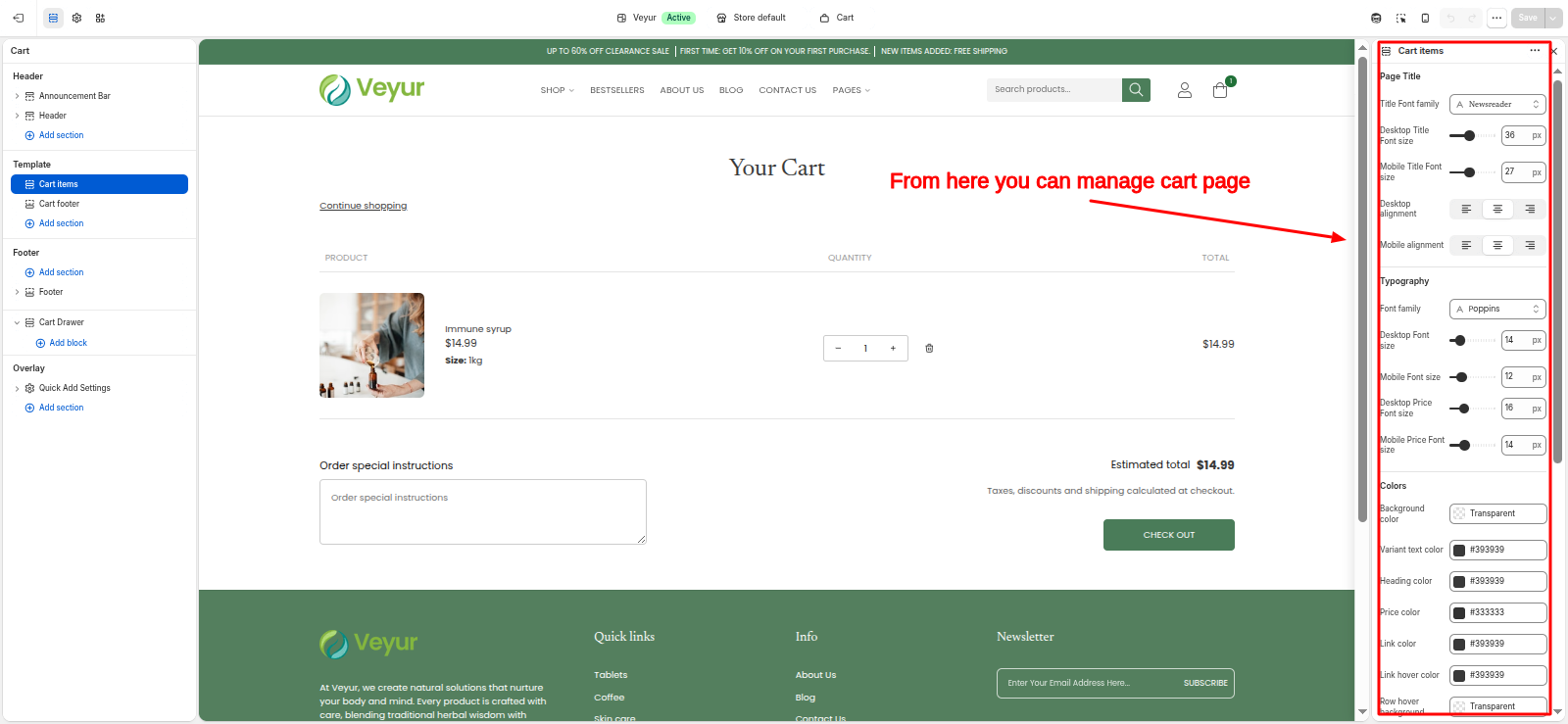
Countdown Settings
This section provides global settings to control the overall appearance and layout:
- Layout: Select the desired layout from the available options.
- Full width - Select this option to use the full width style/layout.
- Grid - Select this option to use the grid style/layout.
- Radius: Adjust the radius value.
- Colors
- Background color: Choose a color for the background color.
- Typography
- Font family: Configure the font family setting.
- Border
- Show Border: Enable or disable the show border feature.
- Width: Adjust the width value.
- Style: Select the desired style from the available options.
- Solid - Select this option to use the solid style/layout.
- Dashed - Select this option to use the dashed style/layout.
- Dotted - Select this option to use the dotted style/layout.
- color: Choose a color for the color.
- Padding
- Horizontal: Adjust the horizontal value.
- Vertical: Adjust the vertical value.
- Margin
- Top: Adjust the top value.
- Bottom: Adjust the bottom value.
Heading Blocks
Configure the individual heading blocks within this section:
- Text: Add detailed text or content for the text.
- Preset: Select the desired preset from the available options.
- Default (Rich text) - Select this option to use the default (rich text) style/layout.
- Paragraph - Select this option to use the paragraph style/layout.
- H1 - Select this option to use the h1 style/layout.
- H2 - Select this option to use the h2 style/layout.
- H3 - Select this option to use the h3 style/layout.
- H4 - Select this option to use the h4 style/layout.
- H5 - Select this option to use the h5 style/layout.
- H6 - Select this option to use the h6 style/layout.
- custom - Select this option to use the custom style/layout.
- Text Style: Select the desired text style from the available options.
- Title - Select this option to use the title style/layout.
- Subtitle - Select this option to use the subtitle style/layout.
- Normal - Select this option to use the normal style/layout.
- Size: Adjust the size value.
- Size (Mobile): Adjust the size (mobile) value.
- Line Height: Select the desired line height from the available options.
- 1.0 - Select this option to use the 1.0 style/layout.
- 1.1 - Select this option to use the 1.1 style/layout.
- 1.2 - Select this option to use the 1.2 style/layout.
- 1.3 - Select this option to use the 1.3 style/layout.
- 1.4 - Select this option to use the 1.4 style/layout.
- 1.5 - Select this option to use the 1.5 style/layout.
- Normal - Select this option to use the normal style/layout.
- Letter Spacing: Select the desired letter spacing from the available options.
- Normal - Select this option to use the normal style/layout.
- 0.02em - Select this option to use the 0.02em style/layout.
- 0.04em - Select this option to use the 0.04em style/layout.
- 0.06em - Select this option to use the 0.06em style/layout.
- 0.08em - Select this option to use the 0.08em style/layout.
- 0.1em - Select this option to use the 0.1em style/layout.
- 0.15em - Select this option to use the 0.15em style/layout.
- 0.2em - Select this option to use the 0.2em style/layout.
- Text style (Transform): Select the desired text style (transform) from the available options.
- Normal - Select this option to use the normal style/layout.
- Uppercase - Select this option to use the uppercase style/layout.
- Lowercase - Select this option to use the lowercase style/layout.
- Capitalize - Select this option to use the capitalize style/layout.
- Color: Leave empty to use the global typography color.
- Alignment: Configure the alignment setting.
Countdown Timer Blocks
Configure the individual countdown timer blocks within this section:
- Target date: Leave blank to dynamically countdown 11 days from current time. ex: 2026-08-25T14:46:00
- Number Size: Adjust the number size value.
- Number Size (Mobile): Adjust the number size (mobile) value.
- Label Size: Adjust the label size value.
- Label Size (Mobile): Adjust the label size (mobile) value.
- Timer number color: Choose a color for the timer number color.
- Separator colon color: Choose a color for the separator colon color.
- Timer label color: Choose a color for the timer label color.
Button Blocks
Configure the individual button blocks within this section:
- text: Enter the text for the text.
- link: Select or paste a link for the link.
- Type: Select the desired type from the available options.
- Primary - Select this option to use the primary style/layout.
- Secondary - Select this option to use the secondary style/layout.
- Link - Select this option to use the link style/layout.
- Custom - Select this option to use the custom style/layout.
- Font Family: Configure the font family setting.
- Font Weight: Select the desired font weight from the available options.
- Light (300) - Select this option to use the light (300) style/layout.
- Regular (400) - Select this option to use the regular (400) style/layout.
- Medium (500) - Select this option to use the medium (500) style/layout.
- Semi Bold (600) - Select this option to use the semi bold (600) style/layout.
- Bold (700) - Select this option to use the bold (700) style/layout.
- Extra Bold (800) - Select this option to use the extra bold (800) style/layout.
- Black (900) - Select this option to use the black (900) style/layout.
- Font Size: Adjust the font size value.
- Font Size (Mobile): Adjust the font size (mobile) value.
- Letter Spacing: Adjust the letter spacing value.
- Text Transform: Select the desired text transform from the available options.
- None - Select this option to use the none style/layout.
- Uppercase - Select this option to use the uppercase style/layout.
- Lowercase - Select this option to use the lowercase style/layout.
- Capitalize - Select this option to use the capitalize style/layout.
- Background: Choose a color for the background.
- Text Color: Choose a color for the text color.
- Border: Choose a color for the border.
- Colors
- Background: Choose a color for the background.
- Hover Text: Choose a color for the hover text.
- Border: Choose a color for the border.
Custom Liquid
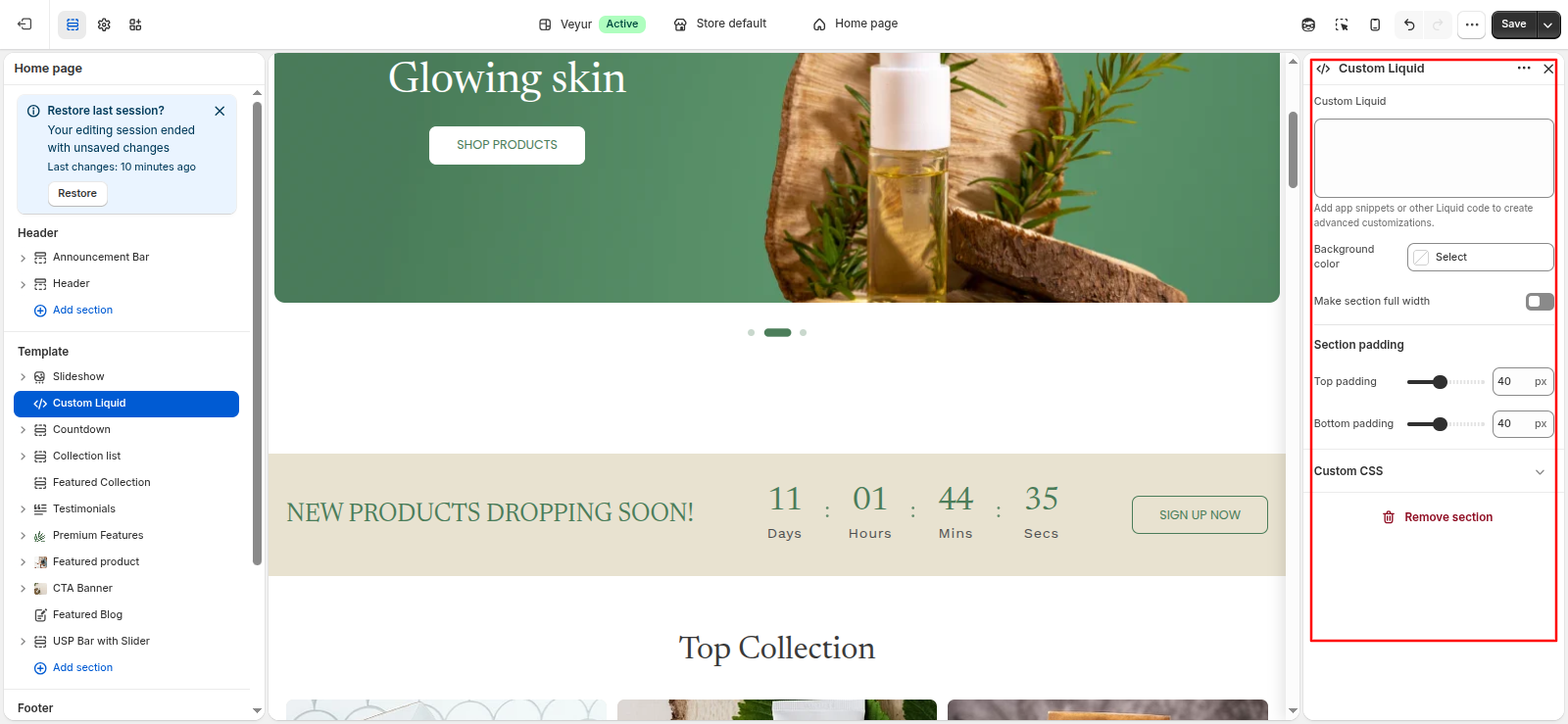
Custom Liquid Settings
This section provides global settings to control the overall appearance and layout:
- Custom Liquid: Add app snippets or other Liquid code to create advanced customizations.
- Color scheme: Configure the color scheme setting.
- Make section full width: Enable or disable the make section full width feature.
- Section padding
- Top padding: Adjust the top padding value.
- Bottom padding: Adjust the bottom padding value.
Custom Section
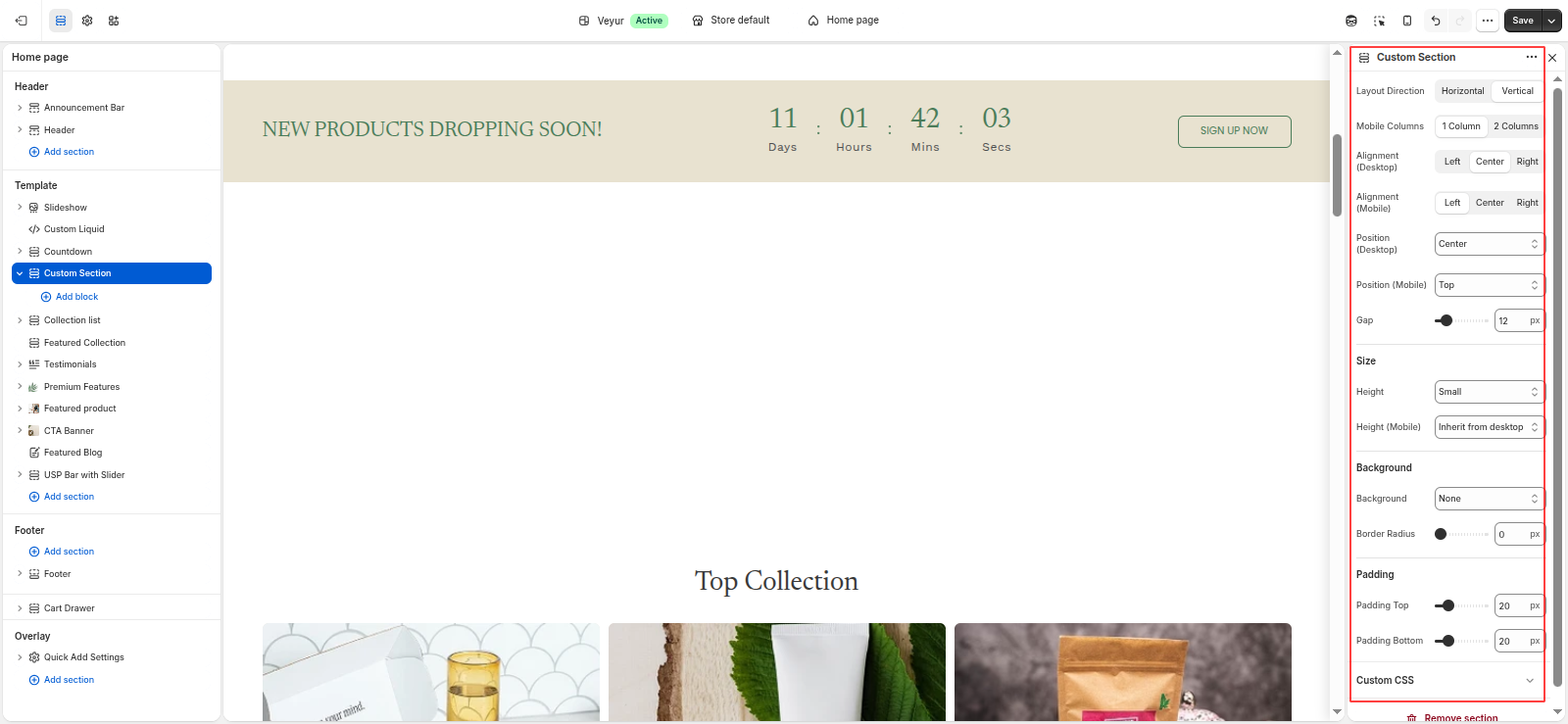
Custom Section Settings
This section provides global settings to control the overall appearance and layout:
- Layout Direction: Select the desired layout direction from the available options.
- Horizontal - Select this option to use the horizontal style/layout.
- Vertical - Select this option to use the vertical style/layout.
- Vertical On Mobile: Enable or disable the vertical on mobile feature.
- Mobile Columns: Select the desired mobile columns from the available options.
- 1 Column - Select this option to use the 1 column style/layout.
- 2 Columns - Select this option to use the 2 columns style/layout.
- Alignment (Desktop): Select the desired alignment (desktop) from the available options.
- Left - Select this option to use the left style/layout.
- Center - Select this option to use the center style/layout.
- Right - Select this option to use the right style/layout.
- Alignment (Mobile): Select the desired alignment (mobile) from the available options.
- Left - Select this option to use the left style/layout.
- Center - Select this option to use the center style/layout.
- Right - Select this option to use the right style/layout.
- Position (Desktop): Select the desired position (desktop) from the available options.
- Top - Select this option to use the top style/layout.
- Center - Select this option to use the center style/layout.
- Bottom - Select this option to use the bottom style/layout.
- Position (Mobile): Select the desired position (mobile) from the available options.
- Top - Select this option to use the top style/layout.
- Center - Select this option to use the center style/layout.
- Bottom - Select this option to use the bottom style/layout.
- Alignment (Desktop): Select the desired alignment (desktop) from the available options.
- Left - Select this option to use the left style/layout.
- Center - Select this option to use the center style/layout.
- Right - Select this option to use the right style/layout.
- Alignment (Mobile): Select the desired alignment (mobile) from the available options.
- Left - Select this option to use the left style/layout.
- Center - Select this option to use the center style/layout.
- Right - Select this option to use the right style/layout.
- Position (Desktop): Select the desired position (desktop) from the available options.
- Top - Select this option to use the top style/layout.
- Center - Select this option to use the center style/layout.
- Bottom - Select this option to use the bottom style/layout.
- Space Between - Select this option to use the space between style/layout.
- Position (Mobile): Select the desired position (mobile) from the available options.
- Top - Select this option to use the top style/layout.
- Center - Select this option to use the center style/layout.
- Bottom - Select this option to use the bottom style/layout.
- Space Between - Select this option to use the space between style/layout.
- Gap: Adjust the gap value.
- Size
- Height: Select the desired height from the available options.
- Small - Select this option to use the small style/layout.
- Medium - Select this option to use the medium style/layout.
- Large - Select this option to use the large style/layout.
- Full Screen - Select this option to use the full screen style/layout.
- Custom - Select this option to use the custom style/layout.
- Custom Height: Adjust the custom height value.
- Height (Mobile): Select the desired height (mobile) from the available options.
- Inherit from desktop - Select this option to use the inherit from desktop style/layout.
- Small - Select this option to use the small style/layout.
- Medium - Select this option to use the medium style/layout.
- Large - Select this option to use the large style/layout.
- Full Screen - Select this option to use the full screen style/layout.
- Custom - Select this option to use the custom style/layout.
- Custom Height (Mobile): Adjust the custom height (mobile) value.
- Background
- Background: Select the desired background from the available options.
- Background Color - Select this option to use the background color style/layout.
- Image - Select this option to use the image style/layout.
- None - Select this option to use the none style/layout.
- Color: Choose a color for the color.
- Image: Upload an image for the image.
- Different Media For Mobile: Enable or disable the different media for mobile feature.
- Mobile Image: Upload an image for the mobile image.
- Image Fit (Desktop): Select the desired image fit (desktop) from the available options.
- Inherit from theme - Select this option to use the inherit from theme style/layout.
- Cover - Select this option to use the cover style/layout.
- Contain - Select this option to use the contain style/layout.
- Image Fit (Mobile): Select the desired image fit (mobile) from the available options.
- Inherit from theme - Select this option to use the inherit from theme style/layout.
- Cover - Select this option to use the cover style/layout.
- Contain - Select this option to use the contain style/layout.
- Border Radius: Adjust the border radius value.
- Overlay: Choose a color for the overlay.
- Decorative Elements
- Bottom Left Corner Image: Upload an image for the bottom left corner image.
- Hide on Mobile: Enable or disable the hide on mobile feature.
- Corner Image Width: Adjust the corner image width value.
- Padding
- Padding Top: Adjust the padding top value.
- Padding Bottom: Adjust the padding bottom value.
Block Blocks
Configure the individual block blocks within this section:
Featured Blog
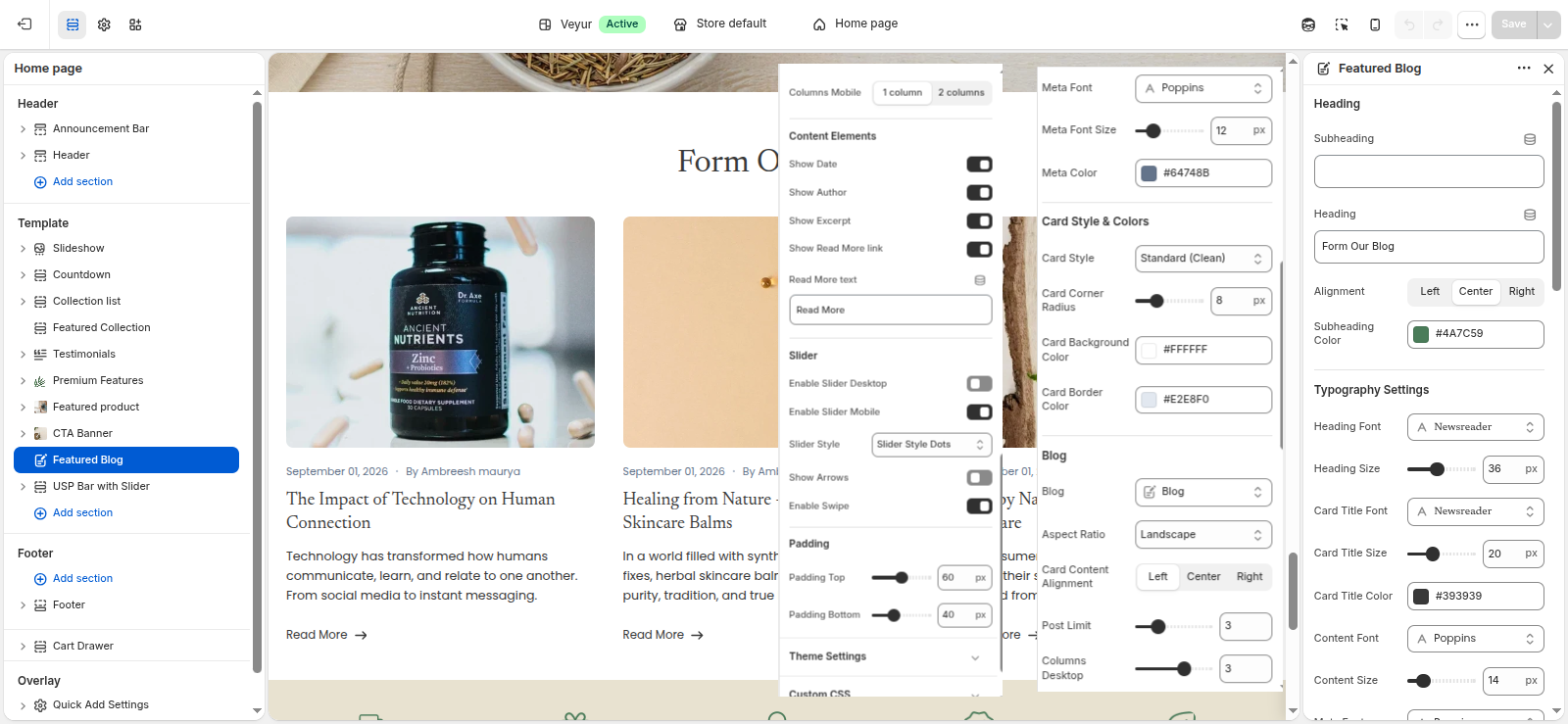
Featured Blog Settings
This section provides global settings to control the overall appearance and layout:
- Heading
- Subheading: Enter the text for the subheading.
- Heading: Enter the text for the heading.
- Alignment: Select the desired alignment from the available options.
- Left - Select this option to use the left style/layout.
- Center - Select this option to use the center style/layout.
- Right - Select this option to use the right style/layout.
- Subheading Color: Choose a color for the subheading color.
- Typography Settings
- Heading Font: Configure the heading font setting.
- Heading Size: Adjust the heading size value.
- Card Title Font: Configure the card title font setting.
- Card Title Size: Adjust the card title size value.
- Card Title Color: Choose a color for the card title color.
- Content Font: Configure the content font setting.
- Content Size: Adjust the content size value.
- Meta Font: Configure the meta font setting.
- Meta Font Size: Adjust the meta font size value.
- Meta Color: Choose a color for the meta color.
- Card Style & Colors
- Card Style: Select the desired card style from the available options.
- Standard (Clean) - Select this option to use the standard (clean) style/layout.
- Boxed Card - Select this option to use the boxed card style/layout.
- Card Corner Radius: Adjust the card corner radius value.
- Card Background Color: Choose a color for the card background color.
- Card Border Color: Choose a color for the card border color.
- Blog
- Blog: Select a blog to show its posts.
- Aspect Ratio: Select the desired aspect ratio from the available options.
- Adapt - Select this option to use the adapt style/layout.
- Portarait - Select this option to use the portarait style/layout.
- Square - Select this option to use the square style/layout.
- Landscape - Select this option to use the landscape style/layout.
- Wide - Select this option to use the wide style/layout.
- Card Content Alignment: Select the desired card content alignment from the available options.
- Left - Select this option to use the left style/layout.
- Center - Select this option to use the center style/layout.
- Right - Select this option to use the right style/layout.
- Post Limit: Adjust the post limit value.
- Columns Desktop: Adjust the columns desktop value.
- Columns Mobile: Select the desired columns mobile from the available options.
- 1 column - Select this option to use the 1 column style/layout.
- 2 columns - Select this option to use the 2 columns style/layout.
- Content Elements
- Show Date: Enable or disable the show date feature.
- Show Author: Enable or disable the show author feature.
- Show Excerpt: Enable or disable the show excerpt feature.
- Show Read More link: Enable or disable the show read more link feature.
- Read More text: Enter the text for the read more text.
- Slider
- Enable Slider Desktop: Enable or disable the enable slider desktop feature.
- Enable Slider Mobile: Enable or disable the enable slider mobile feature.
- Slider Style: Select the desired slider style from the available options.
- Slider Style None - Select this option to use the slider style none style/layout.
- Slider Style Dots - Select this option to use the slider style dots style/layout.
- Slider Style Numbers - Select this option to use the slider style numbers style/layout.
- Show Arrows: Enable or disable the show arrows feature.
- Enable Swipe: Enable or disable the enable swipe feature.
- Padding
- Padding Top: Adjust the padding top value.
- Padding Bottom: Adjust the padding bottom value.
Featured collection
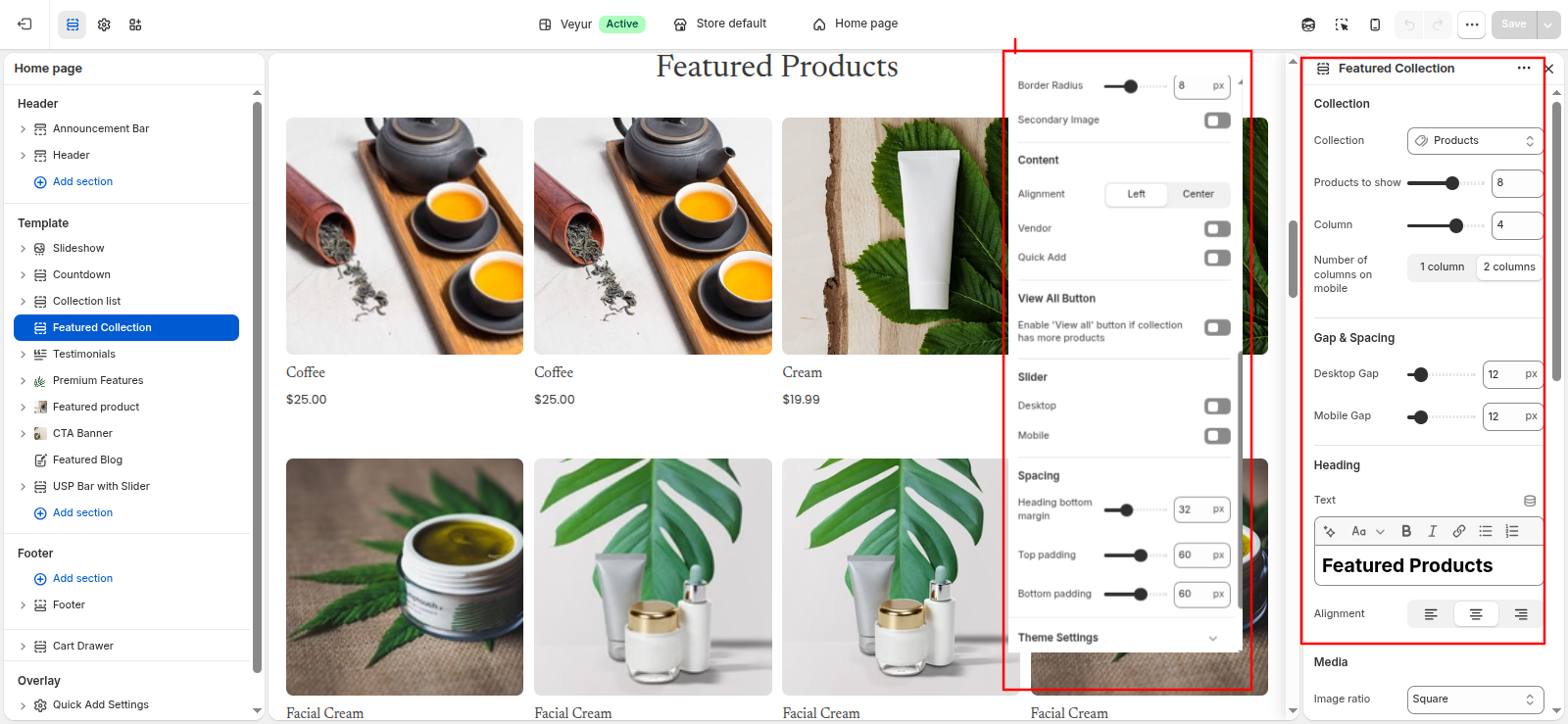
Featured collection Settings
This section provides global settings to control the overall appearance and layout:
- Collection
- Collection: Choose a collection to display.
- Products to show: Adjust the products to show value.
- Column: Adjust the column value.
- Number of columns on mobile: Select the desired number of columns on mobile from the available options.
- 1 column - Select this option to use the 1 column style/layout.
- 2 columns - Select this option to use the 2 columns style/layout.
- Gap & Spacing
- Desktop Gap: Adjust the desktop gap value.
- Mobile Gap: Adjust the mobile gap value.
- Heading
- Text: Add detailed text or content for the text.
- Alignment: Configure the alignment setting.
- Media
- Image ratio: Select the desired image ratio from the available options.
- Adapt to image - Select this option to use the adapt to image style/layout.
- Portrait - Select this option to use the portrait style/layout.
- Square - Select this option to use the square style/layout.
- Border Radius: Adjust the border radius value.
- Secondary Image: Enable or disable the secondary image feature.
- Content
- Alignment: Select the desired alignment from the available options.
- Left - Select this option to use the left style/layout.
- Center - Select this option to use the center style/layout.
- Vendor: Enable or disable the vendor feature.
- Quick Add: Enable or disable the quick add feature.
- Enable quick add button on mobile: Enable or disable the enable quick add button on mobile feature.
- View All Button
- Enable 'View all' button if collection has more products: Enable or disable the enable 'view all' button if collection has more products feature.
- Button text: Enter the text for the button text.
- Button style: Select the desired button style from the available options.
- Primary - Select this option to use the primary style/layout.
- Secondary - Select this option to use the secondary style/layout.
- Link - Select this option to use the link style/layout.
- Slider
- Desktop: Enable or disable the desktop feature.
- Mobile: Enable or disable the mobile feature.
- Arrows: Enable or disable the arrows feature.
- Arrow Position: Select the desired arrow position from the available options.
- Top Right - Select this option to use the top right style/layout.
- Middle - Select this option to use the middle style/layout.
- Dots: Enable or disable the dots feature.
- Autoplay: Enable or disable the autoplay feature.
- Slider Speed: Adjust the slider speed value.
- Spacing
- Heading bottom margin: Adjust the heading bottom margin value.
- Top padding: Adjust the top padding value.
- Bottom padding: Adjust the bottom padding value.
Customer Account
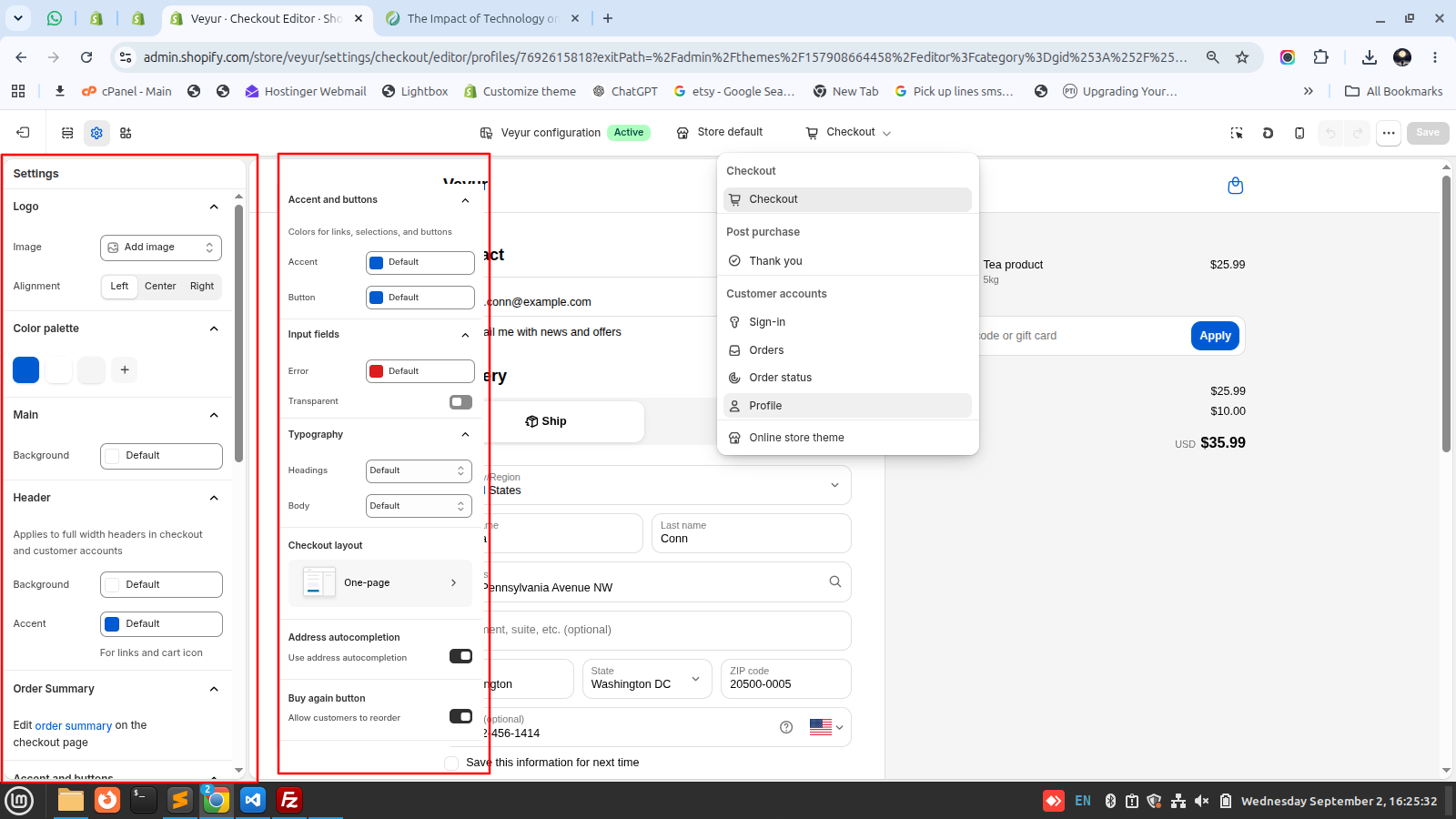
Customer Account Settings
This section provides global settings to control the overall appearance and layout:
- Typography
- Font Family: Configure the font family setting.
- Heading Font Size (Desktop): Adjust the heading font size (desktop) value.
- Heading Font Size (Mobile): Adjust the heading font size (mobile) value.
- Text Font Size (Desktop): Adjust the text font size (desktop) value.
- Text Font Size (Mobile): Adjust the text font size (mobile) value.
- Font Weight: Select the desired font weight from the available options.
- Normal - Select this option to use the normal style/layout.
- Medium - Select this option to use the medium style/layout.
- Semi-Bold - Select this option to use the semi-bold style/layout.
- Bold - Select this option to use the bold style/layout.
- Text Color: Choose a color for the text color.
- Text Transform: Select the desired text transform from the available options.
- None - Select this option to use the none style/layout.
- Uppercase - Select this option to use the uppercase style/layout.
- Lowercase - Select this option to use the lowercase style/layout.
- Capitalize - Select this option to use the capitalize style/layout.
- Buttons
- Button Background Color: Choose a color for the button background color.
- Button Text Color: Choose a color for the button text color.
- Button Border Color: Choose a color for the button border color.
- Button Border Thickness: Adjust the button border thickness value.
- Button Border Radius: Adjust the button border radius value.
- Button Hover Background Color: Choose a color for the button hover background color.
- Button Hover Text Color: Choose a color for the button hover text color.
- Button Hover Border Color: Choose a color for the button hover border color.
- Padding
- Padding Top (Desktop): Adjust the padding top (desktop) value.
- Padding Bottom (Desktop): Adjust the padding bottom (desktop) value.
- Padding Top (Mobile): Adjust the padding top (mobile) value.
- Padding Bottom (Mobile): Adjust the padding bottom (mobile) value.
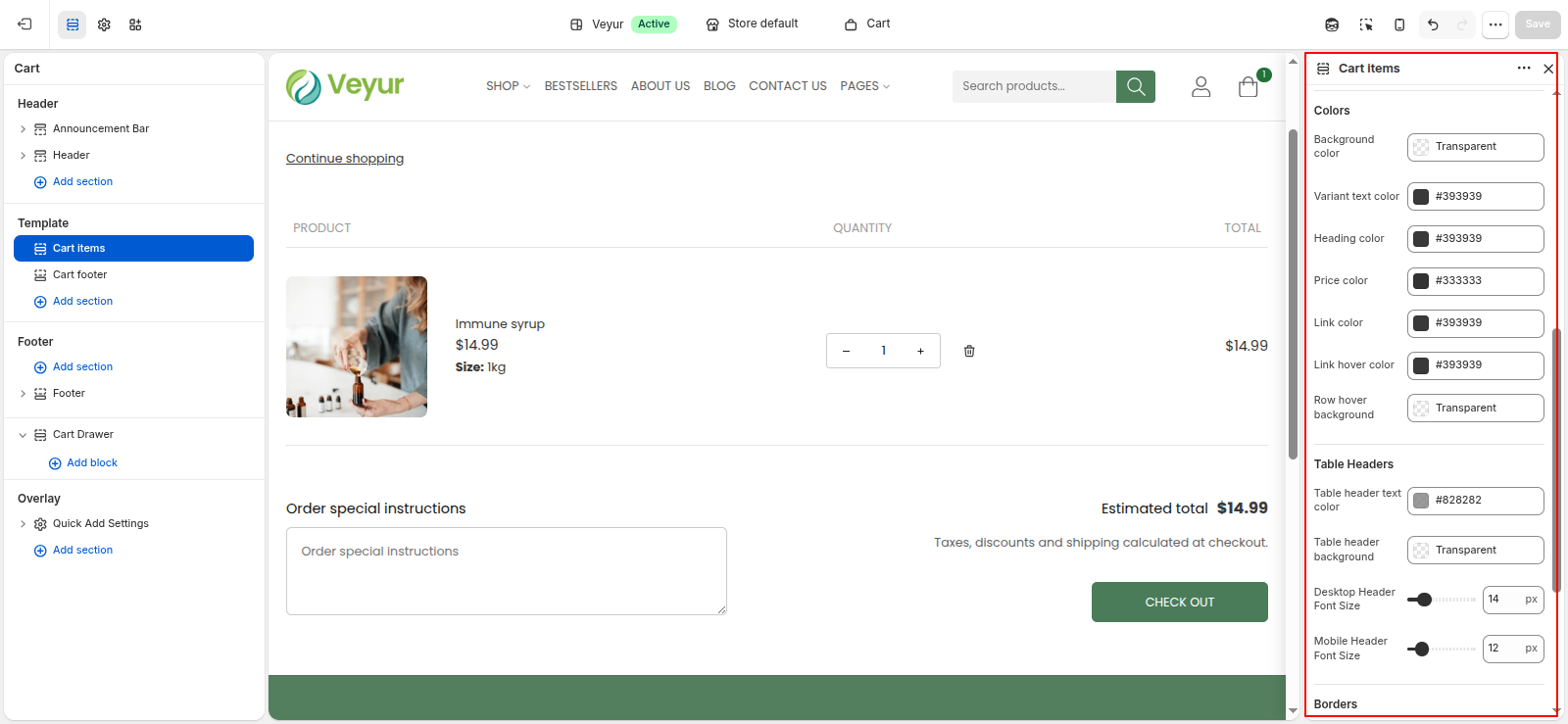
Cart items
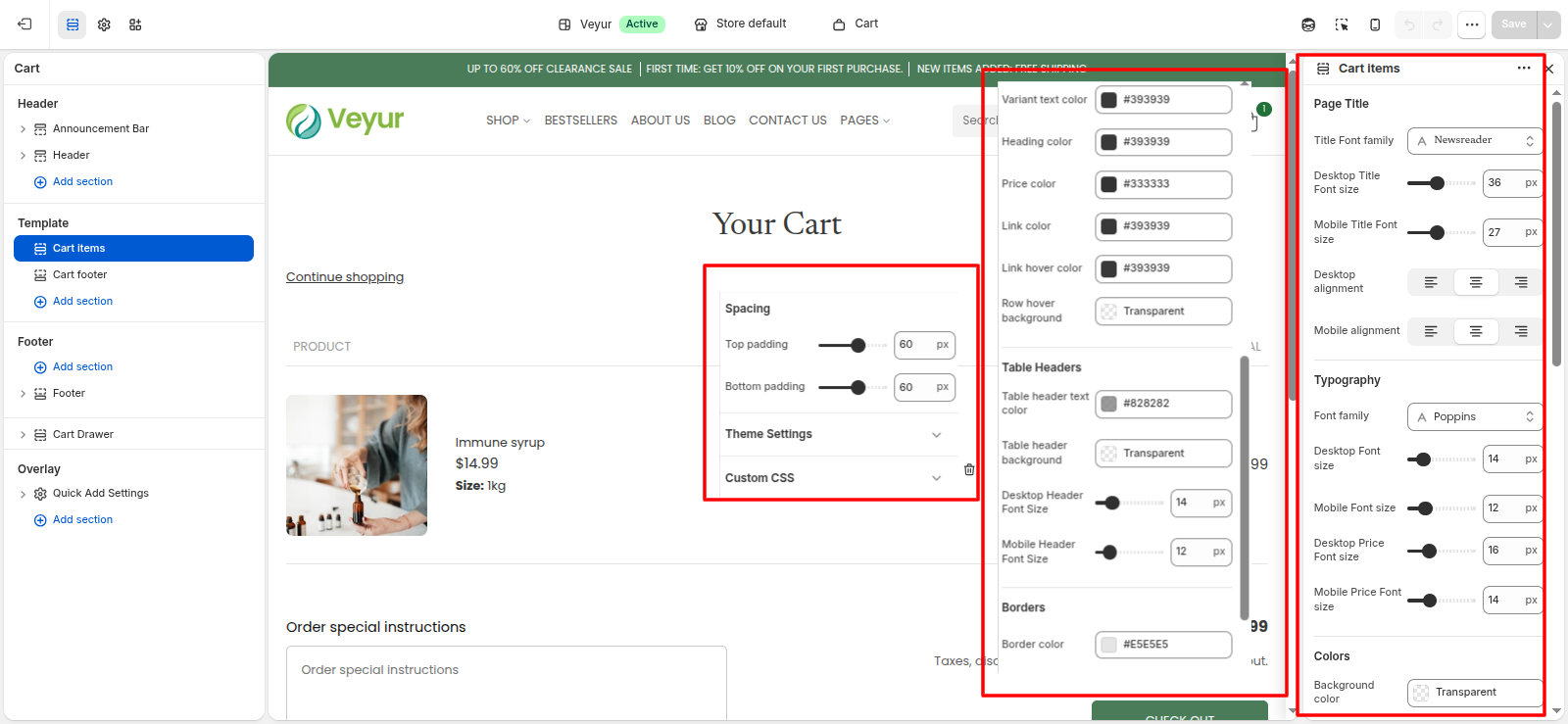
Cart items Settings
This section provides global settings to control the overall appearance and layout:
- Page Title
- Title Font family: Configure the title font family setting.
- Desktop Title Font size: Adjust the desktop title font size value.
- Mobile Title Font size: Adjust the mobile title font size value.
- Desktop alignment: Configure the desktop alignment setting.
- Mobile alignment: Configure the mobile alignment setting.
- Typography
- Font family: Configure the font family setting.
- Desktop Font size: Adjust the desktop font size value.
- Mobile Font size: Adjust the mobile font size value.
- Desktop Price Font size: Adjust the desktop price font size value.
- Mobile Price Font size: Adjust the mobile price font size value.
- Colors
- Background color: Choose a color for the background color.
- Variant text color: Choose a color for the variant text color.
- Heading color: Choose a color for the heading color.
- Price color: Choose a color for the price color.
- Link color: Choose a color for the link color.
- Link hover color: Choose a color for the link hover color.
- Row hover background: Choose a color for the row hover background.
- Table Headers
- Table header text color: Choose a color for the table header text color.
- Table header background: Choose a color for the table header background.
- Desktop Header Font Size: Adjust the desktop header font size value.
- Mobile Header Font Size: Adjust the mobile header font size value.
- Borders
- Border color: Choose a color for the border color.
- Spacing
- Top padding: Adjust the top padding value.
- Bottom padding: Adjust the bottom padding value.
Collection Banner
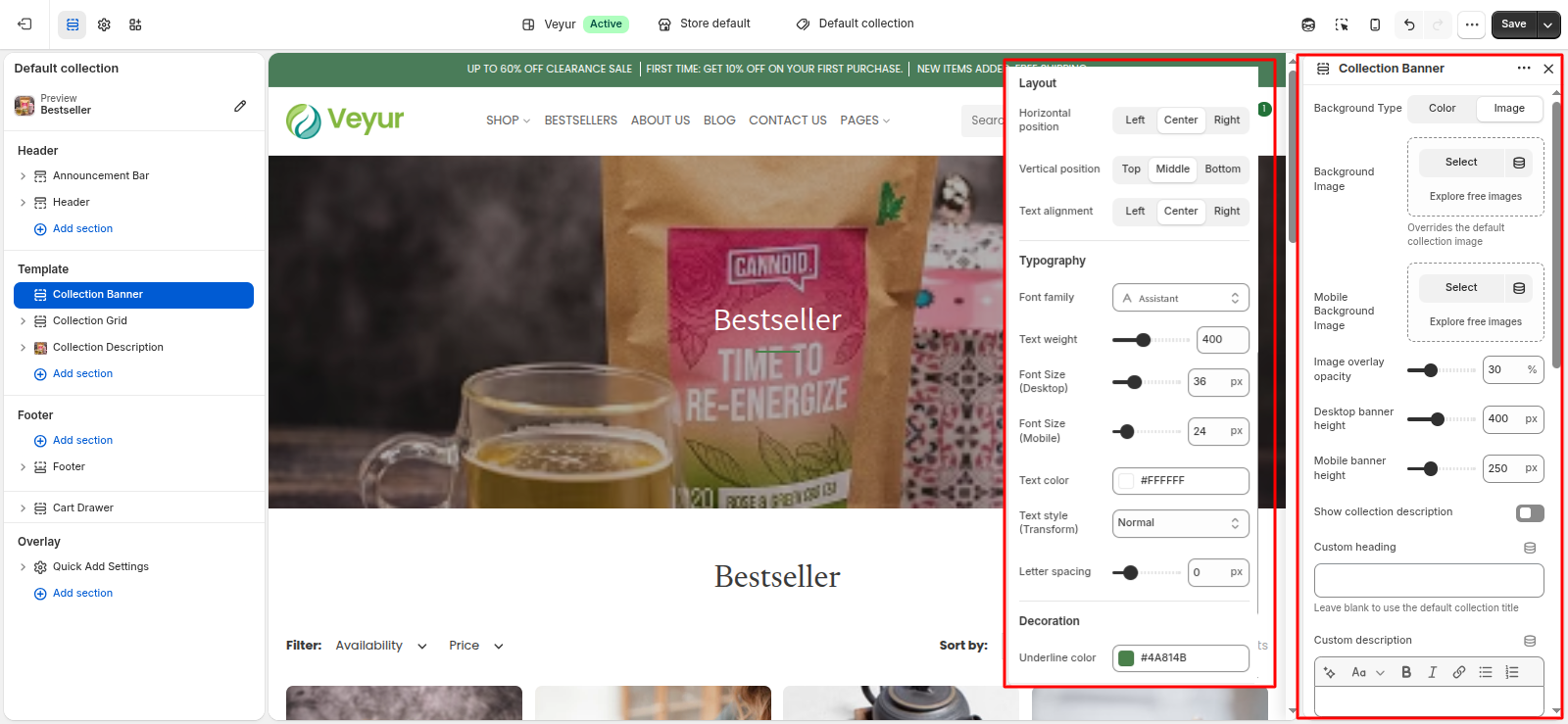
Collection Banner Settings
This section provides global settings to control the overall appearance and layout:
- Background Type: Select the desired background type from the available options.
- Color - Select this option to use the color style/layout.
- Image - Select this option to use the image style/layout.
- Background Color: Choose a color for the background color.
- Background Image: Overrides the default collection image
- Mobile Background Image: Upload an image for the mobile background image.
- Image overlay opacity: Adjust the image overlay opacity value.
- Desktop banner height: Adjust the desktop banner height value.
- Mobile banner height: Adjust the mobile banner height value.
- Show collection description: Enable or disable the show collection description feature.
- Custom heading: Leave blank to use the default collection title
- Custom description: Leave blank to use the default collection description
- Layout
- Horizontal position: Select the desired horizontal position from the available options.
- Left - Select this option to use the left style/layout.
- Center - Select this option to use the center style/layout.
- Right - Select this option to use the right style/layout.
- Vertical position: Select the desired vertical position from the available options.
- Top - Select this option to use the top style/layout.
- Middle - Select this option to use the middle style/layout.
- Bottom - Select this option to use the bottom style/layout.
- Text alignment: Select the desired text alignment from the available options.
- Left - Select this option to use the left style/layout.
- Center - Select this option to use the center style/layout.
- Right - Select this option to use the right style/layout.
- Typography
- Font family: Configure the font family setting.
- Text weight: Adjust the text weight value.
- Font Size (Desktop): Adjust the font size (desktop) value.
- Font Size (Mobile): Adjust the font size (mobile) value.
- Text color: Choose a color for the text color.
- Text style (Transform): Select the desired text style (transform) from the available options.
- Normal - Select this option to use the normal style/layout.
- Uppercase - Select this option to use the uppercase style/layout.
- Lowercase - Select this option to use the lowercase style/layout.
- Capitalize - Select this option to use the capitalize style/layout.
- Letter spacing: Adjust the letter spacing value.
- Decoration
- Underline color: Choose a color for the underline color.
Main Page
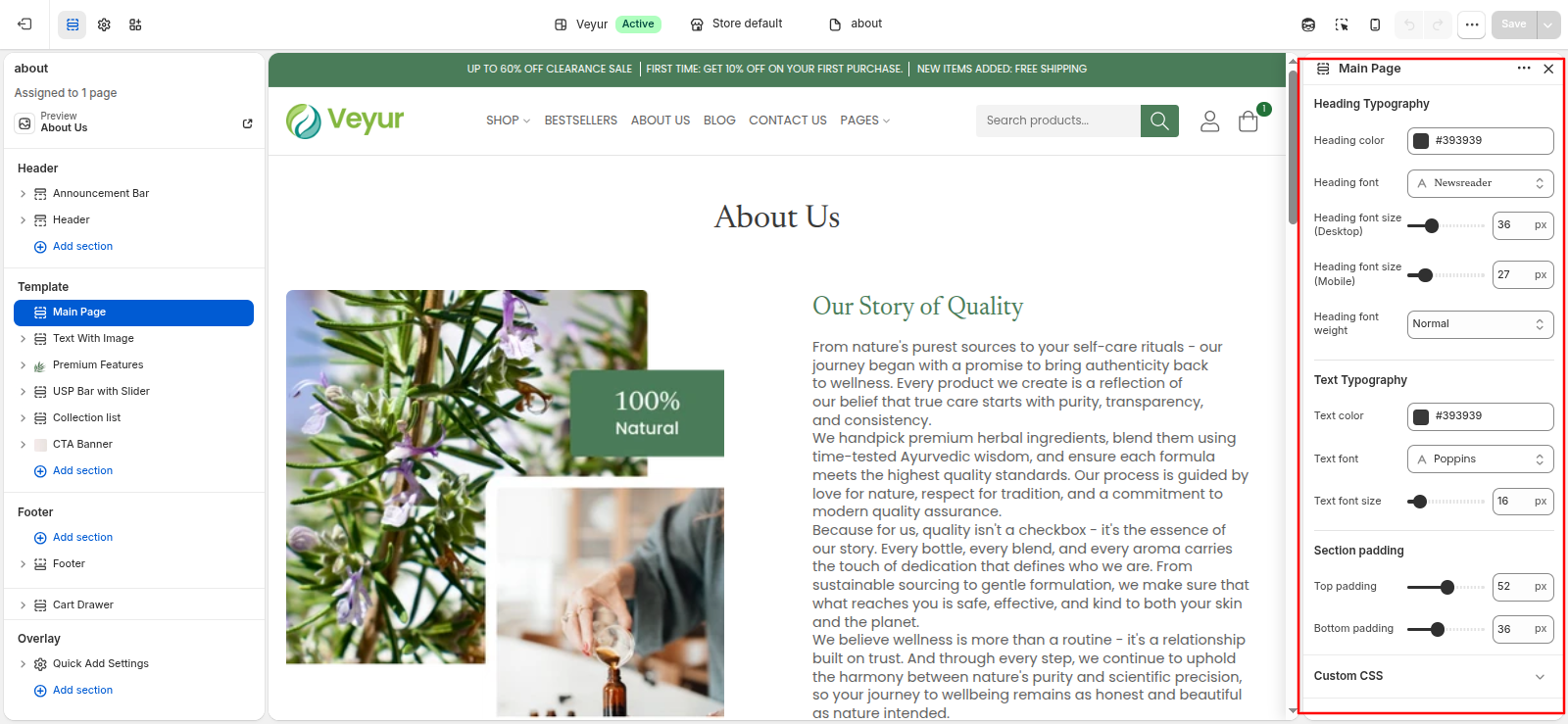
Main Page Settings
This section provides global settings to control the overall appearance and layout:
- Heading Typography
- Heading color: Choose a color for the heading color.
- Heading font: Configure the heading font setting.
- Heading font size (Desktop): Adjust the heading font size (desktop) value.
- Heading font size (Mobile): Adjust the heading font size (mobile) value.
- Heading font weight: Select the desired heading font weight from the available options.
- Normal - Select this option to use the normal style/layout.
- Medium - Select this option to use the medium style/layout.
- Semi Bold - Select this option to use the semi bold style/layout.
- Bold - Select this option to use the bold style/layout.
- Text Typography
- Text color: Choose a color for the text color.
- Text font: Configure the text font setting.
- Text font size: Adjust the text font size value.
- Section padding
- Top padding: Adjust the top padding value.
- Bottom padding: Adjust the bottom padding value.
Scrolling text
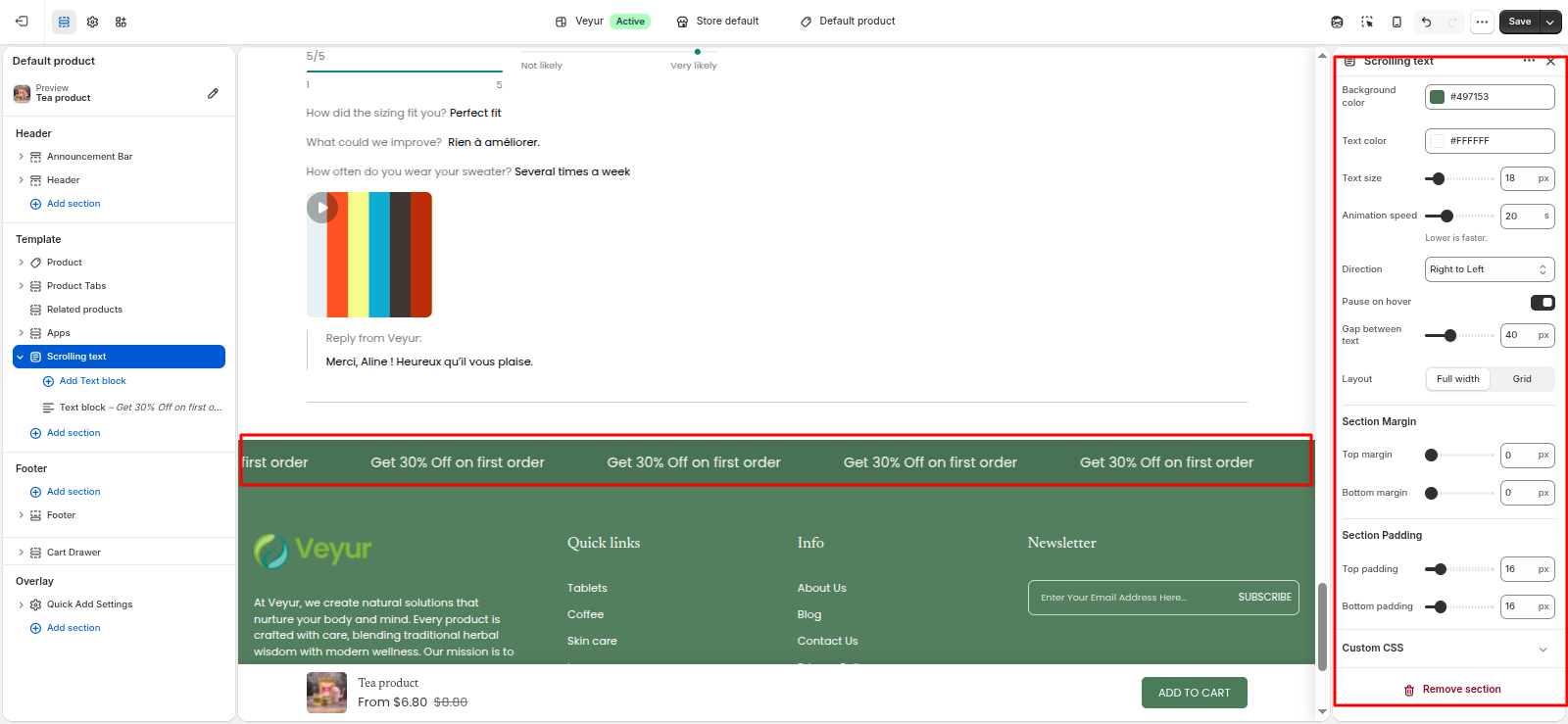
Scrolling text (Marquee) Settings
This section provides global settings to control the overall appearance and layout:
- Background color: Choose a color for the background color.
- Text color: Choose a color for the text color.
- Text size: Adjust the text size value.
- Animation speed: Lower is faster.
- Direction: Select the desired direction from the available options.
- Right to Left - Select this option to use the right to left style/layout.
- Left to Right - Select this option to use the left to right style/layout.
- Pause on hover: Enable or disable the pause on hover feature.
- Gap between text: Adjust the gap between text value.
- Layout: Select the desired layout from the available options.
- Full width - Select this option to use the full width style/layout.
- Grid - Select this option to use the grid style/layout.
- Section Margin
- Top margin: Adjust the top margin value.
- Bottom margin: Adjust the bottom margin value.
- Section Padding
- Top padding: Adjust the top padding value.
- Bottom padding: Adjust the bottom padding value.
Text block Blocks
Configure the individual text block blocks within this section:
- Text: Enter the text for the text.
Newsletter
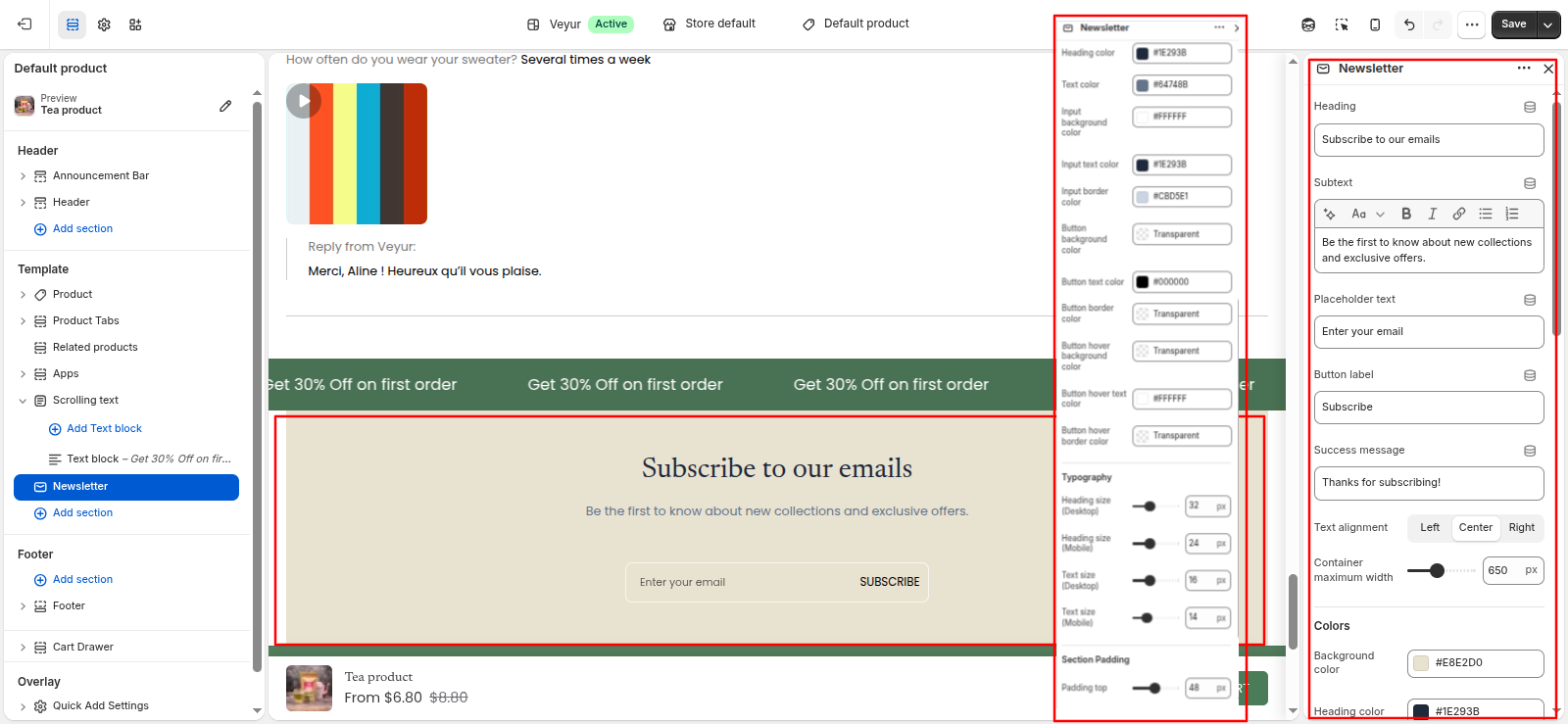
Newsletter Settings
This section provides global settings to control the overall appearance and layout:
- Heading: Enter the text for the heading.
- Subtext: Add detailed text or content for the subtext.
- Placeholder text: Enter the text for the placeholder text.
- Button label: Enter the text for the button label.
- Success message: Enter the text for the success message.
- Text alignment: Select the desired text alignment from the available options.
- Left - Select this option to use the left style/layout.
- Center - Select this option to use the center style/layout.
- Right - Select this option to use the right style/layout.
- Container maximum width: Adjust the container maximum width value.
- Colors
- Background color: Choose a color for the background color.
- Heading color: Choose a color for the heading color.
- Text color: Choose a color for the text color.
- Input background color: Choose a color for the input background color.
- Input text color: Choose a color for the input text color.
- Input border color: Choose a color for the input border color.
- Button background color: Choose a color for the button background color.
- Button text color: Choose a color for the button text color.
- Button border color: Choose a color for the button border color.
- Button hover background color: Choose a color for the button hover background color.
- Button hover text color: Choose a color for the button hover text color.
- Button hover border color: Choose a color for the button hover border color.
- Typography
- Heading size (Desktop): Adjust the heading size (desktop) value.
- Heading size (Mobile): Adjust the heading size (mobile) value.
- Text size (Desktop): Adjust the text size (desktop) value.
- Text size (Mobile): Adjust the text size (mobile) value.
- Section Padding
- Padding top: Adjust the padding top value.
- Padding bottom: Adjust the padding bottom value.
Password page
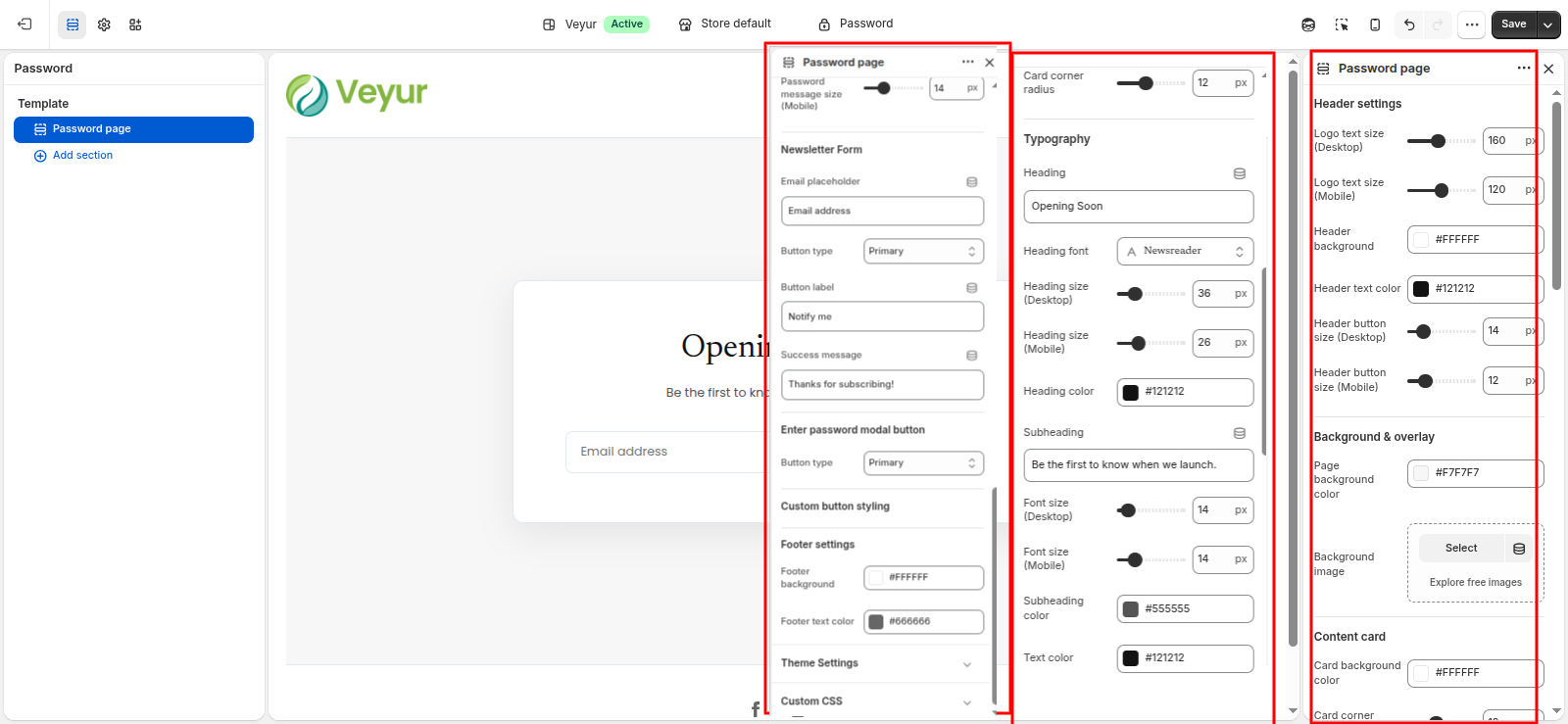
Password page Settings
This section provides global settings to control the overall appearance and layout:
- Header settings
- Logo text size (Desktop): Adjust the logo text size (desktop) value.
- Logo text size (Mobile): Adjust the logo text size (mobile) value.
- Header background: Choose a color for the header background.
- Header text color: Choose a color for the header text color.
- Header button size (Desktop): Adjust the header button size (desktop) value.
- Header button size (Mobile): Adjust the header button size (mobile) value.
- Background & overlay
- Page background color: Choose a color for the page background color.
- Background image: Upload an image for the background image.
- Overlay color: Choose a color for the overlay color.
- Overlay opacity: Adjust the overlay opacity value.
- Content card
- Card background color: Choose a color for the card background color.
- Card corner radius: Adjust the card corner radius value.
- Typography
- Heading: Enter the text for the heading.
- Heading font: Configure the heading font setting.
- Heading size (Desktop): Adjust the heading size (desktop) value.
- Heading size (Mobile): Adjust the heading size (mobile) value.
- Heading color: Choose a color for the heading color.
- Subheading: Enter the text for the subheading.
- Font size (Desktop): Adjust the font size (desktop) value.
- Font size (Mobile): Adjust the font size (mobile) value.
- Subheading color: Choose a color for the subheading color.
- Text color: Choose a color for the text color.
- Password message size (Desktop): Adjust the password message size (desktop) value.
- Password message size (Mobile): Adjust the password message size (mobile) value.
- Newsletter Form
- Email placeholder: Enter the text for the email placeholder.
- Button type: Select the desired button type from the available options.
- Primary - Select this option to use the primary style/layout.
- Secondary - Select this option to use the secondary style/layout.
- Custom - Select this option to use the custom style/layout.
- Button label: Enter the text for the button label.
- Success message: Enter the text for the success message.
- Enter password modal button
- Button type: Select the desired button type from the available options.
- Primary - Select this option to use the primary style/layout.
- Secondary - Select this option to use the secondary style/layout.
- Custom - Select this option to use the custom style/layout.
- Custom button styling
- Button Font: Configure the button font setting.
- Font Size (Desktop): Adjust the font size (desktop) value.
- Font Size (Mobile): Adjust the font size (mobile) value.
- Button Font Weight: Select the desired button font weight from the available options.
- Regular - Select this option to use the regular style/layout.
- Medium - Select this option to use the medium style/layout.
- Semi Bold - Select this option to use the semi bold style/layout.
- Bold - Select this option to use the bold style/layout.
- Letter Spacing: Adjust the letter spacing value.
- Text Transform: Select the desired text transform from the available options.
- None - Select this option to use the none style/layout.
- Uppercase - Select this option to use the uppercase style/layout.
- Lowercase - Select this option to use the lowercase style/layout.
- Capitalize - Select this option to use the capitalize style/layout.
- Button background color: Choose a color for the button background color.
- Button text color: Choose a color for the button text color.
- Button border color: Choose a color for the button border color.
- Hover Background: Choose a color for the hover background.
- Hover Text Color: Choose a color for the hover text color.
- Hover Border Color: Choose a color for the hover border color.
- Footer settings
- Footer background: Choose a color for the footer background.
- Footer text color: Choose a color for the footer text color.
Pickup availability
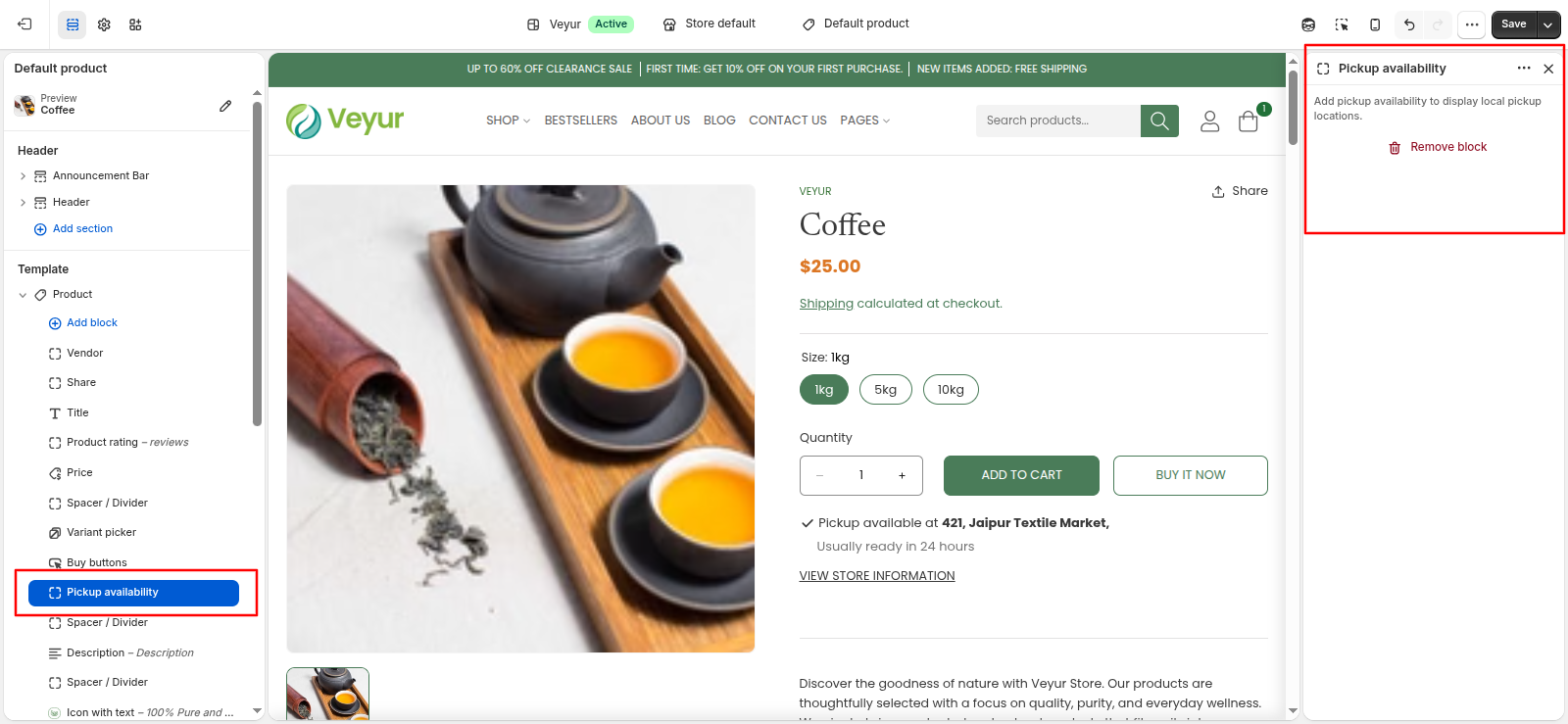
This section displays local pickup information on the product page. It automatically shows whether the selected product variant is available for pickup at your store locations.
Note: This section is configured through your Shopify Admin settings under Settings > Locations and Settings > Shipping and delivery. It does not have customizable design settings in the theme editor.
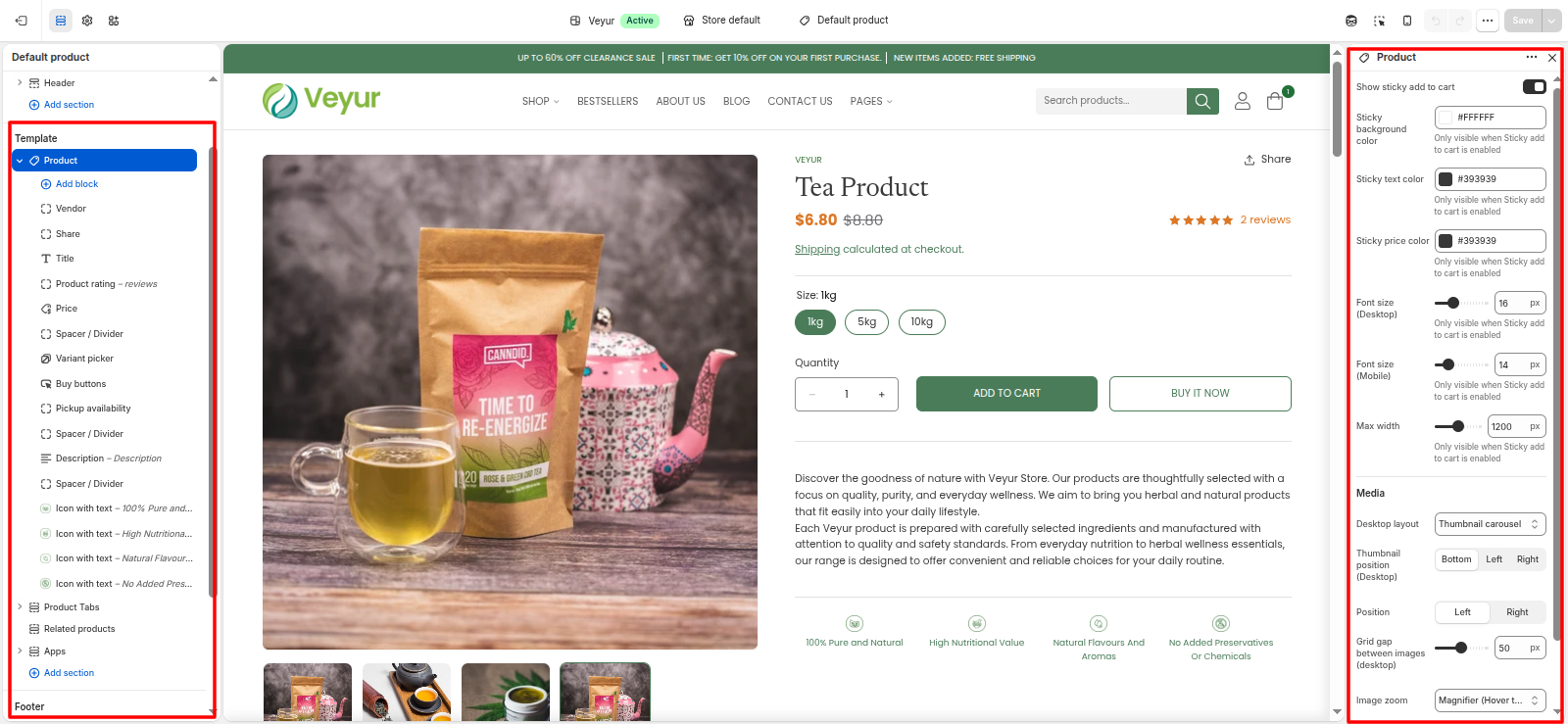
Product Tabs
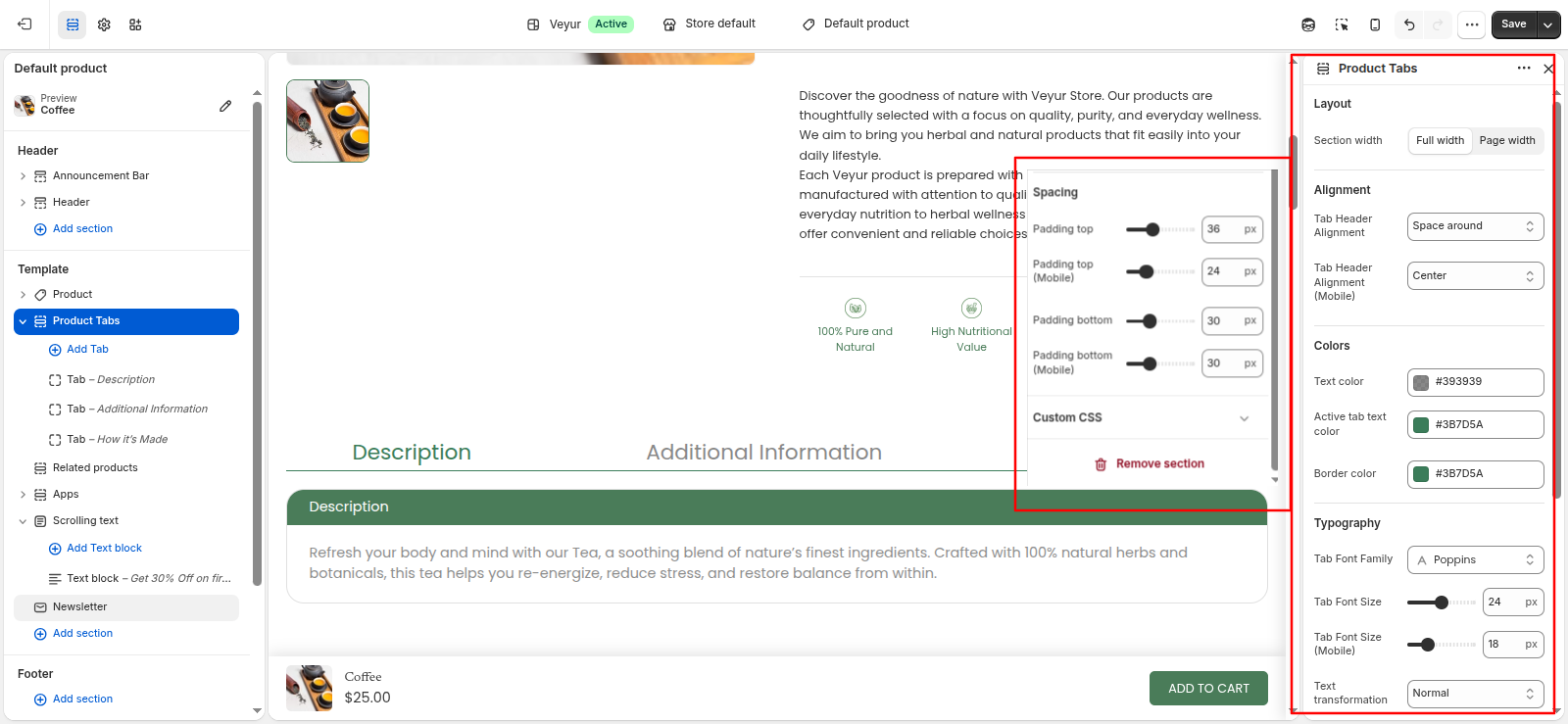
Product Tabs Settings
This section provides global settings to control the overall appearance and layout:
- Layout
- Section width: Select the desired section width from the available options.
- Full width - Select this option to use the full width style/layout.
- Page width - Select this option to use the page width style/layout.
- Alignment
- Tab Header Alignment: Select the desired tab header alignment from the available options.
- Left - Select this option to use the left style/layout.
- Center - Select this option to use the center style/layout.
- Right - Select this option to use the right style/layout.
- Space around - Select this option to use the space around style/layout.
- Space between - Select this option to use the space between style/layout.
- Tab Header Alignment (Mobile): Select the desired tab header alignment (mobile) from the available options.
- Left - Select this option to use the left style/layout.
- Center - Select this option to use the center style/layout.
- Right - Select this option to use the right style/layout.
- Space around - Select this option to use the space around style/layout.
- Space between - Select this option to use the space between style/layout.
- Colors
- Text color: Choose a color for the text color.
- Active tab text color: Choose a color for the active tab text color.
- Border color: Choose a color for the border color.
- Typography
- Tab Font Family: Configure the tab font family setting.
- Tab Font Size: Adjust the tab font size value.
- Tab Font Size (Mobile): Adjust the tab font size (mobile) value.
- Text transformation: Select the desired text transformation from the available options.
- Normal - Select this option to use the normal style/layout.
- Uppercase - Select this option to use the uppercase style/layout.
- Lowercase - Select this option to use the lowercase style/layout.
- Capitalize - Select this option to use the capitalize style/layout.
- Spacing
- Padding top: Adjust the padding top value.
- Padding top (Mobile): Adjust the padding top (mobile) value.
- Padding bottom: Adjust the padding bottom value.
- Padding bottom (Mobile): Adjust the padding bottom (mobile) value.
Tab Blocks
Configure the individual tab blocks within this section:
- Heading: Enter the text for the heading.
- Content Heading: Enter the text for the content heading.
- Tab content: Add detailed text or content for the tab content.
- Tab content from page: Configure the tab content from page setting.
- Content Heading Styling
- Heading Font Family: Configure the heading font family setting.
- Heading Background color: Choose a color for the heading background color.
- Heading Text color: Choose a color for the heading text color.
- Heading Font size: Adjust the heading font size value.
- Heading Font size (Mobile): Adjust the heading font size (mobile) value.
- Heading Text alignment: Select the desired heading text alignment from the available options.
- Left - Select this option to use the left style/layout.
- Center - Select this option to use the center style/layout.
- Right - Select this option to use the right style/layout.
- Justify - Select this option to use the justify style/layout.
- Heading Text transformation: Select the desired heading text transformation from the available options.
- Normal - Select this option to use the normal style/layout.
- Uppercase - Select this option to use the uppercase style/layout.
- Lowercase - Select this option to use the lowercase style/layout.
- Capitalize - Select this option to use the capitalize style/layout.
- Content Styling
- Font family: Configure the font family setting.
- Background color: Choose a color for the background color.
- Text color: Choose a color for the text color.
- Font size: Adjust the font size value.
- Font size (Mobile): Adjust the font size (mobile) value.
- Text alignment: Select the desired text alignment from the available options.
- Left - Select this option to use the left style/layout.
- Center - Select this option to use the center style/layout.
- Right - Select this option to use the right style/layout.
- Justify - Select this option to use the justify style/layout.
- Text transformation: Select the desired text transformation from the available options.
- Normal - Select this option to use the normal style/layout.
- Uppercase - Select this option to use the uppercase style/layout.
- Lowercase - Select this option to use the lowercase style/layout.
- Capitalize - Select this option to use the capitalize style/layout.
- Border color: Choose a color for the border color.
- Border width: Adjust the border width value.
- Border width (Mobile): Adjust the border width (mobile) value.
- Border radius: Adjust the border radius value.
- Border radius (Mobile): Adjust the border radius (mobile) value.
- Padding top: Adjust the padding top value.
- Padding top (Mobile): Adjust the padding top (mobile) value.
- Padding bottom: Adjust the padding bottom value.
- Padding bottom (Mobile): Adjust the padding bottom (mobile) value.
Quick Add Settings
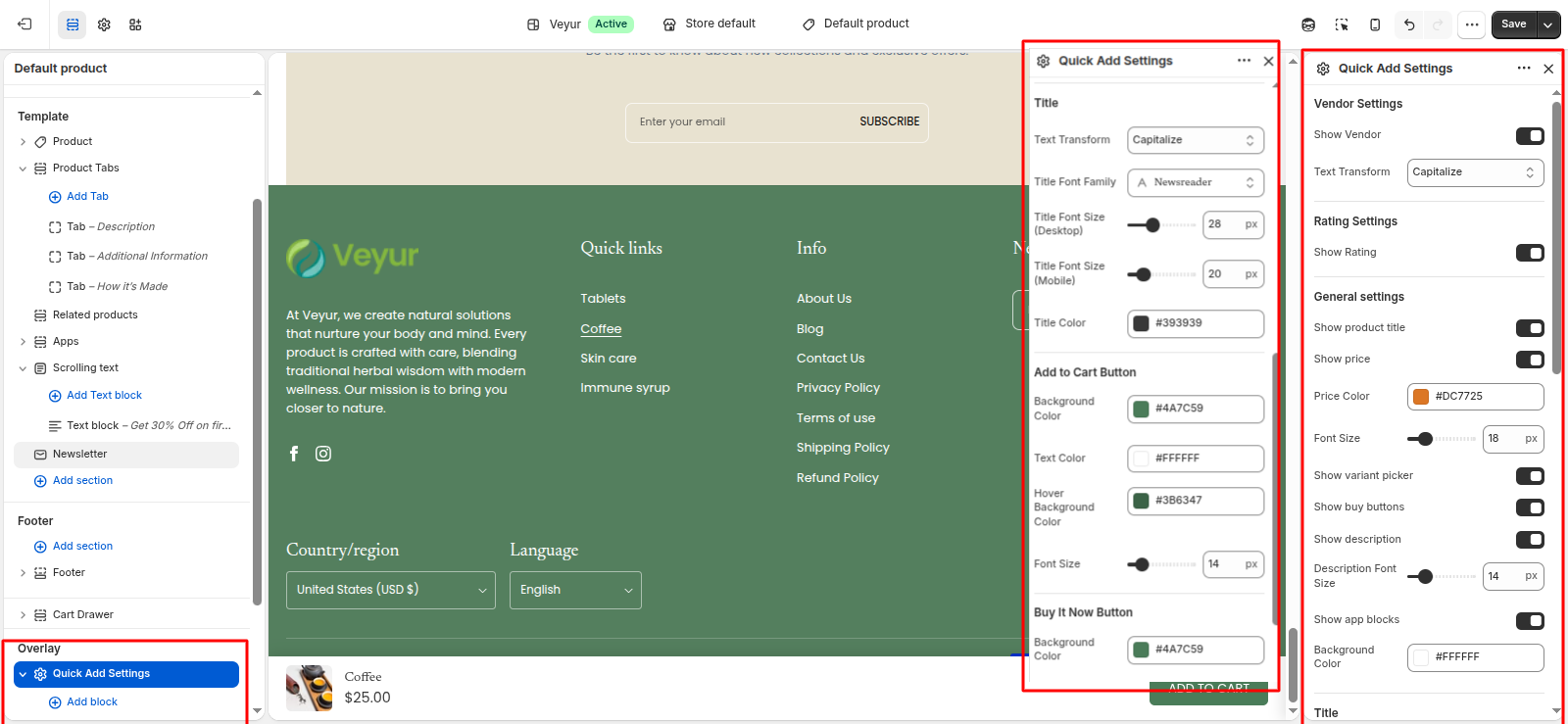
Quick Add Settings Settings
This section provides global settings to control the overall appearance and layout:
- Vendor Settings
- Show Vendor: Enable or disable the show vendor feature.
- Text Transform: Select the desired text transform from the available options.
- None - Select this option to use the none style/layout.
- Uppercase - Select this option to use the uppercase style/layout.
- Lowercase - Select this option to use the lowercase style/layout.
- Capitalize - Select this option to use the capitalize style/layout.
- Rating Settings
- Show Rating: Enable or disable the show rating feature.
- General settings
- Show product title: Enable or disable the show product title feature.
- Show price: Enable or disable the show price feature.
- Price Color: Choose a color for the price color.
- Font Size: Adjust the font size value.
- Show variant picker: Enable or disable the show variant picker feature.
- Show buy buttons: Enable or disable the show buy buttons feature.
- Show description: Enable or disable the show description feature.
- Description Font Size: Adjust the description font size value.
- Show app blocks: Enable or disable the show app blocks feature.
- Background Color: Choose a color for the background color.
- Title
- Text Transform: Select the desired text transform from the available options.
- None - Select this option to use the none style/layout.
- Uppercase - Select this option to use the uppercase style/layout.
- Lowercase - Select this option to use the lowercase style/layout.
- Capitalize - Select this option to use the capitalize style/layout.
- Title Font Family: Configure the title font family setting.
- Title Font Size (Desktop): Adjust the title font size (desktop) value.
- Title Font Size (Mobile): Adjust the title font size (mobile) value.
- Title Color: Choose a color for the title color.
- Add to Cart Button
- Background Color: Choose a color for the background color.
- Text Color: Choose a color for the text color.
- Hover Background Color: Choose a color for the hover background color.
- Font Size: Adjust the font size value.
- Buy It Now Button
- Background Color: Choose a color for the background color.
- Text Color: Choose a color for the text color.
- Hover Background Color: Choose a color for the hover background color.
- Font Size: Adjust the font size value.
Block Blocks
Configure the individual block blocks within this section:
Search Results
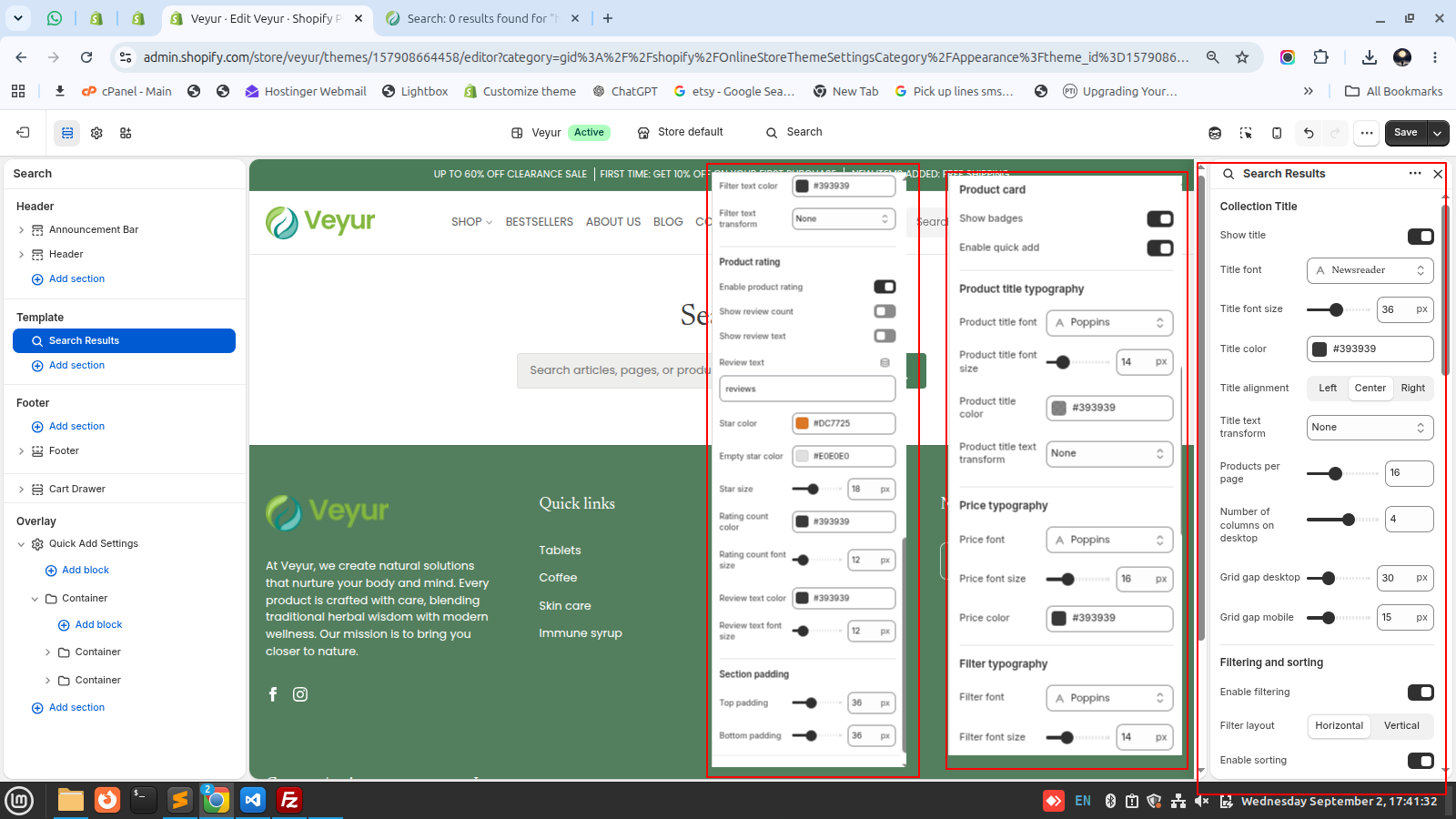
Search Results Settings
This section provides global settings to control the overall appearance and layout:
- Collection Title
- Show title: Enable or disable the show title feature.
- Title font: Configure the title font setting.
- Title font size: Adjust the title font size value.
- Title color: Choose a color for the title color.
- Title alignment: Select the desired title alignment from the available options.
- Left - Select this option to use the left style/layout.
- Center - Select this option to use the center style/layout.
- Right - Select this option to use the right style/layout.
- Title text transform: Select the desired title text transform from the available options.
- None - Select this option to use the none style/layout.
- Capitalize - Select this option to use the capitalize style/layout.
- Uppercase - Select this option to use the uppercase style/layout.
- Lowercase - Select this option to use the lowercase style/layout.
- Products per page: Adjust the products per page value.
- Number of columns on desktop: Adjust the number of columns on desktop value.
- Grid gap desktop: Adjust the grid gap desktop value.
- Grid gap mobile: Adjust the grid gap mobile value.
- Filtering and sorting
- Enable filtering: Enable or disable the enable filtering feature.
- Filter layout: Select the desired filter layout from the available options.
- Horizontal - Select this option to use the horizontal style/layout.
- Vertical - Select this option to use the vertical style/layout.
- Enable sorting: Enable or disable the enable sorting feature.
- Product card
- Show badges: Enable or disable the show badges feature.
- Enable quick add: Enable or disable the enable quick add feature.
- Product title typography
- Product title font: Configure the product title font setting.
- Product title font size: Adjust the product title font size value.
- Product title color: Choose a color for the product title color.
- Product title text transform: Select the desired product title text transform from the available options.
- None - Select this option to use the none style/layout.
- Capitalize - Select this option to use the capitalize style/layout.
- Uppercase - Select this option to use the uppercase style/layout.
- Lowercase - Select this option to use the lowercase style/layout.
- Price typography
- Price font: Configure the price font setting.
- Price font size: Adjust the price font size value.
- Price color: Choose a color for the price color.
- Filter typography
- Filter font: Configure the filter font setting.
- Filter font size: Adjust the filter font size value.
- Filter text color: Choose a color for the filter text color.
- Filter text transform: Select the desired filter text transform from the available options.
- None - Select this option to use the none style/layout.
- Capitalize - Select this option to use the capitalize style/layout.
- Uppercase - Select this option to use the uppercase style/layout.
- Lowercase - Select this option to use the lowercase style/layout.
- Product rating
- Enable product rating: Enable or disable the enable product rating feature.
- Show review count: Enable or disable the show review count feature.
- Show review text: Enable or disable the show review text feature.
- Review text: Enter the text for the review text.
- Star color: Choose a color for the star color.
- Empty star color: Choose a color for the empty star color.
- Star size: Adjust the star size value.
- Rating count color: Choose a color for the rating count color.
- Rating count font size: Adjust the rating count font size value.
- Review text color: Choose a color for the review text color.
- Review text font size: Adjust the review text font size value.
- Section padding
- Top padding: Adjust the top padding value.
- Bottom padding: Adjust the bottom padding value.
Separator
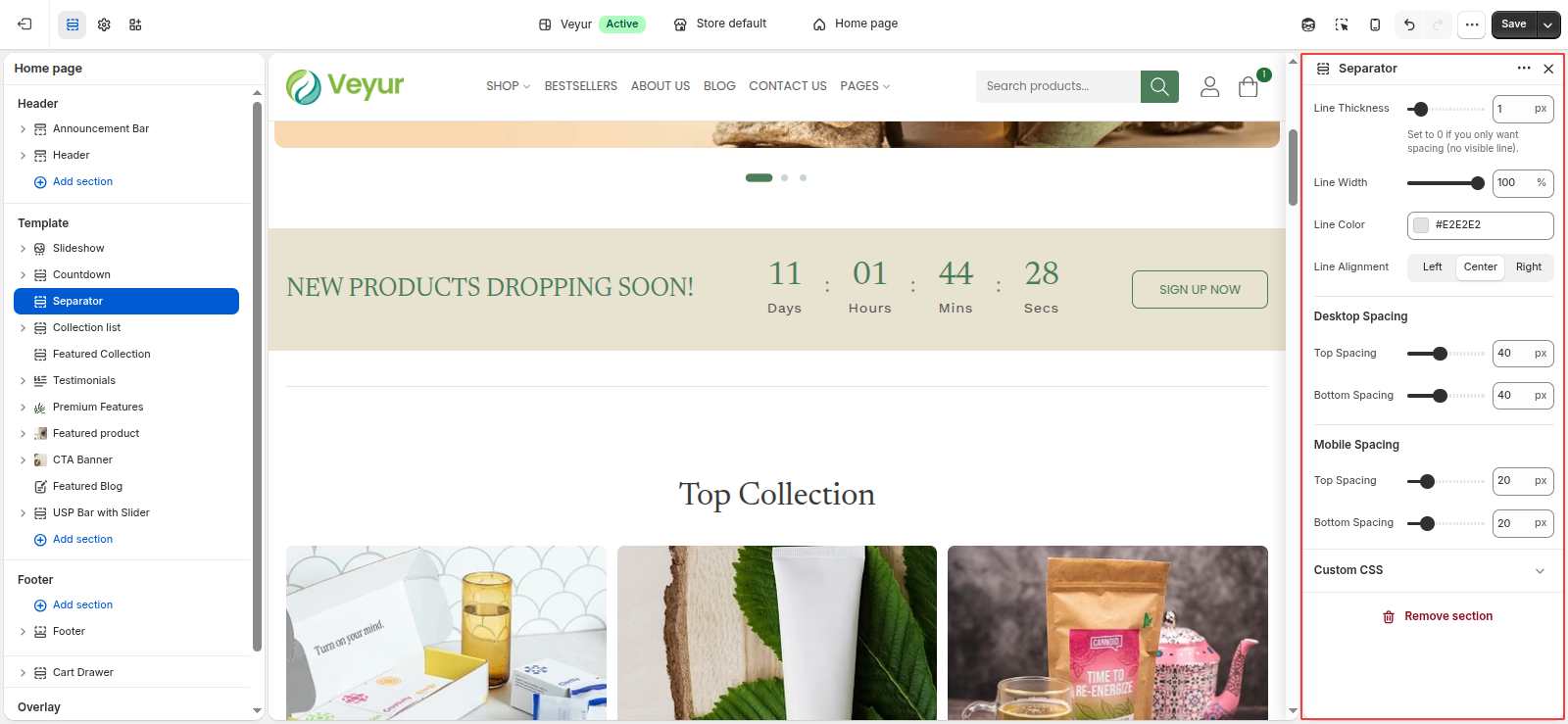
Separator Settings
This section provides global settings to control the overall appearance and layout:
- Line Thickness: Set to 0 if you only want spacing (no visible line).
- Line Width: Adjust the line width value.
- Line Color: Choose a color for the line color.
- Line Alignment: Select the desired line alignment from the available options.
- Left - Select this option to use the left style/layout.
- Center - Select this option to use the center style/layout.
- Right - Select this option to use the right style/layout.
- Desktop Spacing
- Top Spacing: Adjust the top spacing value.
- Bottom Spacing: Adjust the bottom spacing value.
- Mobile Spacing
- Top Spacing: Adjust the top spacing value.
- Bottom Spacing: Adjust the bottom spacing value.
Testimonials
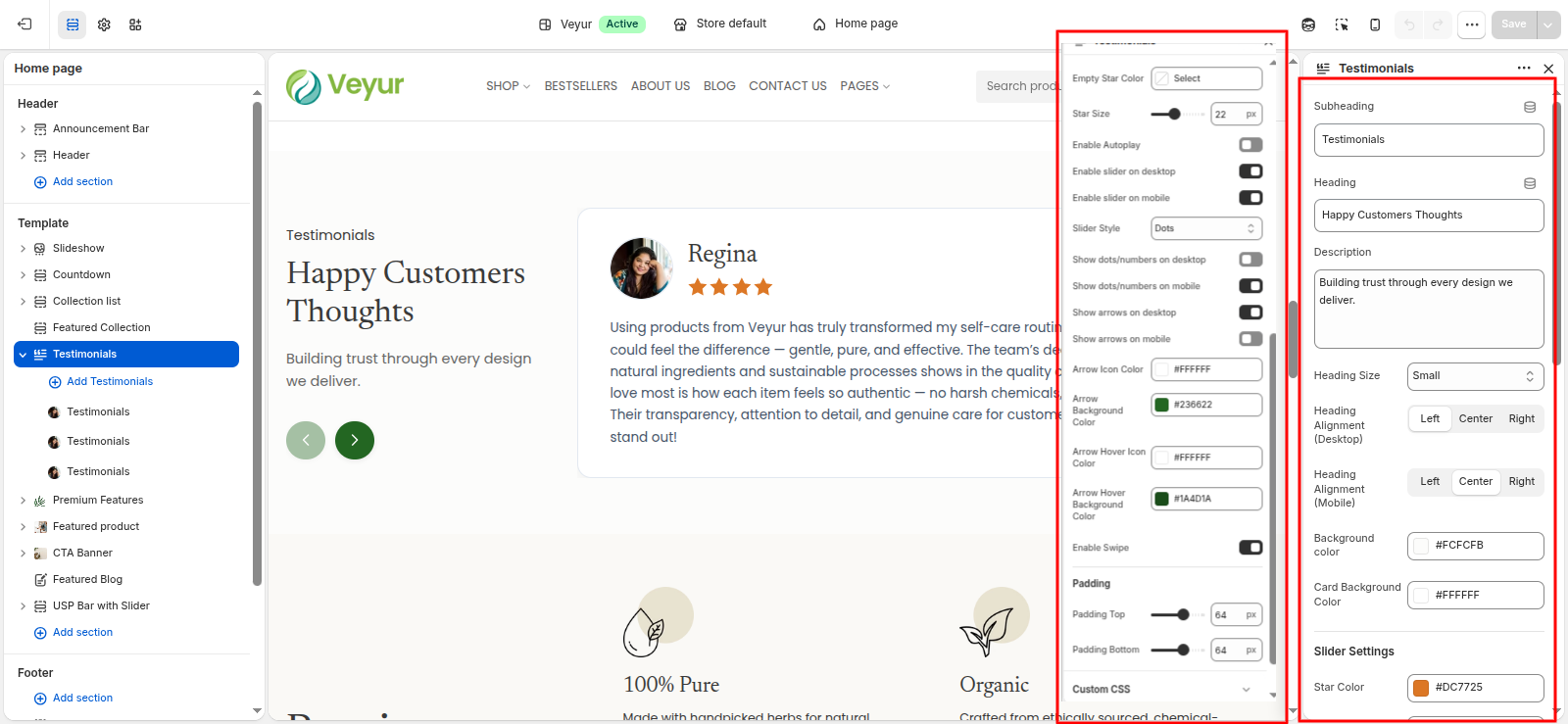
Testimonials Settings
This section provides global settings to control the overall appearance and layout:
- Subheading: Enter the text for the subheading.
- Heading: Enter the text for the heading.
- Description: Add detailed text or content for the description.
- Heading Size: Select the desired heading size from the available options.
- Small - Select this option to use the small style/layout.
- Medium - Select this option to use the medium style/layout.
- Large - Select this option to use the large style/layout.
- Heading Alignment (Desktop): Select the desired heading alignment (desktop) from the available options.
- Left - Select this option to use the left style/layout.
- Center - Select this option to use the center style/layout.
- Right - Select this option to use the right style/layout.
- Heading Alignment (Mobile): Select the desired heading alignment (mobile) from the available options.
- Left - Select this option to use the left style/layout.
- Center - Select this option to use the center style/layout.
- Right - Select this option to use the right style/layout.
- Background color: Choose a color for the background color.
- Card Background Color: Choose a color for the card background color.
- Slider Settings
- Star Color: Choose a color for the star color.
- Empty Star Color: Choose a color for the empty star color.
- Star Size: Adjust the star size value.
- Enable Autoplay: Enable or disable the enable autoplay feature.
- Autoplay Speed: Adjust the autoplay speed value.
- Enable slider on desktop: Enable or disable the enable slider on desktop feature.
- Enable slider on mobile: Enable or disable the enable slider on mobile feature.
- Slider Style: Select the desired slider style from the available options.
- None - Select this option to use the none style/layout.
- Dots - Select this option to use the dots style/layout.
- Numbers - Select this option to use the numbers style/layout.
- Show dots/numbers on desktop: Enable or disable the show dots/numbers on desktop feature.
- Show dots/numbers on mobile: Enable or disable the show dots/numbers on mobile feature.
- Show arrows on desktop: Enable or disable the show arrows on desktop feature.
- Show arrows on mobile: Enable or disable the show arrows on mobile feature.
- Arrow Icon Color: Choose a color for the arrow icon color.
- Arrow Background Color: Choose a color for the arrow background color.
- Arrow Hover Icon Color: Choose a color for the arrow hover icon color.
- Arrow Hover Background Color: Choose a color for the arrow hover background color.
- Enable Swipe: Enable or disable the enable swipe feature.
- Padding
- Padding Top: Adjust the padding top value.
- Padding Bottom: Adjust the padding bottom value.
Testimonials Blocks
Configure the individual testimonials blocks within this section:
- Author Image: Upload an image for the author image.
- Rating (1-5): Adjust the rating (1-5) value.
- Quote: Add detailed text or content for the quote.
- Shruti Shrama: Enter the text for the shruti shrama.
- Content Writer: Enter the text for the content writer.
USP Bar with Slider
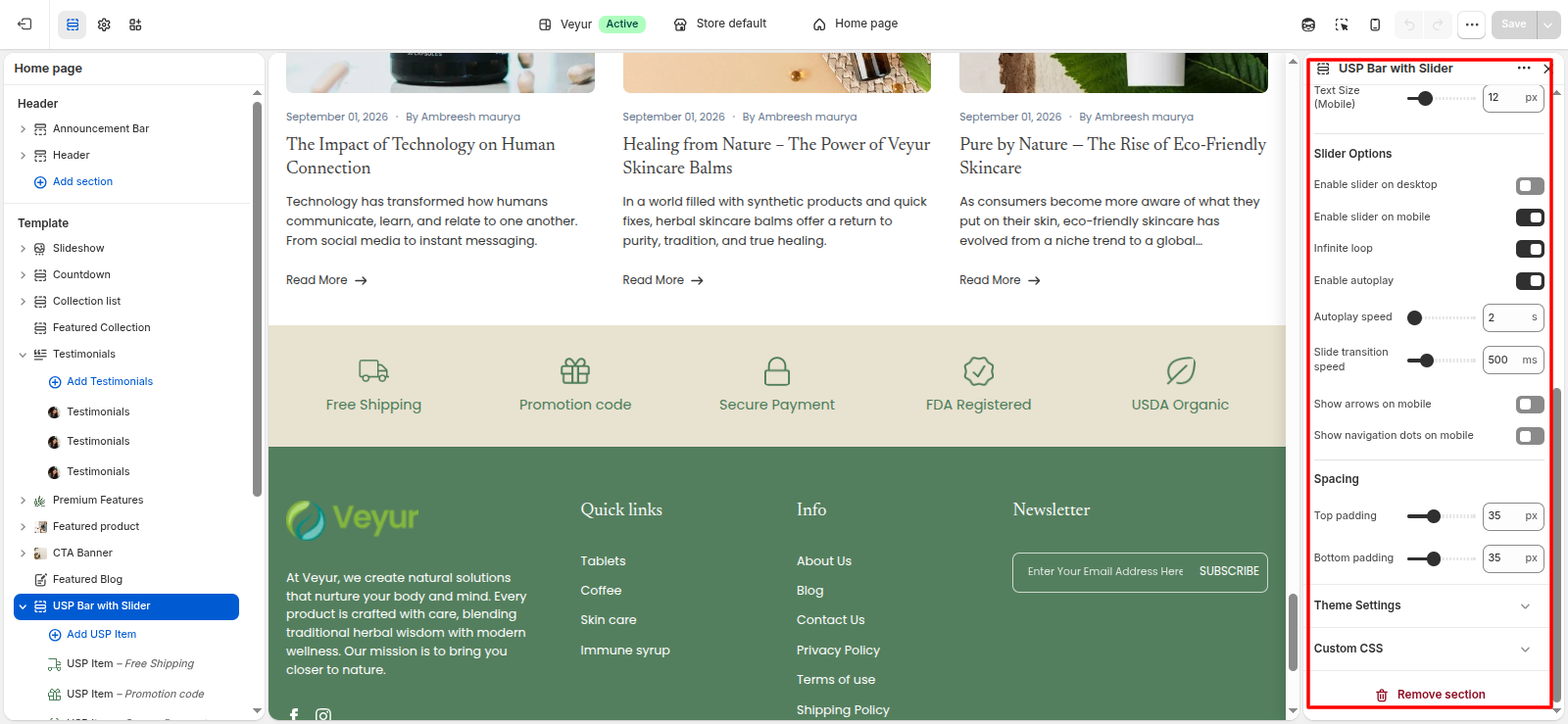
USP Bar with Slider Settings
This section provides global settings to control the overall appearance and layout:
- Width: Select the desired width from the available options.
- Page Width - Select this option to use the page width style/layout.
- Full - Select this option to use the full style/layout.
- Background Color: Choose a color for the background color.
- Text Color: Choose a color for the text color.
- Desktop Settings
- Items to show on Desktop: Adjust the items to show on desktop value.
- Gap between items (Desktop): Adjust the gap between items (desktop) value.
- Icon Size (Desktop): Adjust the icon size (desktop) value.
- Text Size (Desktop): Adjust the text size (desktop) value.
- Mobile Settings
- Items to show on Mobile: Adjust the items to show on mobile value.
- Gap between items (Mobile): Adjust the gap between items (mobile) value.
- Icon Size (Mobile): Adjust the icon size (mobile) value.
- Text Size (Mobile): Adjust the text size (mobile) value.
- Slider Options
- Enable slider on desktop: Enable or disable the enable slider on desktop feature.
- Enable slider on mobile: Enable or disable the enable slider on mobile feature.
- Infinite loop: Enable or disable the infinite loop feature.
- Enable autoplay: Enable or disable the enable autoplay feature.
- Autoplay speed: Adjust the autoplay speed value.
- Slide transition speed: Adjust the slide transition speed value.
- Show arrows on desktop: Enable or disable the show arrows on desktop feature.
- Show arrows on mobile: Enable or disable the show arrows on mobile feature.
- Show navigation dots on desktop: Enable or disable the show navigation dots on desktop feature.
- Show navigation dots on mobile: Enable or disable the show navigation dots on mobile feature.
- Spacing
- Top padding: Adjust the top padding value.
- Bottom padding: Adjust the bottom padding value.
USP Item Blocks
Configure the individual usp item blocks within this section:
- Icon type: Select the desired icon type from the available options.
- Custom SVG - Select this option to use the custom svg style/layout.
- Image - Select this option to use the image style/layout.
- Custom SVG code: Paste SVG code directly here
- Or select icon image: Upload an image for the or select icon image.
- Title text: Enter the text for the title text.
Video
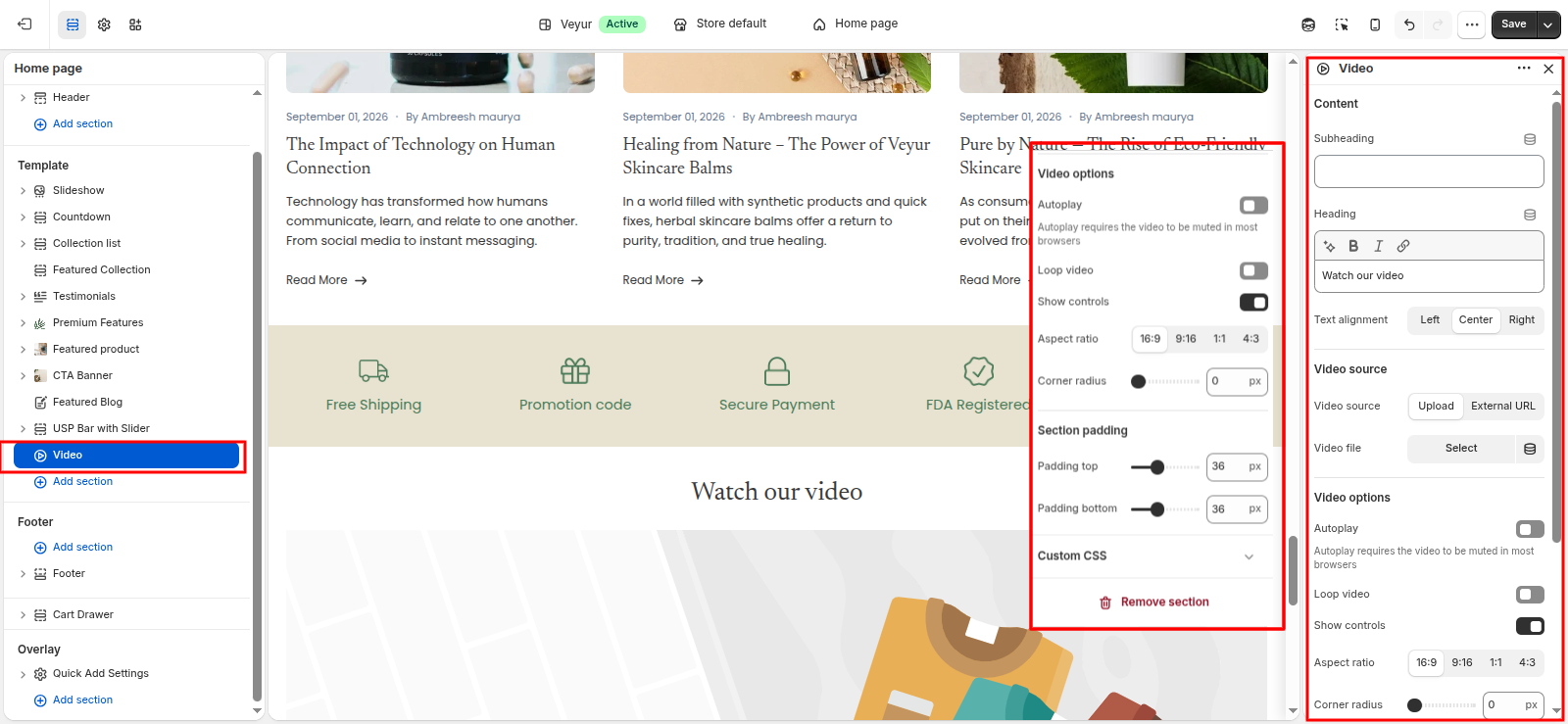
Video Settings
This section provides global settings to control the overall appearance and layout:
- Content
- Subheading: Enter the text for the subheading.
- Heading: Configure the heading setting.
- Text alignment: Select the desired text alignment from the available options.
- Left - Select this option to use the left style/layout.
- Center - Select this option to use the center style/layout.
- Right - Select this option to use the right style/layout.
- Video source
- Video source: Select the desired video source from the available options.
- Upload - Select this option to use the upload style/layout.
- External URL - Select this option to use the external url style/layout.
- Video file: Configure the video file setting.
- Video URL: Accepts YouTube or Vimeo links.
- Cover image: Upload an image for the cover image.
- Video options
- Autoplay: Autoplay requires the video to be muted in most browsers
- Loop video: Enable or disable the loop video feature.
- Show controls: Enable or disable the show controls feature.
- Aspect ratio: Select the desired aspect ratio from the available options.
- 16:9 - Select this option to use the 16:9 style/layout.
- 9:16 - Select this option to use the 9:16 style/layout.
- 1:1 - Select this option to use the 1:1 style/layout.
- 4:3 - Select this option to use the 4:3 style/layout.
- Corner radius: Adjust the corner radius value.
- Section padding
- Padding top: Adjust the padding top value.
- Padding bottom: Adjust the padding bottom value.
Image Size Recommendations
To ensure your store looks crisp and loads quickly, we recommend the following image sizes:
- Slideshow & Hero Images: 1920 x 1080px (16:9 ratio recommended for desktop)
- Product Images: 1024 x 1024px (Square 1:1 ratio is best for consistency)
- Collection Images: 1024 x 1024px (Square) or 1200 x 800px (Landscape)
- Blog Featured Images: 1200 x 800px
- Logo: Variable width, but keep max-height around 80px to 100px. PNG format with transparent background is recommended.
Tip: Always compress your images using tools like TinyPNG before uploading to Shopify to improve page speed.
Updating the Theme
When a new version of the Veyur theme is released, you can update it without losing your settings.
- Download the latest theme ZIP file.
- Go to Online Store > Themes in Shopify.
- Upload the new ZIP file as an unpublished theme.
- Use Shopify's built-in version update feature (if available) or manually migrate custom code and content settings.
- Publish the new theme after verifying your content looks correct.
Frequently Asked Questions (FAQ)
1. How do I add or change the menu in my header?
To change the menu, go to your Shopify Admin and navigate to Online Store > Navigation. Create a new menu or edit an existing one. Then, in the Theme Editor, go to the Header section settings, click on the Menu setting, and select your desired navigation menu.
2. How do I set up color swatches for my products?
To use color swatches, ensure your product options are named exactly "Color" or "Colour" in the Shopify Admin. The theme will automatically match the variant names (e.g., "Red", "Blue") to standard HTML colors. For custom colors or patterns, you may need to upload a small PNG file with the exact variant name (e.g., red-pattern.png) to your Shopify Files.
3. Why isn't my social media icon showing up in the footer?
Social media icons in the footer and announcement bar are linked to your global Theme Settings. In the Theme Editor, go to Theme Settings (the gear icon) > Social media and ensure you have entered full URLs (including https://) for your social profiles.
4. How can I improve my store's loading speed?
To keep your Veyur theme running incredibly fast: compress all images using tools like TinyPNG before uploading, avoid using too many large video backgrounds, limit the number of third-party apps (as they inject extra scripts), and follow the image size recommendations in this documentation.
Troubleshooting & Common Guides
If you encounter issues while setting up the Veyur theme, please check the following common solutions before reaching out to support.
Collection Pages
- If the collection image does not appear: Make sure "Show collection image" is enabled in the Collection Banner section settings, and verify that the collection actually has an image uploaded in the Shopify admin (Products > Collections).
- If the collection description does not appear: Make sure "Show description" is enabled in the settings and the collection has a description written in the Shopify Admin.
- If filters do not appear: Go to the Shopify admin > Search & Discovery app > Filters and ensure filters are set up. Also, verify that "Enable filtering" is turned on in the Product Grid section settings.
- If color swatches do not appear in filters: Ensure your product options are named "Color" or "Colour" and that the filter settings in the Search & Discovery app are configured to display visual swatches instead of a standard list.
- If the layout looks crowded: Try reducing the number of columns per row in the Product Grid settings (e.g., change from 4 to 3 on desktop) or increasing the section padding.
- If sub-collections do not appear: Check that the Sub-collections section is enabled and a valid menu is selected. Also, make sure the selected menu has nested collection links and the current collection matches a parent menu item.
Product Pages
- If the "Pickup availability" doesn't show: Verify that local pickup is enabled in your Shopify Admin under Settings > Shipping and delivery and that the product variant has inventory currently stocked at a designated pickup location.
- If product tabs are missing content: Ensure you have correctly linked a Shopify Page or entered text in the Product Tabs block settings. If using Metafields for dynamic content, verify the metafield is populated for that specific product.
- If the Add to Cart button isn't working: Check if you have recently installed custom apps that modify the cart behavior (like pre-order apps or bundle apps). If not, clear your browser cache and refresh the storefront.
- If product images look blurry or stretched: Ensure you are uploading high-resolution images (at least 1024x1024px) and that your Product Media settings aren't forcing an unnatural aspect ratio.
- If quick view or quick add doesn't appear: Check the global theme settings or product grid settings to ensure Quick Add features are enabled.
Header & Navigation
- If the mega menu doesn't show: Ensure your desktop menu type is set to "Mega menu" in the Header settings, and that your Shopify navigation has 3 levels of nested menus (Main Menu > Category > Subcategory).
- If the announcement bar slider isn't moving: Verify that "Autoplay announcements" is enabled in the Announcement Bar settings and that you have added more than one announcement block.
- If dropdown menus are overlapping content: Check your custom CSS if you've added any, or ensure you haven't placed an overly large logo that breaks the header's height calculation.
Cart & Checkout
- If the cart drawer isn't opening: Ensure that your cart type is set to "Drawer" or "Notification" in the global Theme Settings > Cart. If it's set to "Page", the user will be redirected to the cart page instead.
- If changes to the checkout page aren't visible: The checkout page styles are strictly controlled by Shopify. Ensure you are updating the checkout branding via Theme Settings > Checkout.
- If shipping rates aren't calculating: Check your Shopify Admin under Settings > Shipping and delivery to ensure you have active shipping zones and rates configured for the customer's location.
Tip: Always clear your browser cache or view your store in an incognito window if recent changes don't seem to apply. If you've just made changes in the Shopify Admin, it can take a few minutes for Shopify's cache to clear globally.
Support Policy
We are dedicated to helping you get the most out of the Veyur theme. Please review our support policy before reaching out.
What is included in support?
- Answering questions regarding theme functionality and settings.
- Fixing bugs and issues present in the unmodified theme.
- Assistance with basic theme setup.
What is NOT included?
- Custom code modifications or design changes.
- Integration of third-party apps or plugins.
- Issues caused by custom code you or a third party have added.
- Shopify general admin support (please refer to Shopify Help Center).
Contacting Support
Our response time is typically 24-48 business hours (Monday-Friday).
To submit a support request, please email us at sales@ptiwebtech.com with your Shopify store URL and a detailed description of the issue.