
Setup & Getting Started
Welcome to Store Pickup & Delivery. Follow the initial setup checklist on the app homepage to quickly get your store ready for pickups and local deliveries.
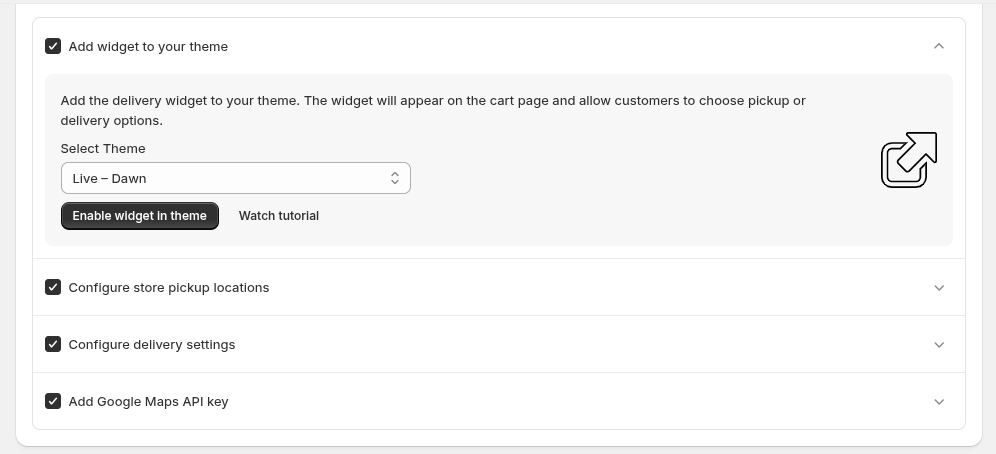
Add the delivery widget to your theme. The widget will appear on the cart page and allow customers to choose between pickup or delivery options.
- Select Theme: Choose your desired theme from the dropdown (e.g., "Live - Dawn").
- Enable widget in theme: Click this button to automatically inject the widget into your theme.
- Watch tutorial: Click this link if you need a step-by-step video guide.
Expand this section to set up the physical locations where customers can pick up their orders.
Expand this section to establish your local delivery zones, rates, and availability schedules.
Expand this section to enter your Google Maps API key, which is required for accurate distance calculations and map rendering.
General Settings
Navigate to the main Settings page (/app/settings) to configure your primary app rules, validation methods, and localized language preferences.
store-pickup-delivery-pti-)app-)settings_1.png)
This central dashboard gives you quick access to all core functional settings:
- Configure locations: Manage pickup & delivery timings, preparation periods, and available dates for each specific store location.
- Shipping: Manage delivery processing periods and available dates.
- Pickup: Access your General Pickup Settings.
- Delivery: Access your General Delivery Settings.
- Pincode Validator: Validate pincodes or zipcodes to ensure delivery availability only for serviceable locations.
store-pickup-delivery-pti-)app-)settings_2.png.png)
Scroll down to the Language section to choose the localized language you want to use across the app. Simply use the App language dropdown (default is English) to switch between supported translations.
Location Configurations
View your locations, click into a specific location, and configure both Local Delivery and Store Pickup schedules specifically for that location.
1. View Locations
store-pickup-delivery-pti-)app-)settings-)locations.png)
On this page, you can click on any active location below to manage its schedule. The list shows whether Pickup and Delivery are currently Enabled or Disabled for each store location.
You can also use the search bar to find a specific location or click Add Location to create a new one.
2. Edit Location Configuration
store-pickup-delivery-pti-)app-)settings-)locations-)cmq28okfl0002rv5ndh6vvex3.png)
When you select a location, you can manage two primary areas:
- Location details: Review the name and address. You can also check the box to Set as default location.
- Basic settings: If you need different slots for different kinds of delivery methods, you can enable and click Edit Settings for either Local Delivery or Store Pickup.
3. Configure Local Delivery Availability & Blockouts
store-pickup-delivery-pti-)app-)local-)configuration-availability-)cmq28okfl0002rv5ndh6vvex3.png)
Manage slot types and day-wise availability for Local Delivery:
- Date & Time Slot Type: Choose whether customers must select Only Date, Date & Time, Date & Time Range, or No Date & Time (disables calendar).
- Availability Type: Choose to Customize Availability by Day, or use the Same Availability for All Days (Mon to Sun).
- Time Range Slots: Set the specific hour blocks (e.g., 09:00 AM to 11:00 AM) that delivery is active.
store-pickup-delivery-pti-)app-)local-)blockout-dates-)cmq28okfl0002rv5ndh6vvex3.png)
Choose dates to block on the calendar, preventing customers from booking them for Local Delivery. You can select a Single Date or a Date Range. Setting a specific Start and End Time is optional.
4. Configure Store Pickup Availability & Blockouts
store-pickup-delivery-pti-)app-)store-pickup-)configuration-availability-)cmq28okfl0002rv5ndh6vvex3.png)
The configuration for Store Pickup works exactly the same as Local Delivery. Manage your slot types (Date & Time) and setup your daily availability specifically for when customers come to pick up their orders.
store-pickup-delivery-pti-)app-)store-pickup-)blockout-dates-)cmq28okfl0002rv5ndh6vvex3.png)
Just like delivery blockouts, choose specific dates or date ranges to block on the calendar, preventing customers from booking a pickup during those times (e.g., Holidays).
Global Pickup Settings
Configure the global pickup settings (/app/settings/pickup) that apply to how customers interact with your pickup options on the storefront.
store-pickup-delivery-pti-)app-)settings-)pickup.png)
Choose how customers discover and select a pickup location on your storefront:
- Enable location search for pickup: Useful when you have more than 3 locations and the list is scrollable.
- Show pickup locations as dropdown: Display pickup locations in a dropdown instead of a list. Useful when you have many locations.
- Enable Google Maps for pickup locations: Allow customers to search by address to find the nearest pickup locations (Requires a Google Maps API key).
Extra details collected from customers during pickup:
- Enable pickup collector name: Show a field to enter the pickup collector's name.
- Enable pickup collector email: Show a field to enter the pickup collector's email.
- Enable pickup note: Show an additional field for customers to enter pickup notes or special instructions. You can also choose to Make pickup note required before they can proceed to checkout.
Global Delivery Settings
Configure the global delivery rules and validation methods (/app/settings/delivery).
store-pickup-delivery-pti-)app-)settings-)delivery(1).png)
Define which postal/ZIP codes can receive local deliveries. This configuration applies globally to every delivery location.
- Allowed Zip / Postal codes: Enter ZIP or PIN codes separated by commas. Local delivery will only be available to customers whose postal codes match this specific list.
- Distance Validation Mode: Choose whether the postal code validation requires an Exact postal code match or a Partial postal code match.
- Enable global postal code checker: Allow customers to verify delivery availability for their postal code from any page of your store.
store-pickup-delivery-pti-)app-)settings-)delivery(2).png)
- Delivery Notes: Check Enable delivery note if you want to show an additional field for customers to enter delivery notes or special instructions.
- Checkout Validation: Check Validate pincode on checkout to enable postal code validation specifically at checkout. Only allowed postal codes will be accepted.
Shipping Settings
Specific shipping configurations to control standard delivery behavior (/app/shipping-settings).
store-pickup-delivery-pti-)app-)shipping-settings.png)
- Basic settings: Check Enable Standard Shipping to allow customers to select delivery dates during the standard checkout flow.
- Shipping Note: Check Enable Shipping note to show an additional field where customers can enter special shipping instructions. You can also select Make Shipping note required to force customers to fill out the note before proceeding to checkout.
Pincode Validation
Configure the global Pincode/Zipcode Validator App block (/app/pincode-validation) to allow customers to verify delivery availability before checkout.
1. Global Settings & Installation
store-pickup-delivery-pti-)app-)pincode-validation(1).png)
First, check Enable global postal code checker to turn on the feature. Next, install the widget on your storefront:
- Add to Home Page: Click the button to automatically open your theme editor and add the block to your live theme's home page.
- Add to Product Page: Click the button to automatically add the block to your product page (usually placed near the add to cart button).
- Manual Installation: If you prefer to code, copy the provided
<div id="csj-zipcode-alidato" data-zip-validator></div>HTML snippet and manually paste it into your theme's Liquid files where you want the validator to appear.
2. Widget Appearance
store-pickup-delivery-pti-)app-)pincode-validation(2).png)
Customize how the validator looks on your store using the live Preview. You can configure:
- Typography & shape: Set the Font family (e.g. System default) and adjust the Corner radius (px) to match your theme's style.
- Chip colors & size: Fine-tune the Background, Border, Icon, and Label text colors using hex codes. You can also manually define the Button width and height, or leave them blank for auto-sizing.
3. Text Content & Popup Styling
store-pickup-delivery-pti-)app-)pincode-validation(3).png)
- Text Content: Fully customize the text presented to your customers. Set the Chip label text ("Deliver To"), Chip placeholder, Popup heading, Input placeholder, Button text, and the specific Success or Error messages returned after a search.
- Popup colors & size: Independently style the popup modal itself. Customize the background, header background, body text, heading text, close icon, and border colors. You can also explicitly set the Popup width and height.
4. Advanced Input & Button Colors
store-pickup-delivery-pti-)app-)pincode-validation(4).png)
Complete your customization by defining the active states:
- Input field colors: Set the input border, focus outline, and text color.
- Button colors: Set the primary background, hover background, and text colors for the Validate button.
- Message colors: Set the distinctive colors for the Success and Error alerts.
- If you ever want to revert, simply click Reset to defaults at the bottom.
Dashboard Overview
Overview of your app's performance and recent activities.
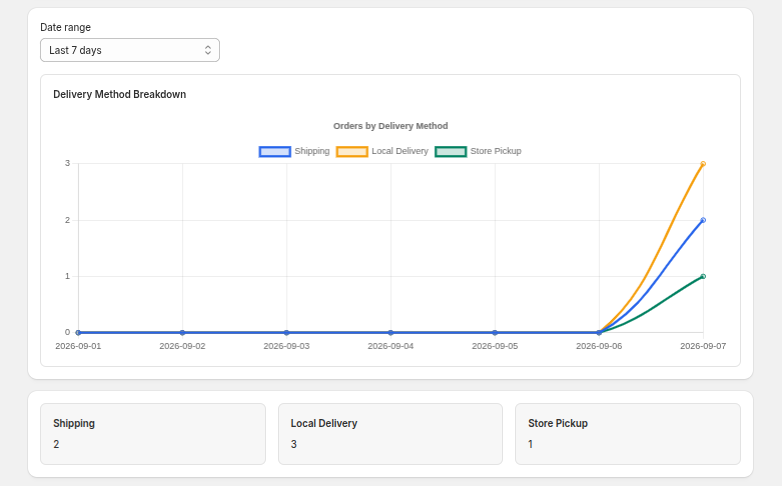
The dashboard provides a visual summary of your order volume broken down by fulfillment type.
- Date Range Filter: Use the dropdown at the top (e.g. "Last 7 days") to filter your analytics.
- Line Chart: View your daily "Orders by Delivery Method" tracked over time. The graph visually separates Shipping, Local Delivery, and Store Pickup metrics.
- Summary Cards: Quick-glance totals for Shipping, Local Delivery, and Store Pickup over your selected date range.
App Versions & Changelog
Track feature updates, improvements, and releases for Store Pickup & Delivery - PTI.
Previously, when a customer selected Local Delivery on the storefront, the pincode wasn't being validated again at checkout. Fixed this — now checkout also validates the pincode against the list configured in the admin.
- Compatibility: Working with Shop Pay, Razorpay.
- Note: Not working with PayPal (known limitation).
Initially the app was English-only. Added support for 16 languages across the app interface:
English, Danish, German, Spanish, French, Hindi, Italian, Japanese, Korean, Dutch, Norwegian, Portuguese (Brazil), Russian, Swedish, Chinese (Simplified), and Chinese (Traditional).
Added a central analytics dashboard and interactive storefront map integration:
- New "Dashboard" Page: Order analytics split by delivery method (Shipping / Local Delivery / Store Pickup), date-range filter with graph visualization, and summary totals below the graph.
- Frontend Updates: Added an interactive map to the Local Delivery widget on the storefront. Customer's selected location is now sent along with the order.
Initial release enabling merchants to offer flexible pickup and local delivery options on their cart page. Merchants can manage multiple locations, custom time slots (date-only, time-based, or ranges), block holidays, validate pincodes for delivery zones, and collect customer name, email, pickup notes, and delivery instructions from an embedded Shopify admin dashboard.
- Multi-location store pickup with slots
- Local delivery with pincode validation
- Custom time slots and blockout dates
- Collect pickup notes and collector info
- Cart page widget — no coding required
Frequently Asked Questions (FAQ)
Find answers to common questions about setting up and using Store Pickup & Delivery.
Go to Settings → Delivery → Configure delivery zones, time slots, and preparation time. You can also set pincode-based availability and minimum order value.
Go to Settings → Pickup → Add pickup locations, set operating hours, configure preparation time, and enable collector information collection.
Go to the Setup Guide on the home page, select your theme, and click 'Enable widget in theme'. This will open the theme editor where you can add the widget to your cart page.
Go to Settings → Delivery (or Pickup) → Blockout Dates → Add dates when you want to disable delivery or pickup services.
Go to Settings → Delivery → Product Availability → Choose to include or exclude products by tags. This allows you to offer only specific products for delivery.
Privacy Policy – Store Pickup & Delivery ‑ PTI
Official Privacy Policy & Data Access Scope Documentation. Last Updated: August 06, 2026
At Store Pickup & Delivery - PTI, we value the privacy and trust of our merchants.
We are committed to handling your information securely and transparently.
This Privacy Policy explains how we collect, use, and protect information when you use our app in connection with your Shopify-supported store.
Our goal is to help merchants offer local delivery and store pickup options on their cart page — while ensuring complete data privacy and compliance with Shopify's standards.
When you install or use the Store Pickup & Delivery app, we may access or collect certain types of data from your Shopify store to deliver the app's functionality.
Permissions (Access Scopes) Requested
The following permissions are required:
- write_app_proxy – To securely fetch and display pickup and delivery options on the storefront via Shopify's App Proxy system.
- read_files – To read theme files when checking if the widget is embedded correctly.
- read_locations – To read your store's locations (addresses, names, etc.) so you can enable pickup or delivery at specific locations.
- read_themes – To fetch available themes and check widget embedding status.
- read_orders – To read order data so we can extract the delivery method attribute (shipping, local delivery, or store pickup) selected by the customer at checkout, used to power the app's analytics dashboard.
- read_all_orders – To read historical order data beyond the standard 60-day access window, so the analytics dashboard can display delivery method trends over longer date ranges.
- write_validations – To create and manage a cart and checkout validation rule that checks the delivery pincode/zipcode against your configured serviceable areas, and to remove that rule when the feature is disabled.
These permissions are used strictly to allow merchants to manage pickup/delivery settings, locations, and display the widget on the cart page.
Data You Provide Through App Settings
When you configure the app, we store:
- Pickup settings (e.g., enable location search, collector name/email fields, pickup notes, Google Maps API key)
- Delivery settings (e.g., pincode validation mode, allowed postal codes, delivery notes)
- Location settings (e.g., enable local delivery or store pickup per location, notification email/phone, default location)
- Availability settings (e.g., time slots, date ranges, custom day schedules)
- Blockout dates (dates and time ranges when pickup/delivery is unavailable)
- Google Maps API key (encrypted, used only to display maps on the storefront)
Technical Information
We may also collect limited technical information such as browser type, time zone, general usage statistics, and temporary session data stored in cookies or localStorage.
We use the collected information solely to provide and improve the app's features:
- Display pickup locations and delivery options on your cart page
- Validate customer pincodes against your allowed postal codes
- Show available time slots and blockout dates
- Collect collector information and notes as configured
- Securely communicate between your storefront and our app via Shopify's App Proxy
We do not sell, rent, or share any merchant, customer, or store data with third parties for marketing or advertising purposes.
If you enable Google Maps for pickup locations, your Google Maps API key is stored encrypted and used only to geocode addresses and display an interactive storefront map. Google's privacy policy applies to data processed via their API.
App settings are retained until uninstall. When uninstalled, all configuration data is automatically deleted within 30 days. You may request data verification or deletion at sales@ptiwebtech.com.
For privacy questions or requests, contact us at sales@ptiwebtech.com or call +91 9996771366.