Home
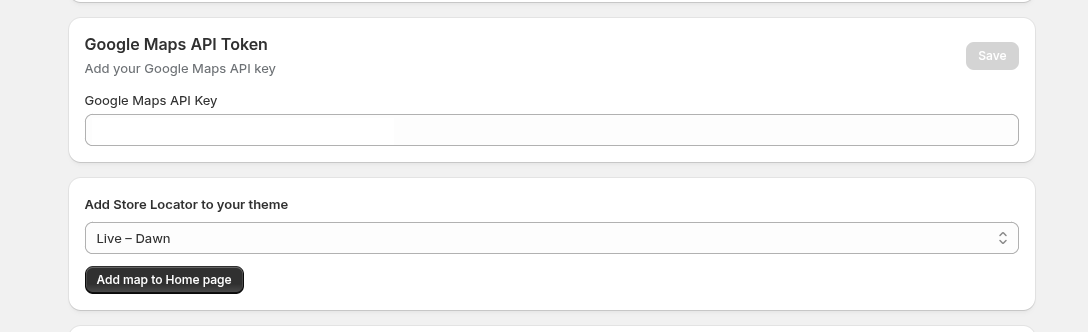
Google Maps API Token
Add your Google Maps API key in the provided field. This key is strictly required by Google to render the interactive map and calculate travel distances. Without a valid token, the map interface cannot load on your storefront.
Add Store Locator to your theme
Select your active or backup theme (e.g., Live - Dawn) and click Add map to Home page. This action automatically injects the map display blocks directly into your Shopify theme, meaning you do not have to write or modify any liquid code yourself.
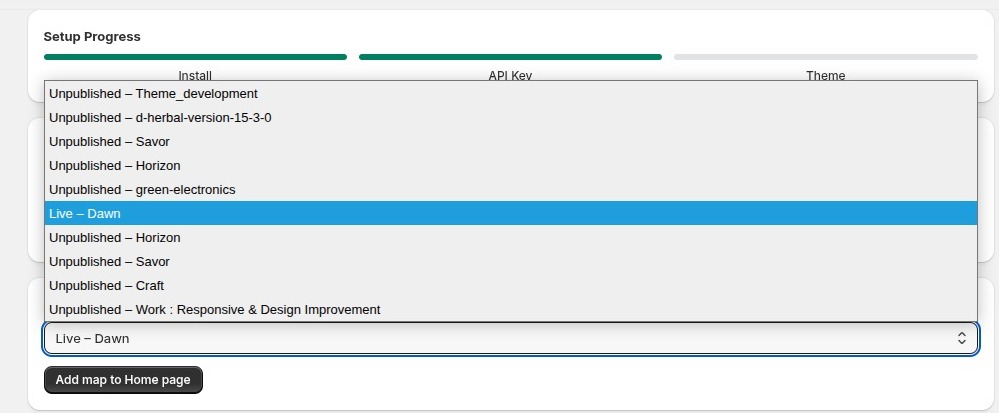
Theme Selection Dropdown
Click the dropdown menu to view a complete list of all available themes on your store.
You can select either your active live theme (such as Live - Dawn) or any of your unpublished development themes. By allowing you to select unpublished themes, you can safely preview and test the Store Locator on a backup version of your store before pushing it live to your customers.
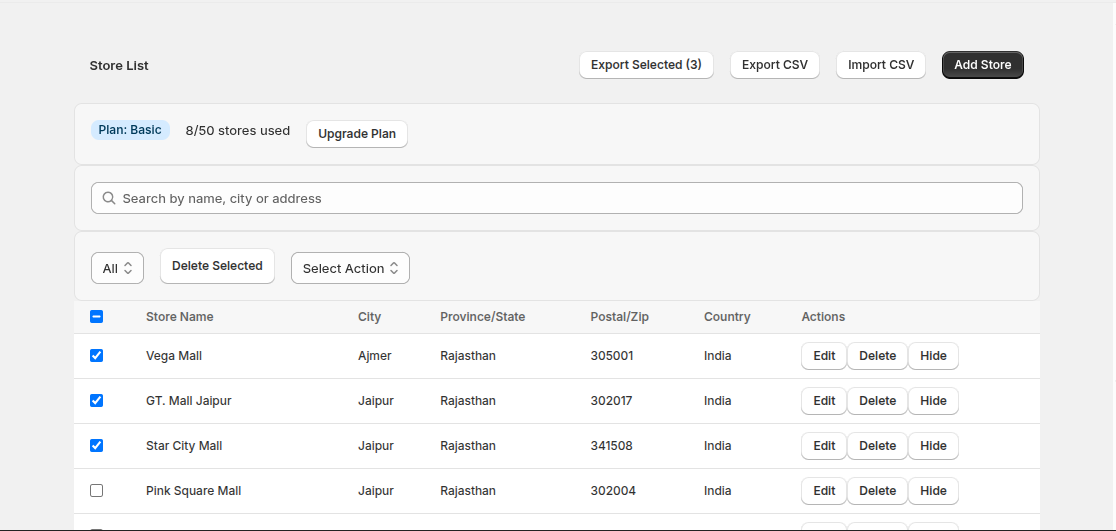
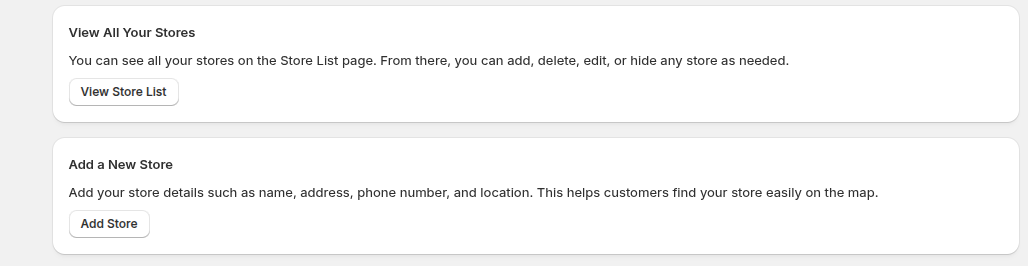
View All Your Stores
You can see all your stores on the Store List page. From there, you can add, delete, edit, or hide any store as needed. This serves as your central database for organizing all physical retail branches.
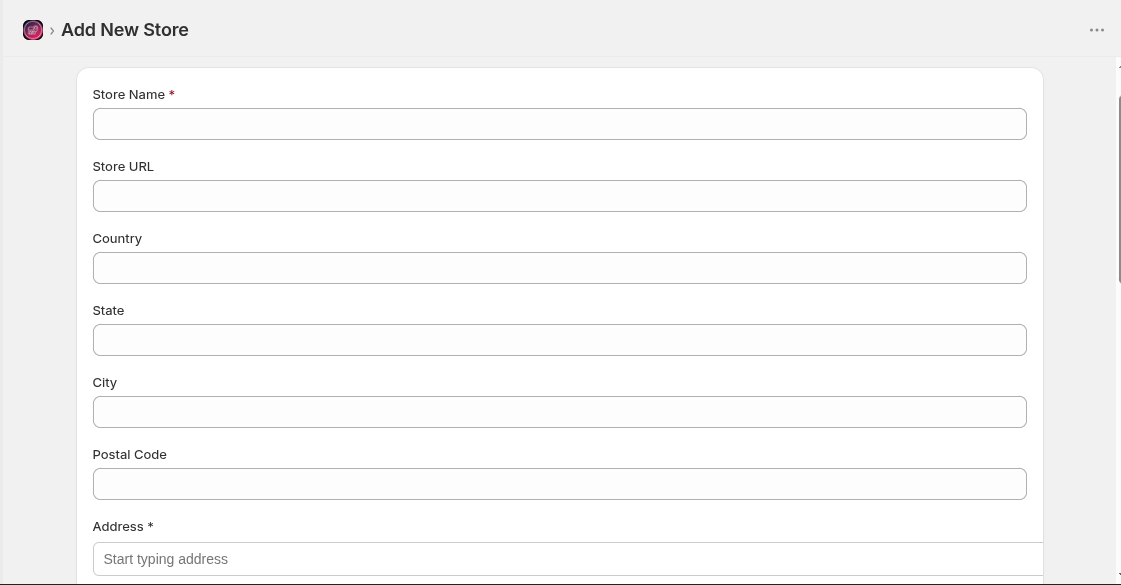
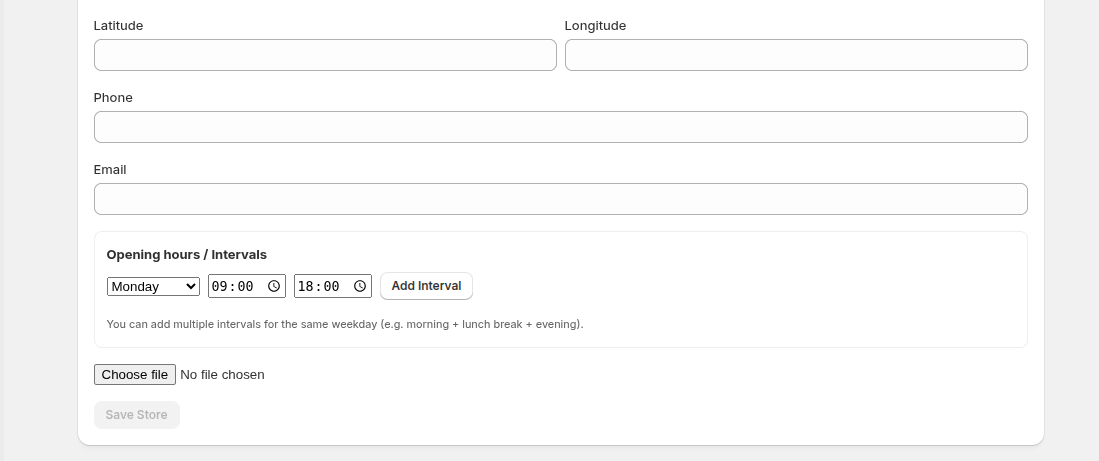
Add a New Store
Add your store details such as name, address, phone number, and location. This helps customers find your store easily on the map, providing them with accurate directions and contact information to drive offline sales.
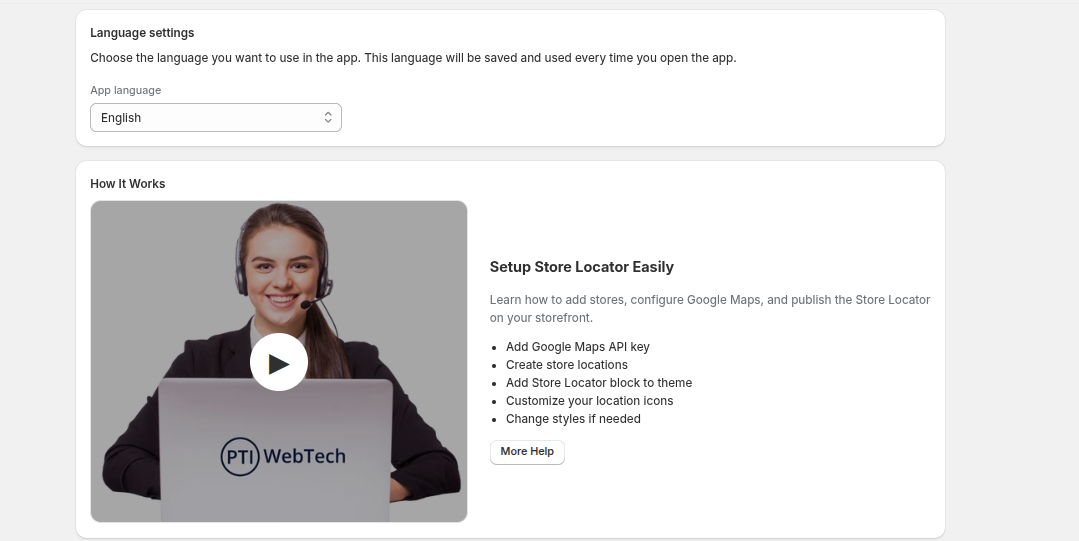
Language settings
Choose the language you want to use in the app. This language will be saved and used every time you open the app, ensuring the administrative interface matches your local preference.
How It Works
Setup Store Locator Easily
Learn how to add stores, configure Google Maps, and publish the Store Locator on your storefront. We highly recommend watching this short video tutorial if it is your first time setting up the app.
- Add Google Maps API key
- Create store locations
- Add Store Locator block to theme
- Customize your location icons
- Change styles if needed