Getting Started
Welcome to your new D-Herbal theme! This guide provides a detailed walkthrough of every section and setting.
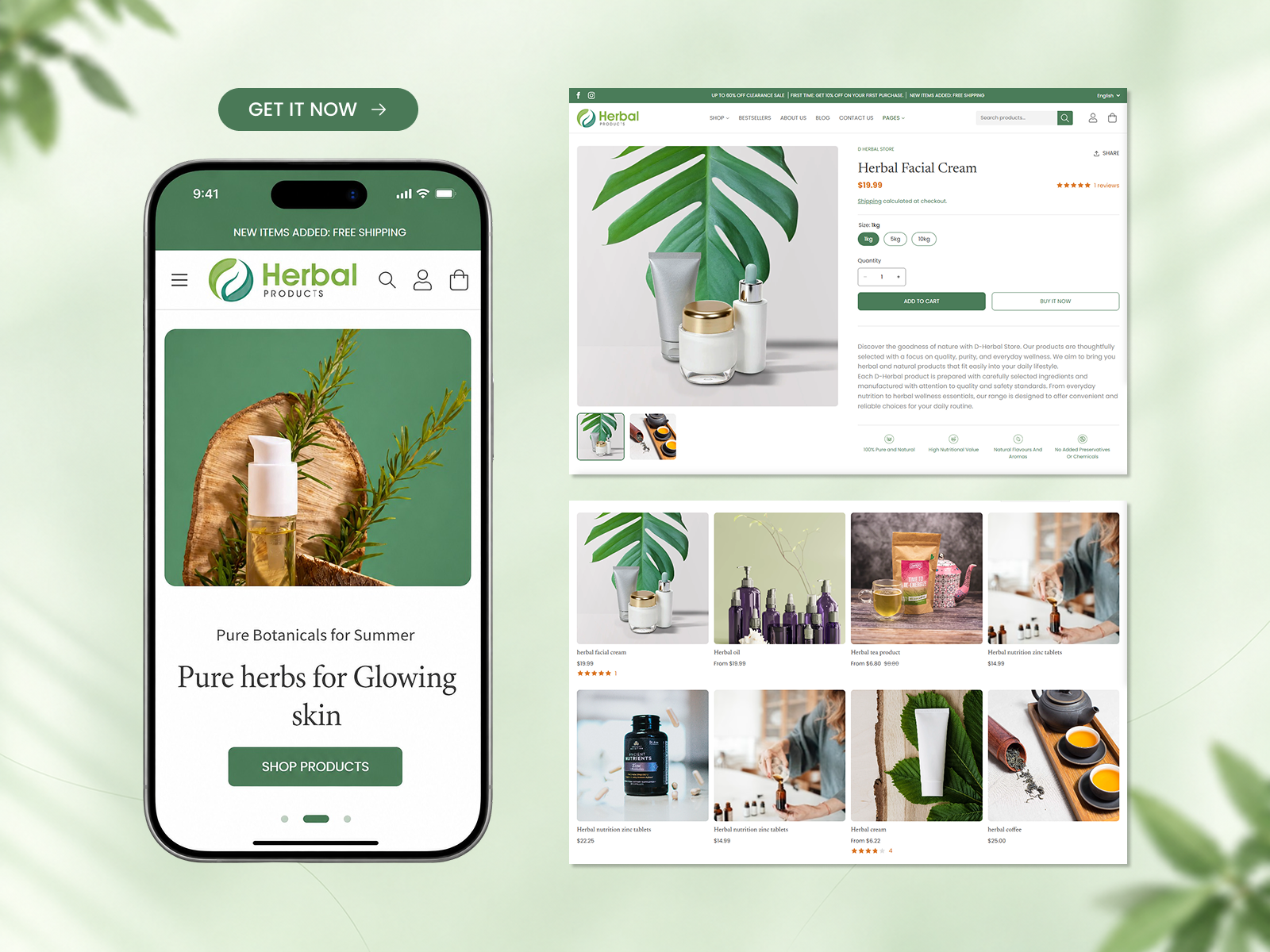
Installing the Theme
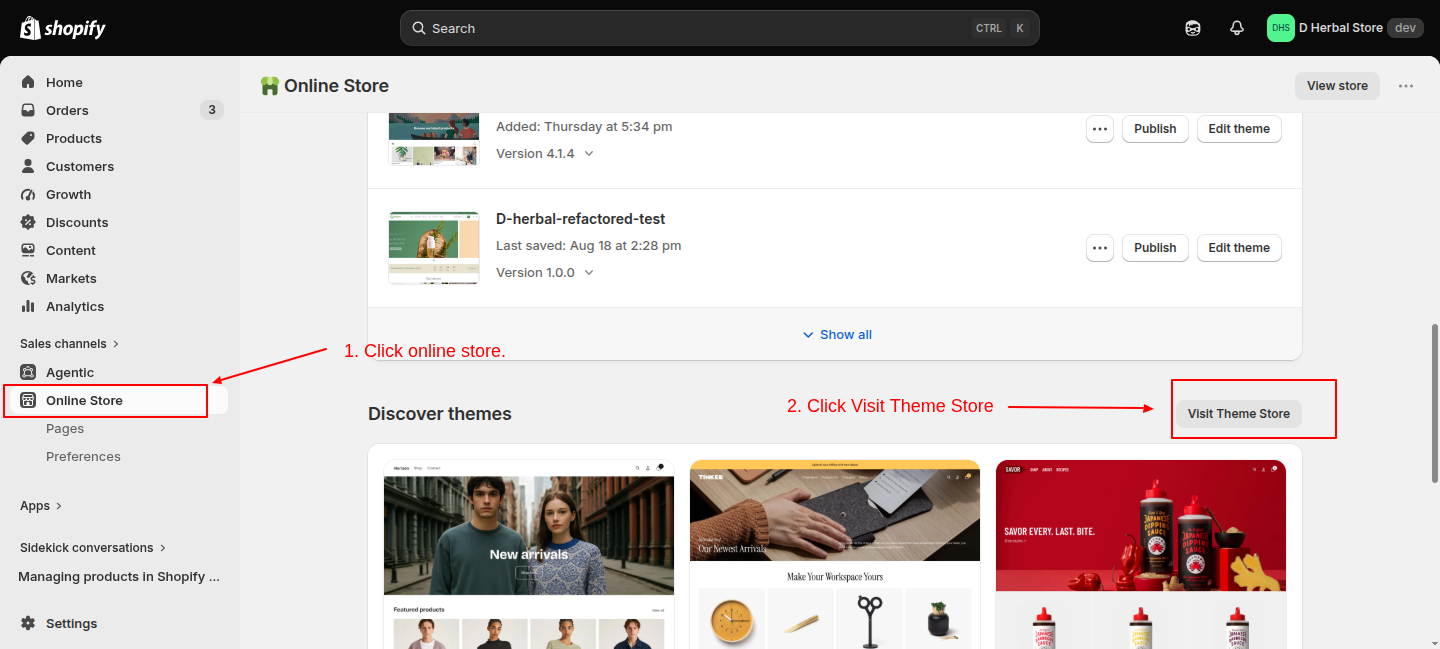
Through SHopify App Store
Search for "D-Herbal" in the Shopify App Store and click "Add Theme".

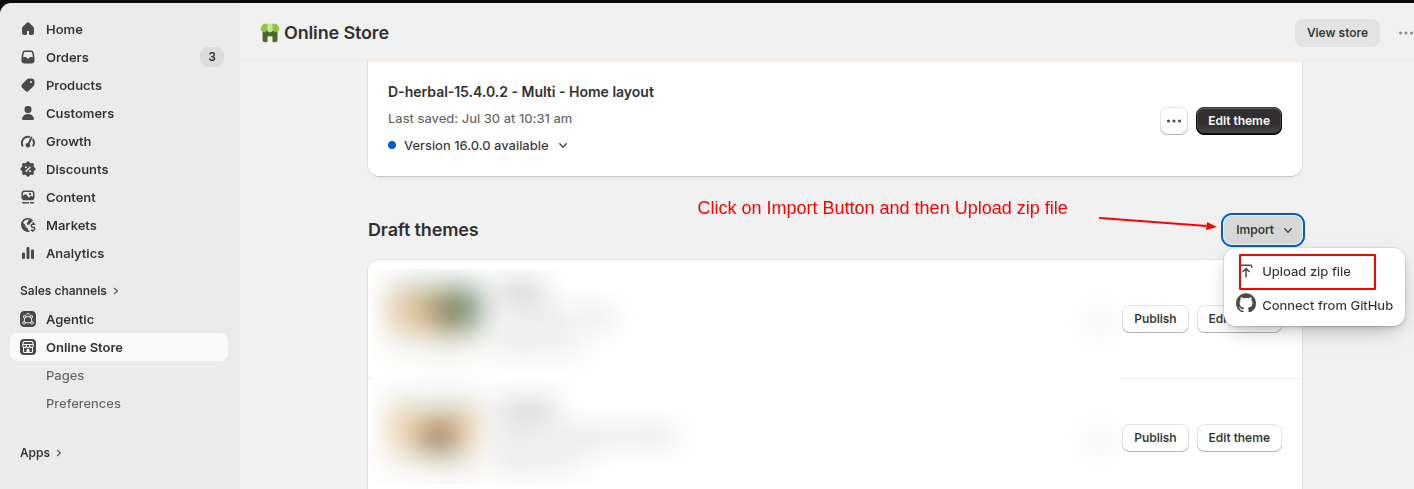
Manual Upload
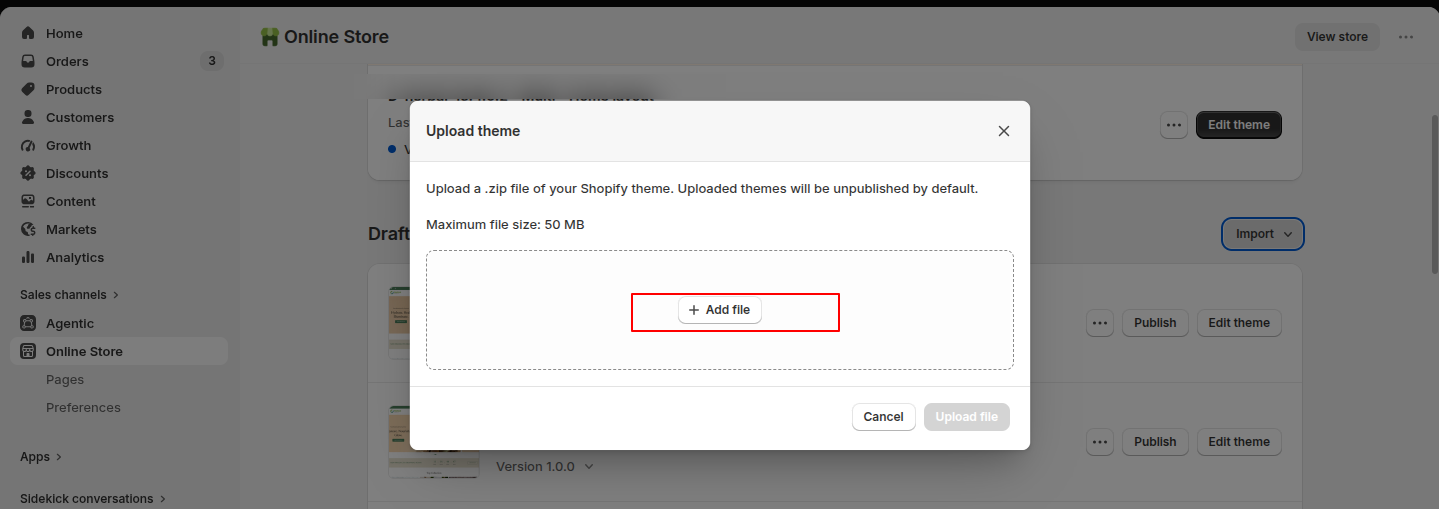
To upload your theme file (the .zip you downloaded):
- Go to Online Store > Themes in Shopify.
- Click Add theme > Upload zip file.
- Once uploaded, click Customize to start editing.
Theme Settings
Global settings ensure a consistent look across all pages. Access them via the gear icon.
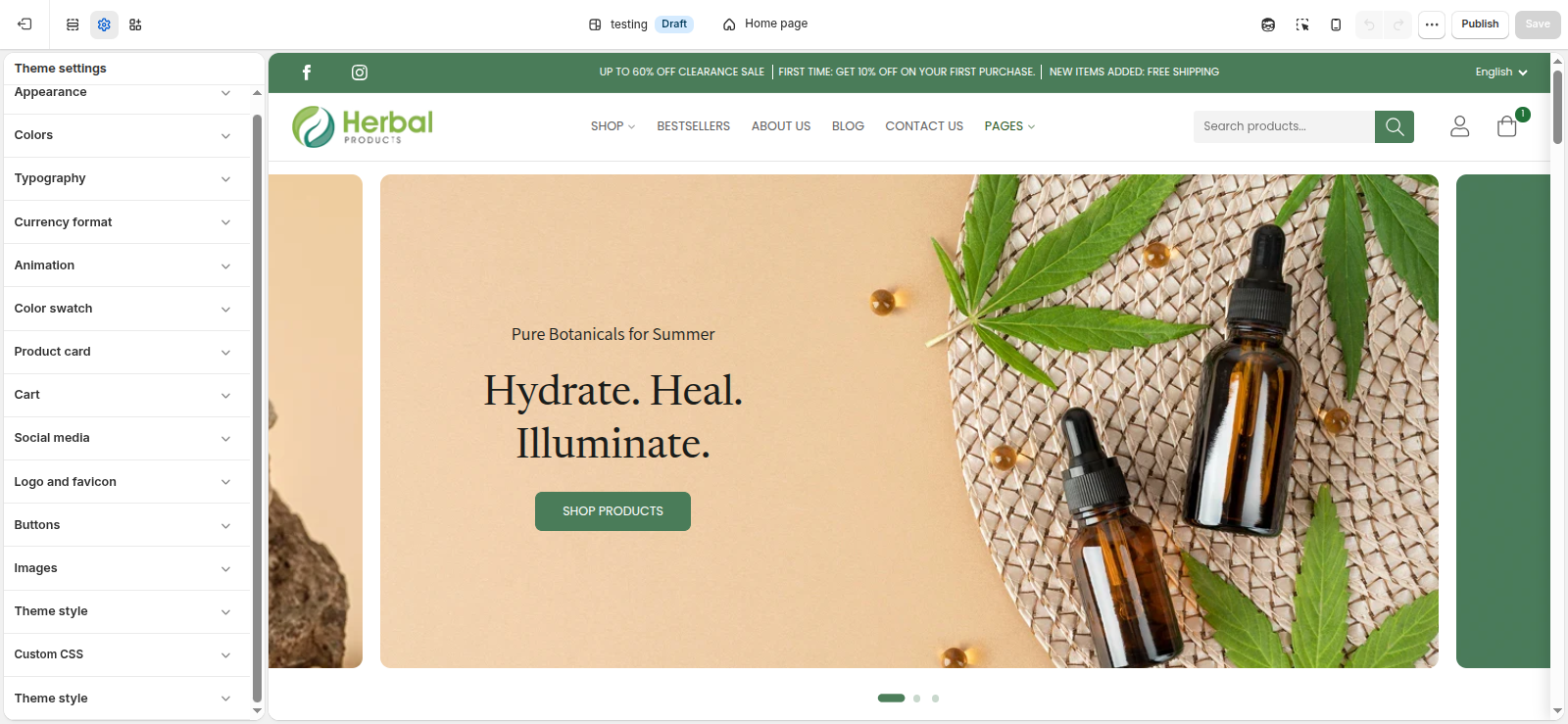
Colors & Typography
Set your primary and secondary brand colors here, and define the typography for headings and body text. These will be inherited by all sections automatically.
Header & Logo
The header contains your navigation and logo.
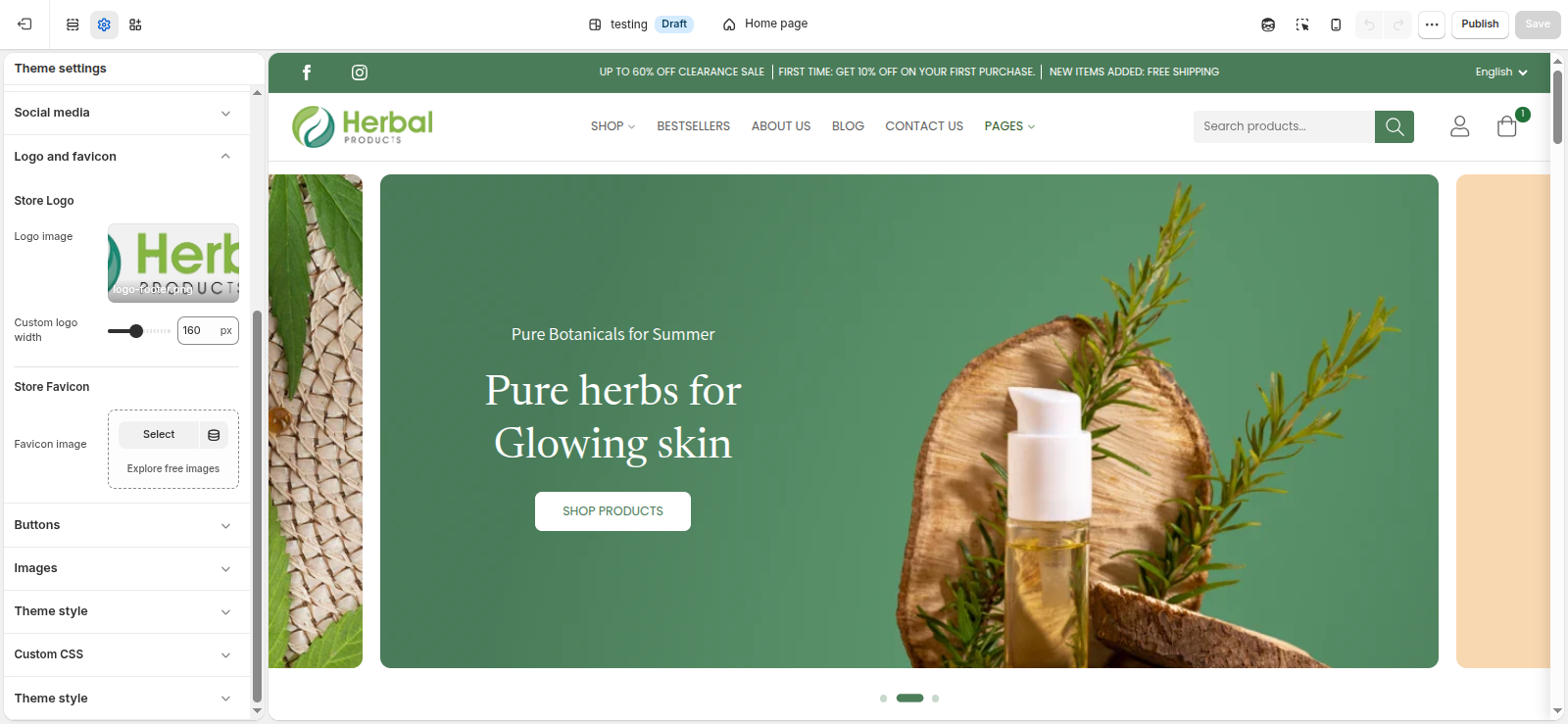
Configuration
- Logo Position: Top center or middle left.
- Desktop menu type: Choose Standard dropdown or Mega menu.
- Sticky header: Choose whether the header stays visible when scrolling.
Announcement Bar
Highlight promotions at the very top of your site.
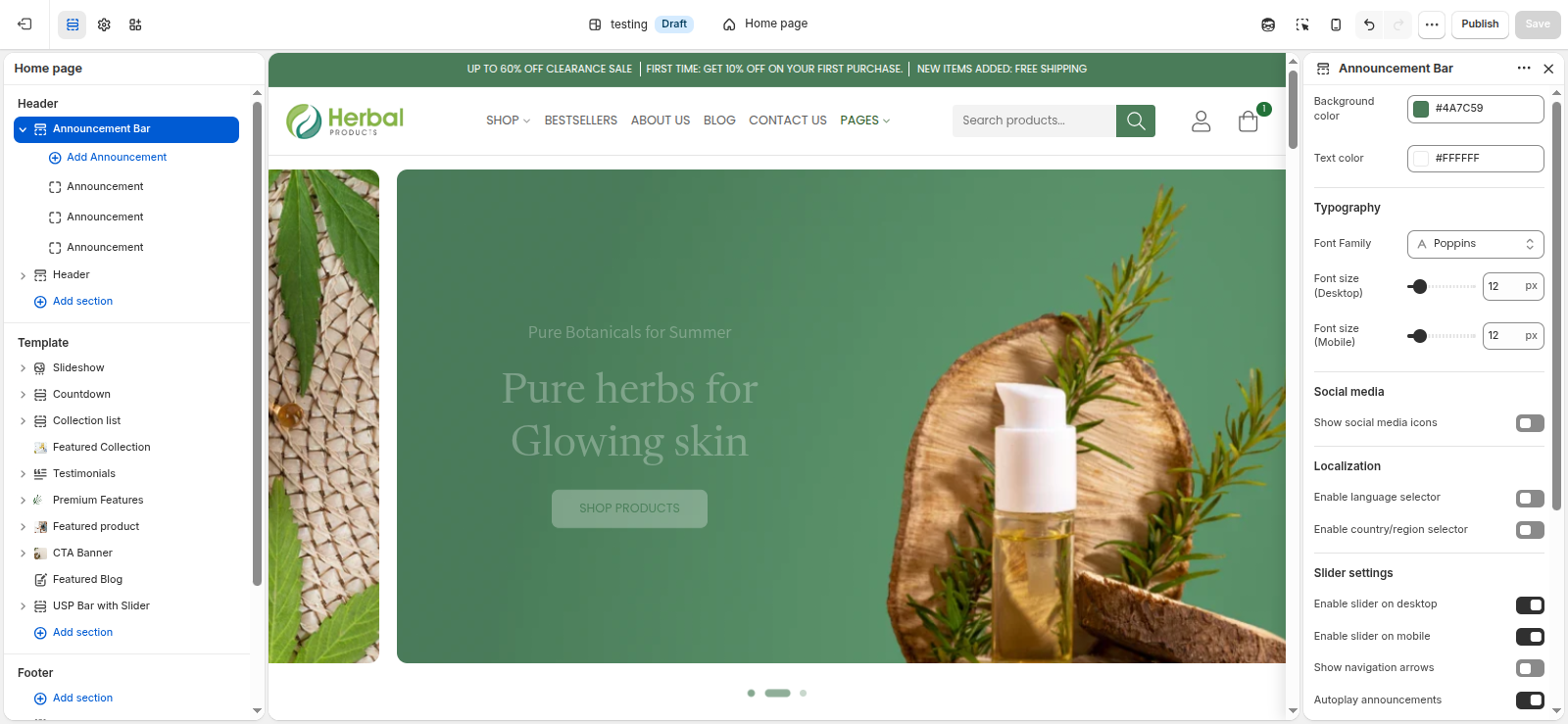
You can add multiple announcement blocks. Use the settings to toggle social icons and adjust the color scheme.
Footer & Newsletter
Customize the bottom of your website with links, brand info, and a newsletter signup.
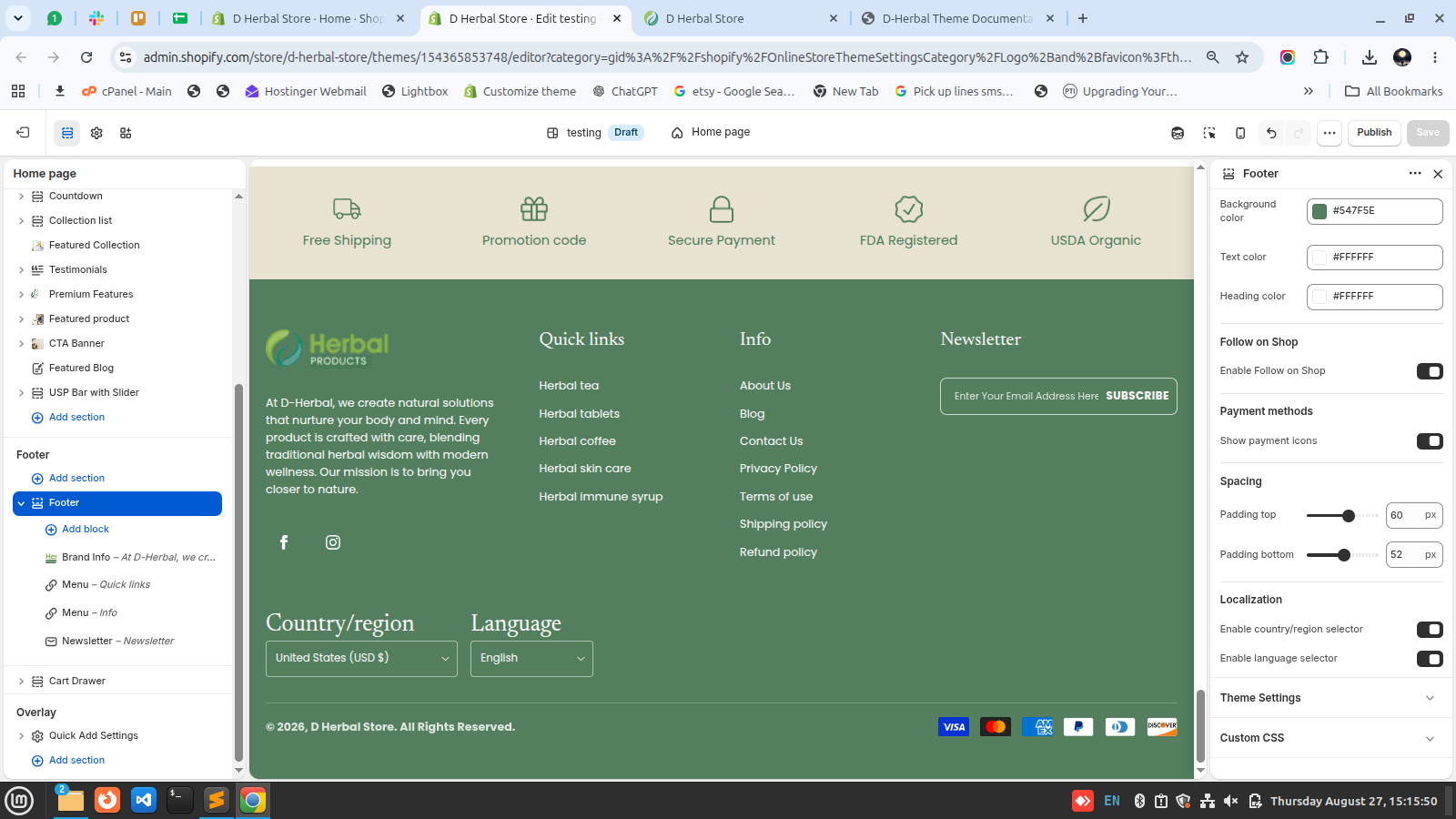
Blocks
You can add up to 4 blocks: Brand Info (with logo), Menus (Link Lists), and a Newsletter form.
Product Page
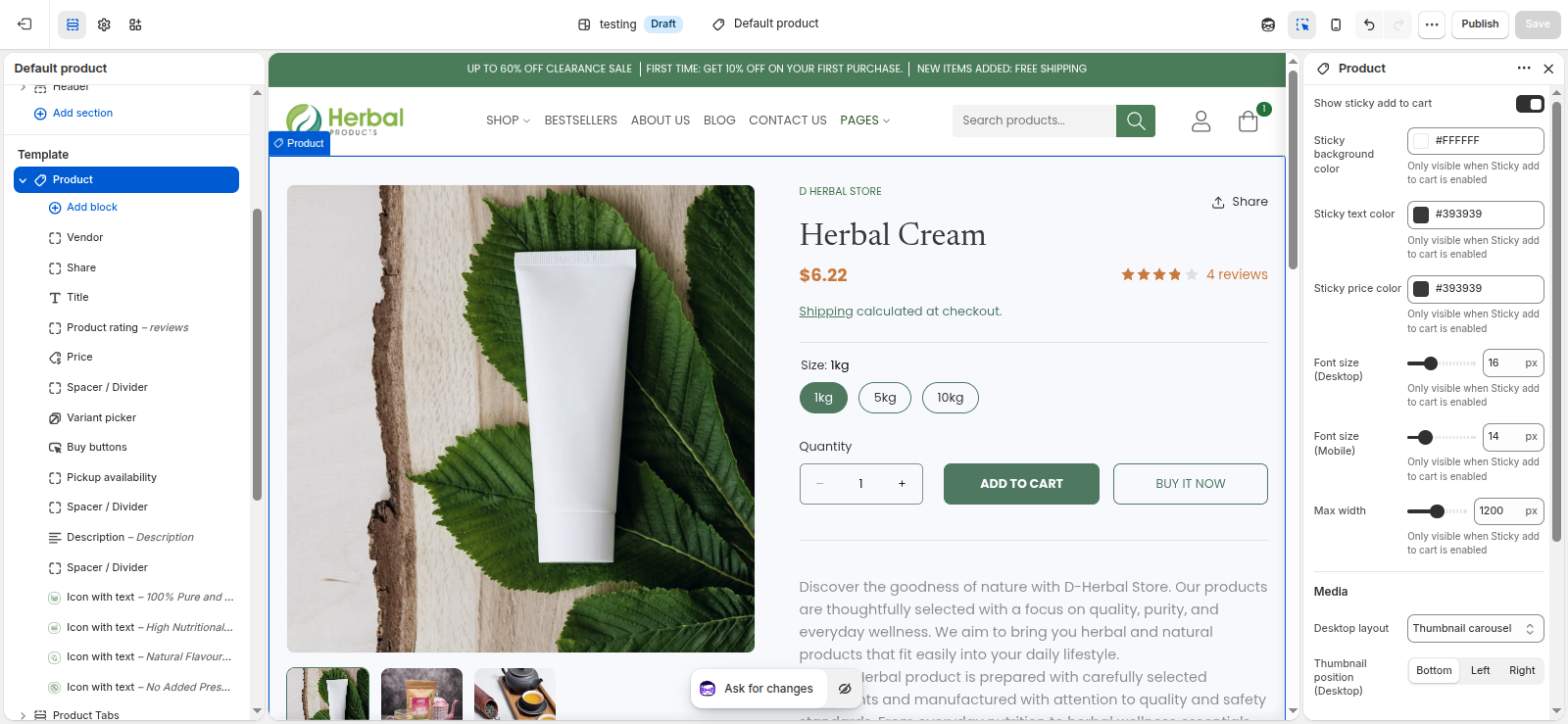
The core shopping experience.
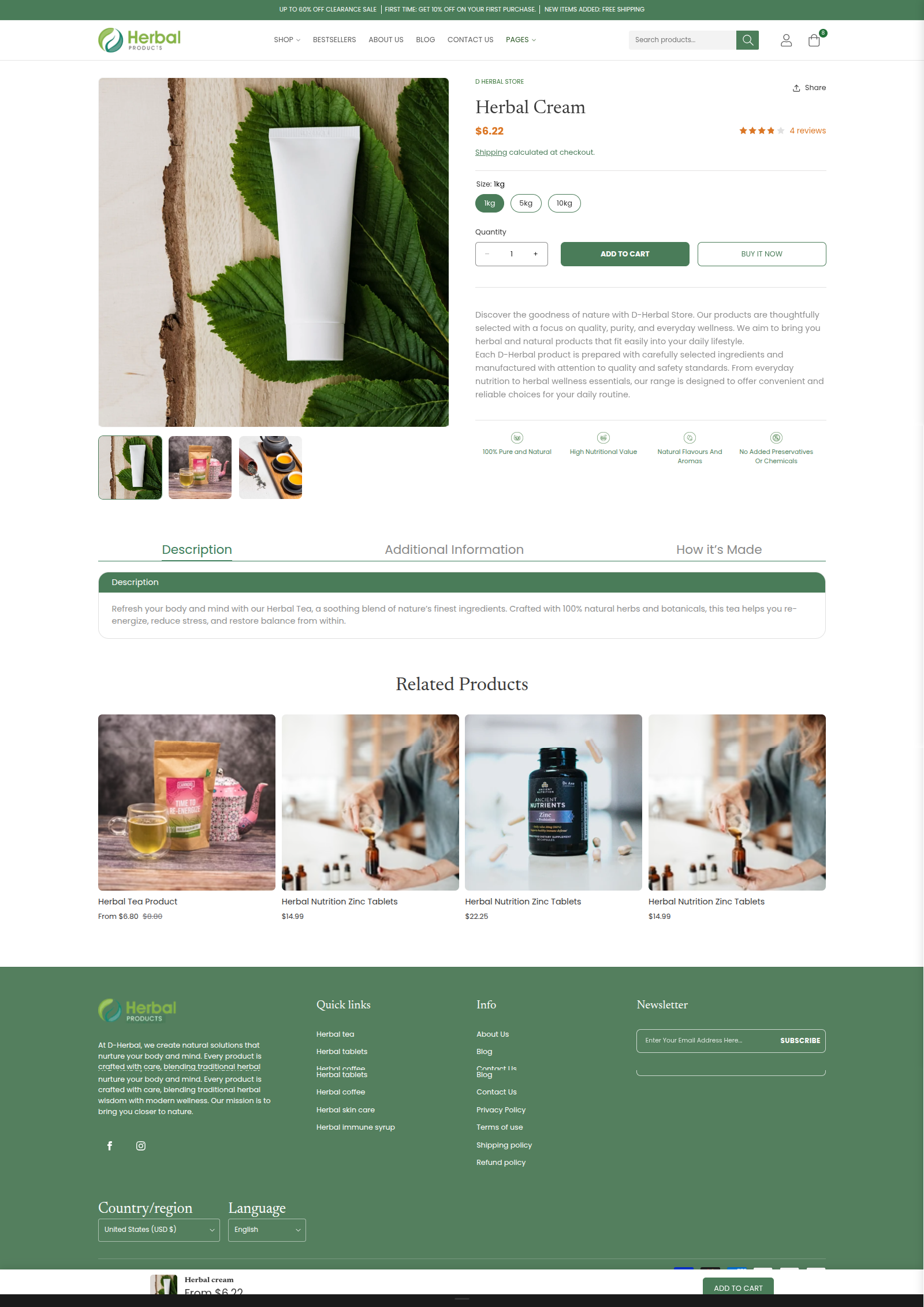
Main Product Section
Reorder blocks like Title, Price, Buy Buttons, and Description. Use the "Media gallery layout" to choose between stacked or carousel image displays.
Product Tabs
Add collapsible content blocks (accordions) to organize long descriptions or shipping information.
Collection Page
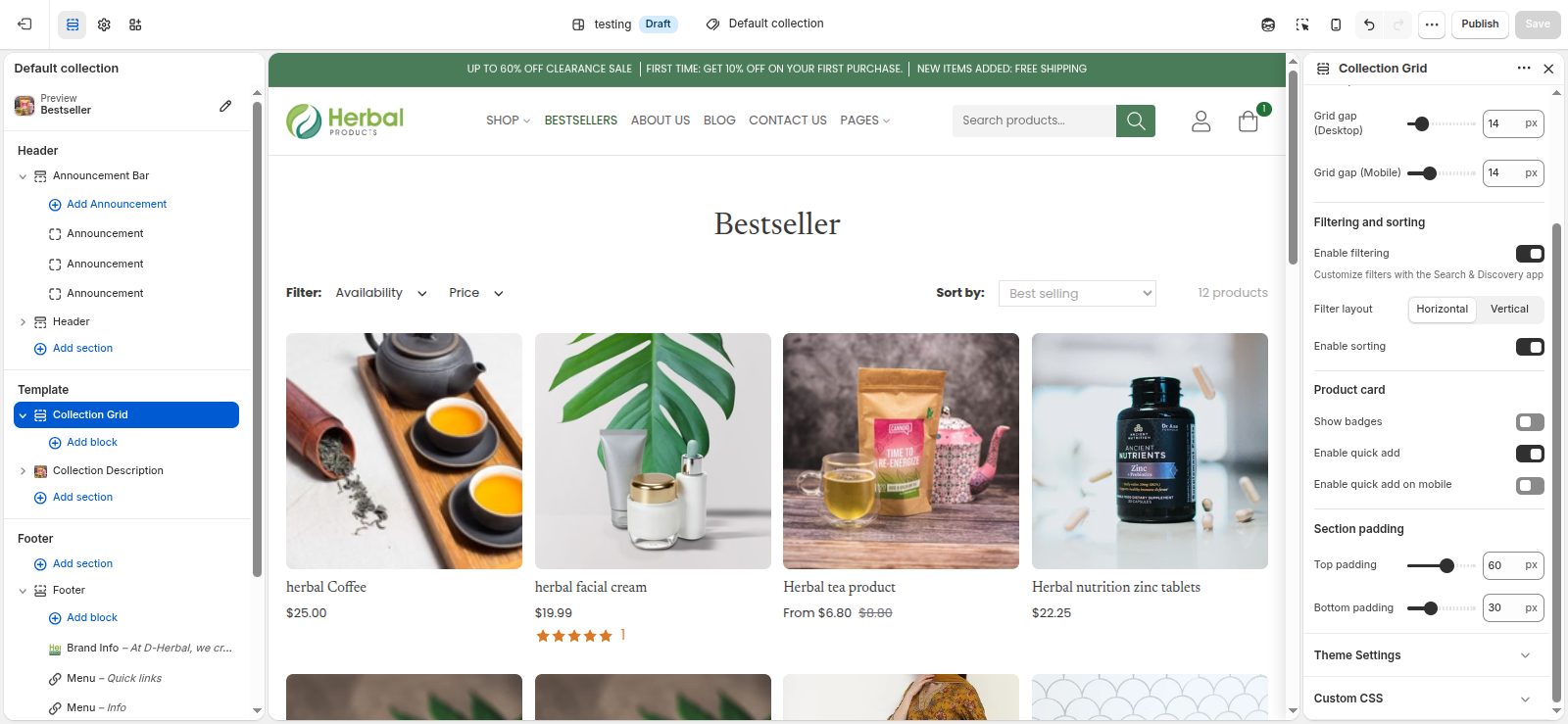
Grid Settings
Adjust products per page and columns on desktop vs mobile.
Filtering
Enable filtering to allow customers to sort by price, size, or color. (Filters must be defined in Shopify Admin > Custom Data).
Cart & Checkout
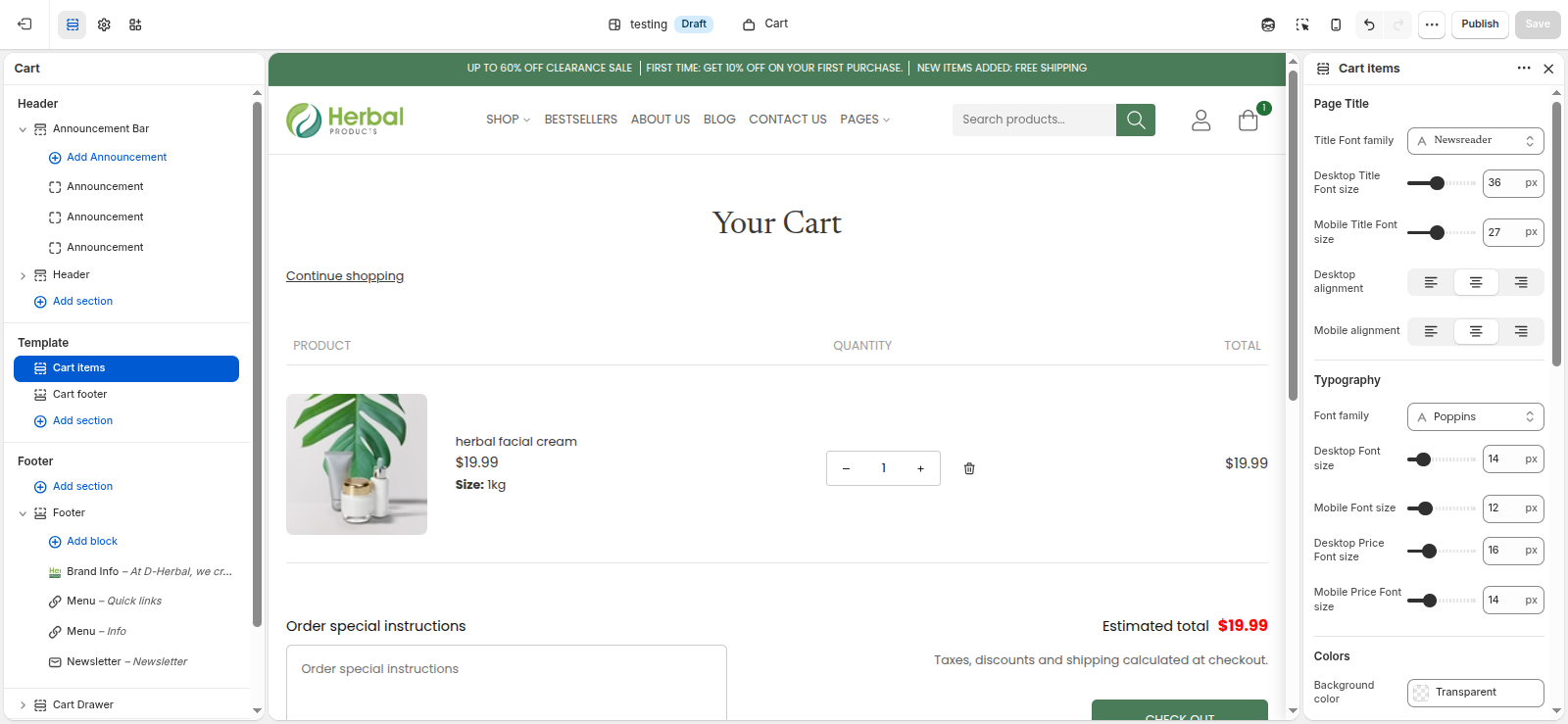
Choose between a Cart Page or a slide-out Cart Drawer in your Theme Settings. Add order notes functionality and customize the Shopify checkout appearance.
Slideshow
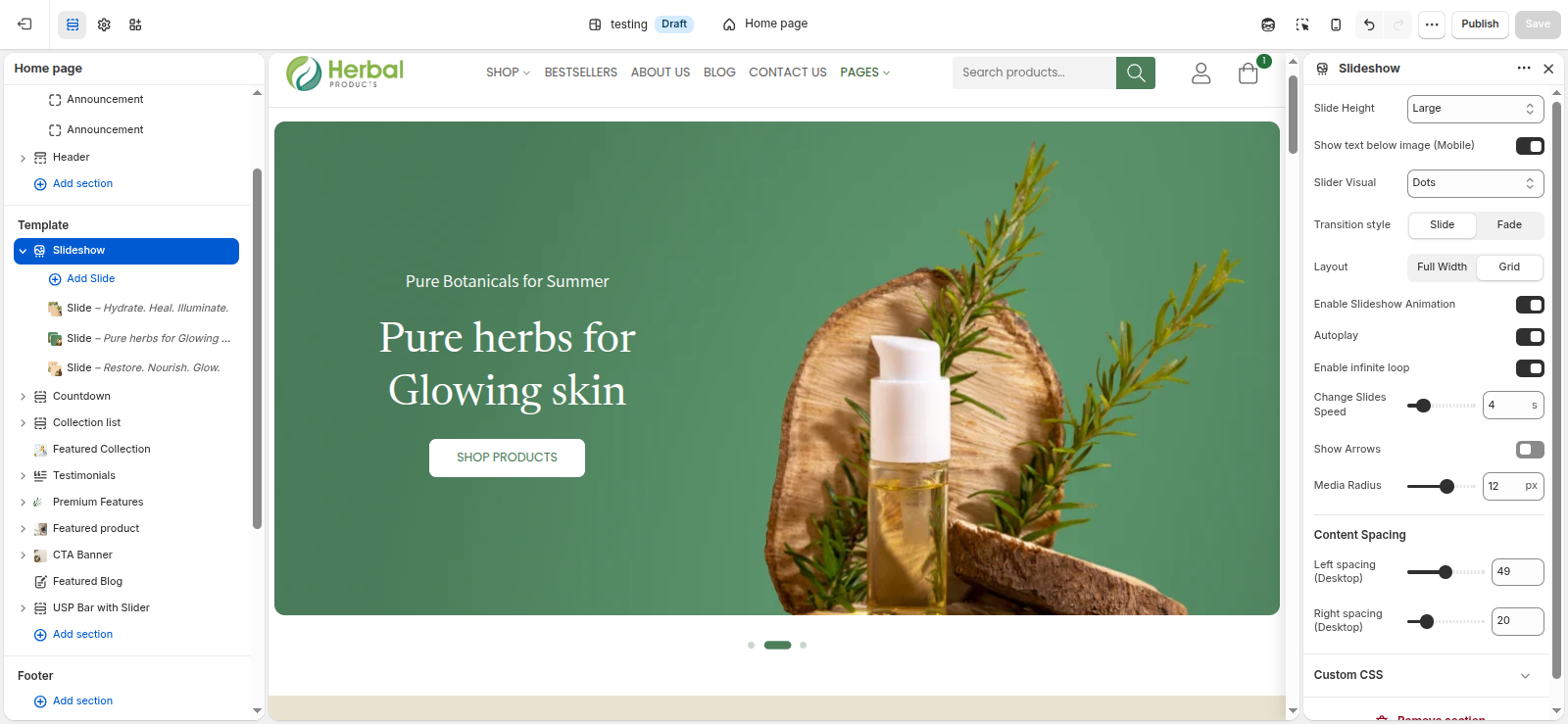
Add large hero images to your homepage. Configure auto-rotate speed, slide height, and mobile-specific images for each slide block.
Countdown Timer
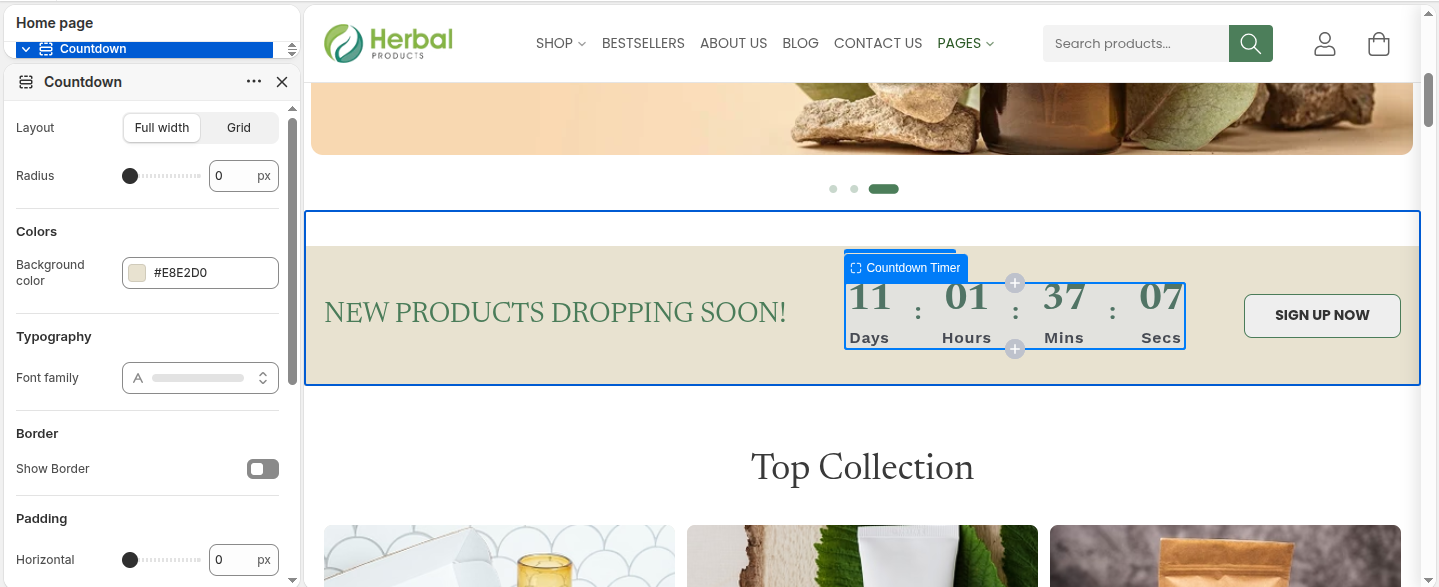
Set a specific end date/time to create urgency. Customize the heading text and color scheme.
Marquee Banner
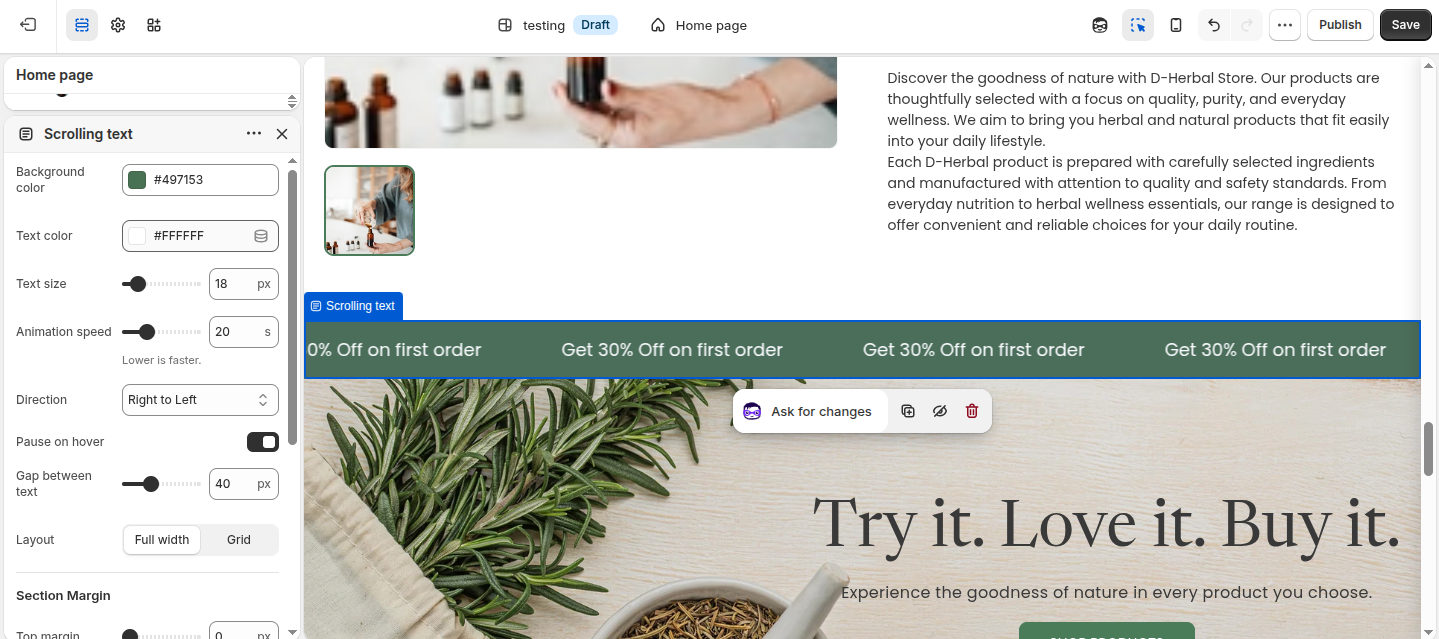
A scrolling text banner. Adjust the scroll speed, direction (left/right), and text content.
Testimonials
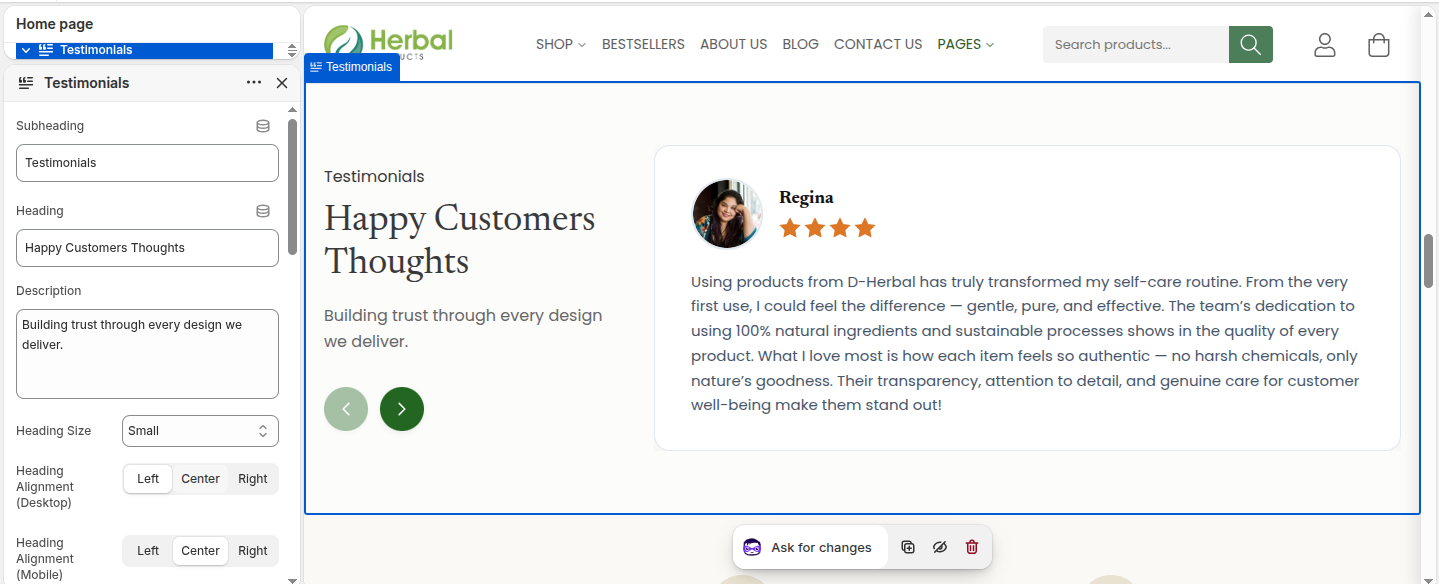
Showcase customer reviews. Choose between a grid or slider layout, and add individual review blocks with star ratings and photos.
USP Bar (Unique Selling Proposition)
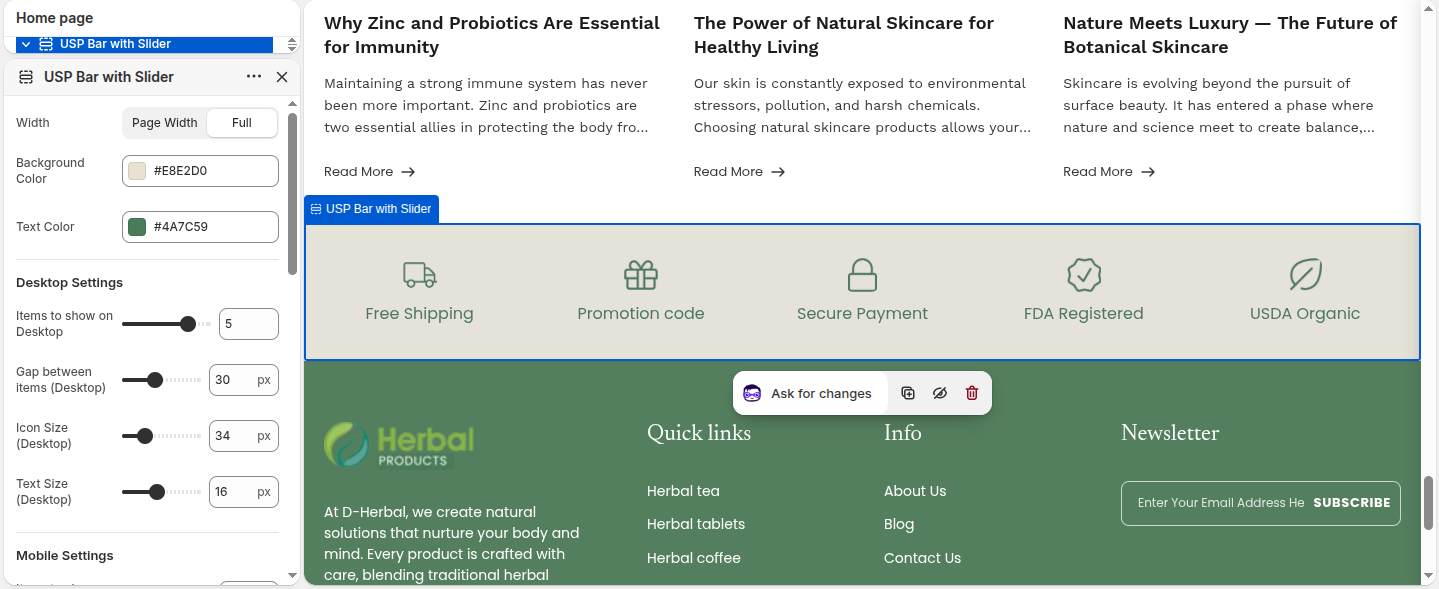
Highlight your brand's core benefits (like Free Shipping or Secure Checkout) using pre-defined SVG icons and short text labels.
Image Size Recommendations
To ensure your store looks crisp and loads quickly, we recommend the following image sizes:
- Slideshow & Hero Images: 1920 x 1080px (16:9 ratio recommended for desktop)
- Product Images: 1024 x 1024px (Square 1:1 ratio is best for consistency)
- Collection Images: 1024 x 1024px (Square) or 1200 x 800px (Landscape)
- Blog Featured Images: 1200 x 800px
- Logo: Variable width, but keep max-height around 80px to 100px. PNG format with transparent background is recommended.
Tip: Always compress your images using tools like TinyPNG before uploading to Shopify to improve page speed.
Updating the Theme
When a new version of the D-Herbal theme is released, you can update it without losing your settings.
- Download the latest theme ZIP file.
- Go to Online Store > Themes in Shopify.
- Upload the new ZIP file as an unpublished theme.
- Use Shopify's built-in version update feature (if available) or manually migrate custom code and content settings.
- Publish the new theme after verifying your content looks correct.
Support Policy
We are dedicated to helping you get the most out of the D-Herbal theme. Please review our support policy before reaching out.
What is included in support?
- Answering questions regarding theme functionality and settings.
- Fixing bugs and issues present in the unmodified theme.
- Assistance with basic theme setup.
What is NOT included?
- Custom code modifications or design changes.
- Integration of third-party apps or plugins.
- Issues caused by custom code you or a third party have added.
- Shopify general admin support (please refer to Shopify Help Center).
Contacting Support
Our response time is typically 24-48 business hours (Monday-Friday).
To submit a support request, please email us at sales@ptiwebtech.com with your Shopify store URL and a detailed description of the issue.